本文為英文版的機器翻譯版本,如內容有任何歧義或不一致之處,概以英文版為準。
監控反覆運算的進度
您可以透過 MLflow 追蹤指標。
Nova Customization - SageMaker HyperPod 的 MLFlow 設定
若要讓您的 SageMaker HyperPod 環境將指標輸出至 MLFlow,必須執行一些額外的設定。
-
開啟 Amazon SageMaker AI
-
選取 SageMaker Studio
-
如果已建立設定檔,請選取「開啟 Studio」。
-
如果未建立設定檔,請選取「建立 SageMaker 網域」來設定一個設定檔
-
-
選取 MLFlow。如果未建立任何 MLFlow 應用程式,請選取「建立 MLFlow 應用程式」
-
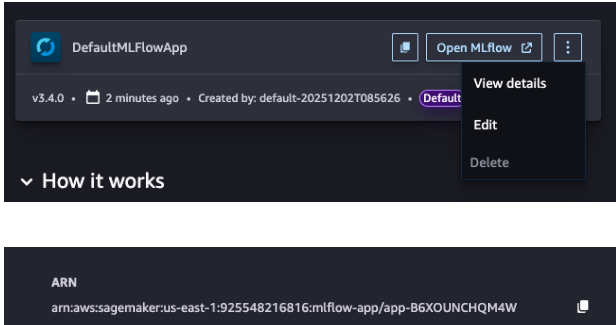
按一下複製/貼上按鈕或 ML Flow 應用程式上的「檢視詳細資訊」選單項目,以取得 ARN。提交訓練任務時,您將需要此項目。
-
在 HyperPod 叢集執行角色上,新增下列政策。這將允許 HyperPod 叢集呼叫 MLFlow API 來發佈指標。
{
    "Version": "2012-10-17",
    "Statement": [
        {
            "Effect": "Allow",
            "Action": "sagemaker-mlflow:*",
            "Resource": [
                "arn:aws:sagemaker:us-east-1:372836560492:mlflow-app/*"
            ]
        },
        {
            "Effect": "Allow",
            "Action": [
                "sagemaker:ListMlflowTrackingServers",
                "sagemaker:CallMlflowAppApi"
            ],
            "Resource": "*"
        }
    ]
}
透過 CLI 提交任務
在命令列或配方 yaml 中指定 4 個新的覆寫參數。
-
mlflow_tracking_uri:MLFlow 應用程式的 ARN -
mlflow_experiment_name:此實驗執行的名稱 -
mlflow_experiment_name:將指標存放在 MLFlow 中的實驗名稱 -
mlflow_run_name:此實驗的名稱
命令列
--override-parameters '{"recipes.run.mlflow_tracking_uri": "arn:aws:sagemaker:us-east-1:925548216816:mlflow-app/app-B6XOUNCHQM4W", "recipes.run.mlflow_experiment_name": "myuser-sft-lora-exp1", "recipes.run.mlflow_run_name": "myuser-sft-lora-exp1-202512181940"}'
yaml:
## Run config
run:
  mlflow_tracking_uri: "arn:aws:sagemaker:us-east-1:925548216816:mlflow-app/app-B6XOUNCHQM4W"
  mlflow_experiment_name: "myuser-sft-lora-exp1"
  mlflow_run_name: "myuser-sft-lora-exp1-202512181940"
透過 SageMaker Studio UI 提交任務
MLFlow 整合已內建於 SageMaker Studio UI 體驗中。提交訓練任務時,只要指出要使用的 MLFlow 應用程式執行個體即可。
-
在 SageMaker Studio 中,導覽至模型 > Nova 2.0 Lite > 自訂 > 使用 UI 自訂。
-
展開進階組態區段
-
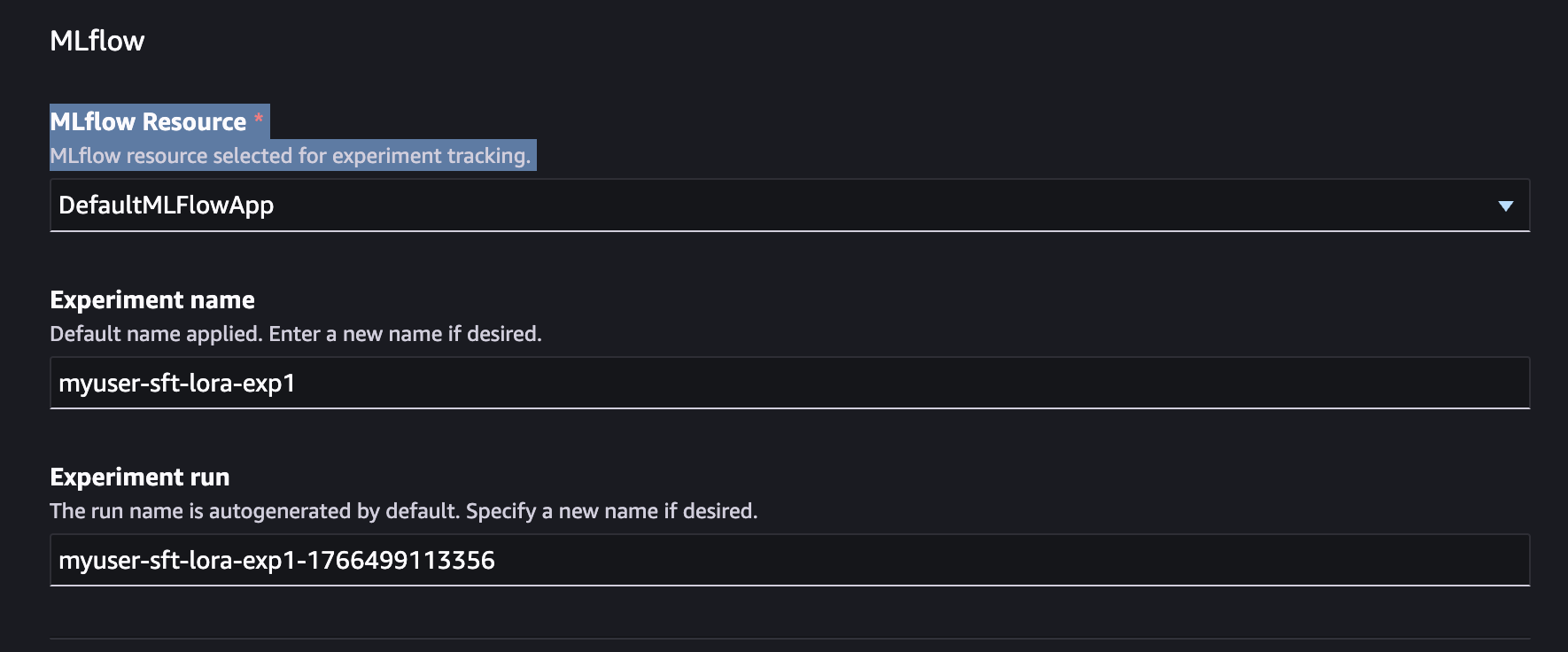
選取您要傳送訓練指標的 MLFlow 應用程式。您也可以在這裡設定實驗名稱和實驗執行。
透過 提交任務 AWS CLI
如果您使用 AWS CLI,則必須建立 MLflow 應用程式並將其做為輸入傳遞給訓練任務 API 請求。
mlflow_app_name="<enter your MLflow app name>"
role_arn="<enter your role ARN>"
bucket_name="<enter your bucket name>"
region="<enter your region>"

mlflow_app_arn=$(aws sagemaker create-mlflow-app \
  --name $mlflow_app_name \
  --artifact-store-uri "s3://$bucket_name" \
  --role-arn $role_arn \
  --region $region)
建立 MLflow 應用程式
使用 Studio UI:如果您透過 Studio UI 建立訓練任務,預設 MLflow 應用程式會自動建立,並依預設在進階選項下選取。
使用 CLI:如果您使用 CLI,則必須建立 MLflow 應用程式並將其做為訓練任務 API 請求的輸入傳遞。
mlflow_app_name="<enter your MLflow app name>"
role_arn="<enter your role ARN>"
bucket_name="<enter your bucket name>"
region="<enter your region>"

mlflow_app_arn=$(aws sagemaker create-mlflow-app \
  --name $mlflow_app_name \
  --artifact-store-uri "s3://$bucket_name" \
  --role-arn $role_arn \
  --region $region)
存取 MLflow 應用程式
使用 CLI:建立預先簽章的 URL 以存取 MLflow 應用程式 UI:
aws sagemaker create-presigned-mlflow-app-url \
  --arn $mlflow_app_arn \
  --region $region \
  --output text
使用 Studio UI:Studio UI 會顯示存放在 MLflow 中的關鍵指標,並提供 MLflow 應用程式 UI 的連結。
要追蹤的關鍵指標
跨反覆運算監控這些指標,以評估改善並追蹤任務進度:
對於 SFT
-
訓練損失曲線
-
使用的範例數量和處理範例的時間
-
保留測試集的效能準確性
-
格式合規 (例如,有效的 JSON 輸出速率)
-
網域特定評估資料的複雜度
對於 RFT
-
訓練的平均獎勵分數
-
獎勵分佈 (高獎勵回應的百分比)
-
驗證獎勵趨勢 (注意過度擬合)
-
任務特定的成功率 (例如,程式碼執行通過率、數學問題準確性)
一般
-
反覆運算之間的基準效能差異
-
代表性範例的人工評估分數
-
生產指標 (如果反覆部署)
判斷何時停止
在下列情況下停止反覆運算:
-
效能穩定:其他訓練不再有意義地改善目標指標
-
技術切換有助於:如果一個技術穩定,請嘗試切換 (例如 SFT → RFT → SFT) 以突破效能上限
-
實現的目標指標:符合您的成功條件
-
偵測到迴歸:新的反覆運算會降低效能 (請參閱下列轉返程序)
如需詳細評估程序,請參閱評估一節。
