기계 번역으로 제공되는 번역입니다. 제공된 번역과 원본 영어의 내용이 상충하는 경우에는 영어 버전이 우선합니다.
ServiceNow 연결
이 자습서에서는 ServiceNow 인스턴스를 AWS DevOps Agent에 연결하여 티켓이 생성될 때 인시던트 대응 조사를 자동으로 시작하고 주요 조사 결과를 발신 티켓에 게시할 수 있도록 안내합니다. 또한 특정 티켓만 DevOps 에이전트 스페이스로 전송하도록 ServiceNow 인스턴스를 구성하는 방법과 여러 DevOps 에이전트 스페이스에서 티켓 라우팅을 오케스트레이션하는 방법에 대한 예제도 포함되어 있습니다.
초기 설정
첫 번째 단계는 ServiceNow에서 ServiceNow 인스턴스에 액세스하는 데 AWS DevOps가 사용할 수 있는 OAuth 애플리케이션 클라이언트를 생성하는 것입니다.
ServiceNow OAuth 애플리케이션 클라이언트 생성
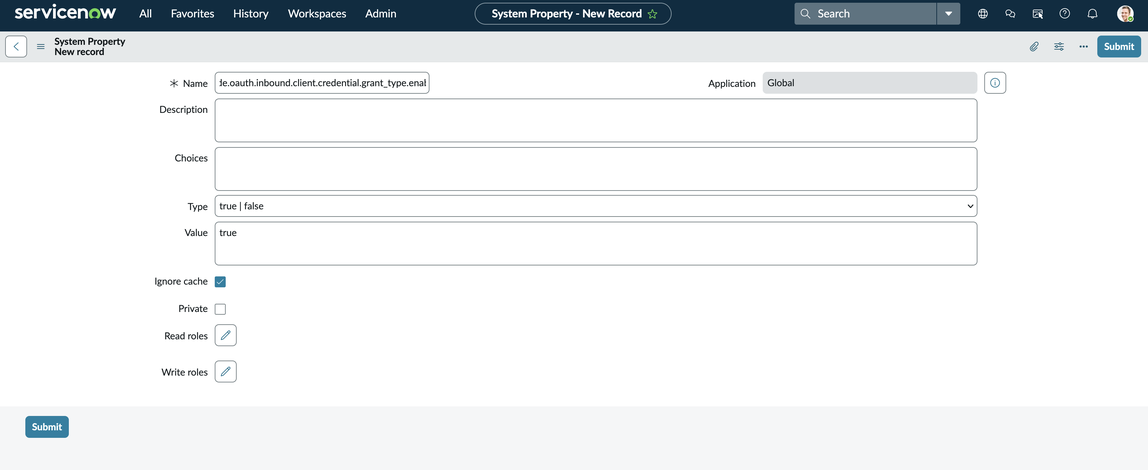
인스턴스의 클라이언트 자격 증명 시스템 속성 활성화
필터 검색 상자에서 검색한 다음 Enter
sys_properties.list를 누릅니다(옵션은 표시되지 않지만 Enter를 누르면 작동함).새로 만들기를 선택합니다.
이름을 로 추가
glide.oauth.inbound.client.credential.grant_type.enabled하고 값을 true에 추가하고 유형은 true | false
필터 검색 상자에서 시스템 OAuth > 애플리케이션 레지스트리로 이동합니다.
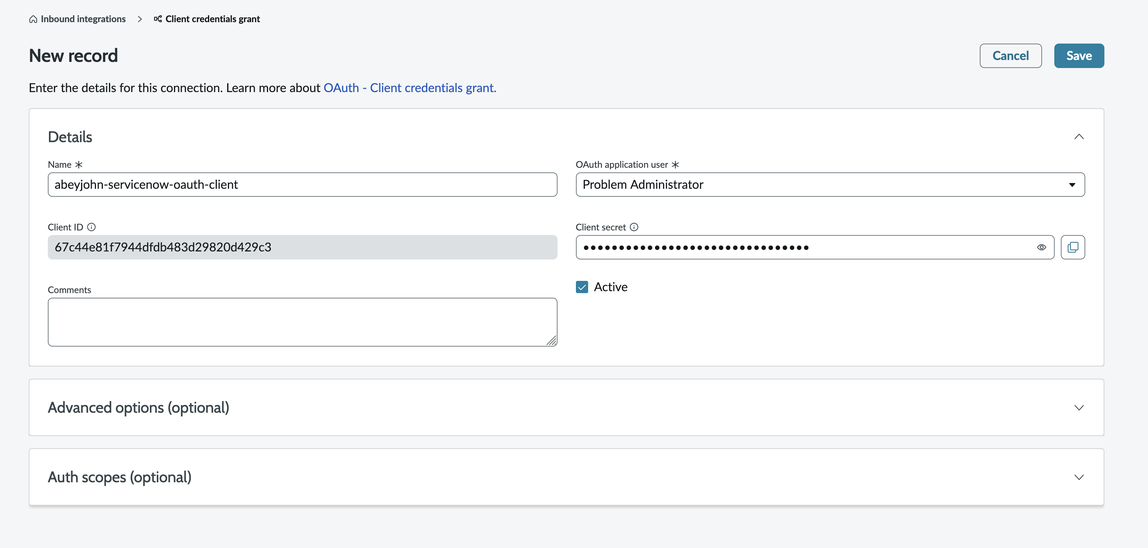
“New” > “New Inbound Integration Experience” > “New Integration” > “OAuth - Client Credentials Grant”를 선택합니다.
이름을 선택하고 OAuth 애플리케이션 사용자를 “문제 관리자”로 설정하고 “저장”을 선택합니다.
ServiceNow OAuth 클라이언트를 AWS DevOps 에이전트에 연결
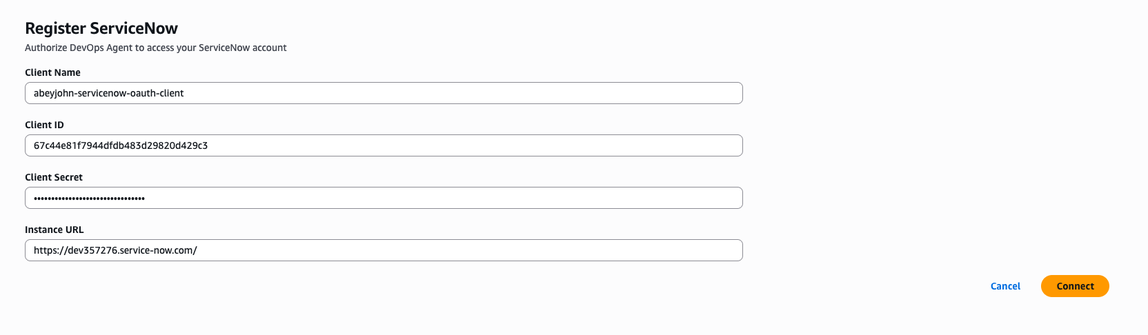
이 프로세스는 두 곳에서 시작할 수 있습니다. 먼저 기능 공급자 페이지로 이동하여 통신에서 ServiceNow를 찾은 다음 등록을 선택합니다. 또는 생성한 DevOps 에이전트 공간을 선택하고 기능 → 통신 → 추가 → ServiceNow로 이동하여 등록을 선택할 수 있습니다.
그런 다음 방금 생성한 OAuth 애플리케이션 클라이언트를 사용하여 DevOps Agent가 ServiceNow 인스턴스에 액세스할 수 있도록 권한을 부여합니다.
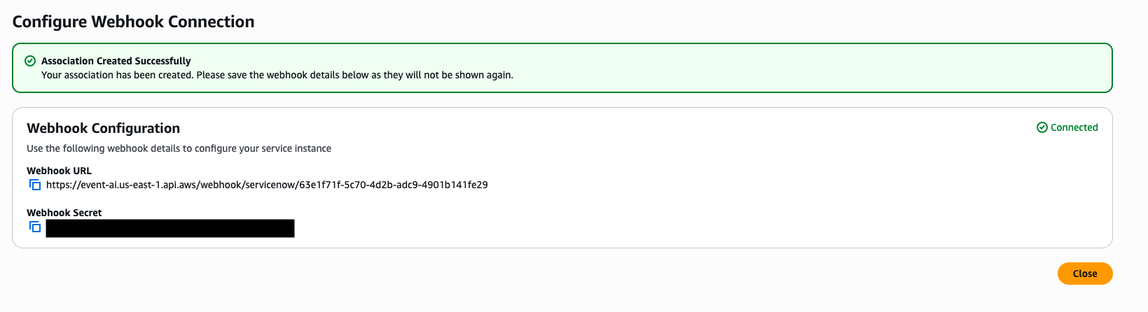
다음 단계에 따라 Webhook에 대한 결과 정보를 저장합니다.
중요
이 정보는 다시 표시되지 않습니다.
ServiceNow 비즈니스 규칙 구성
연결을 설정한 후에는 ServiceNow에서 비즈니스 규칙을 구성하여 DevOps 에이전트 스페이스(들)에 티켓을 보내야 합니다.
활동 구독 → 관리 → 비즈니스 규칙으로 이동하여 새로 만들기를 선택합니다.
“Table” 필드를 “Incident [incident]”로 설정하고 “Advanced” 상자를 선택한 다음 삽입, 업데이트 및 삭제 후 실행되도록 규칙을 설정합니다.
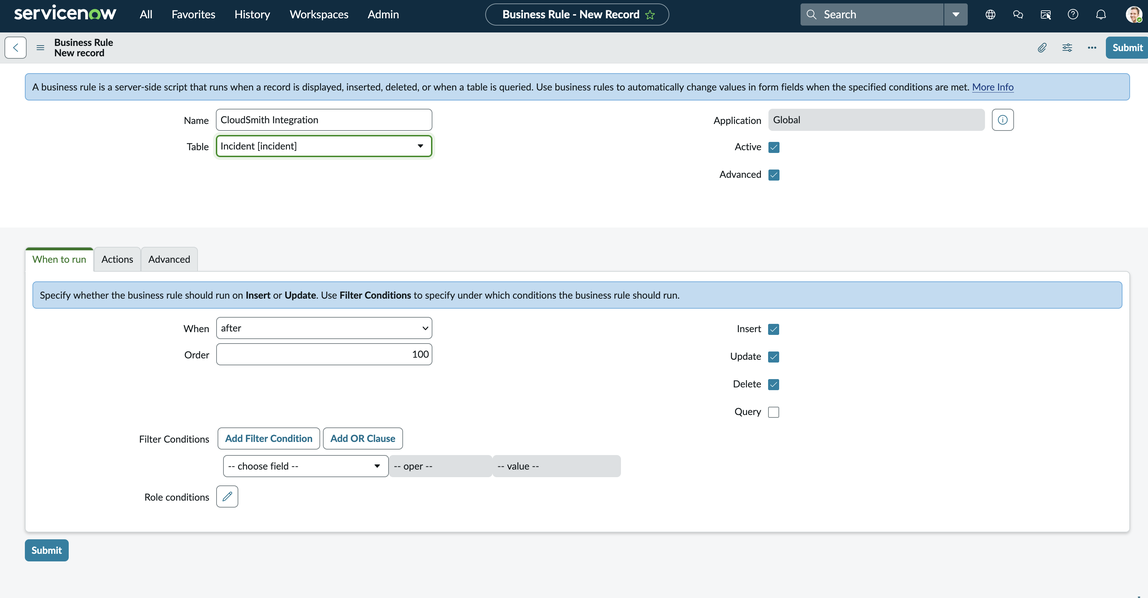
“고급” 탭으로 이동하여 다음 웹후크 스크립트를 추가하고 표시된 위치에 웹후크 보안 암호와 URL을 삽입한 다음 제출을 선택합니다.
(function executeRule(current, previous /*null when async*/ ) {

    var WEBHOOK_CONFIG = {
        webhookSecret: GlideStringUtil.base64Encode('<<< INSERT WEBHOOK SECRET HERE >>>'),
        webhookUrl: '<<< INSERT WEBHOOK URL HERE >>>'
    };

    function generateHMACSignature(payloadString, secret) {
        try {
            var mac = new GlideCertificateEncryption();
            var signature = mac.generateMac(secret, "HmacSHA256", payloadString);
            return signature;
        } catch (e) {
            gs.error('HMAC generation failed: ' + e);
            return null;
        }
    }

    function callWebhook(payload, config) {
        try {
            var timestamp = new Date().toISOString();
            var payloadString = JSON.stringify(payload);
            var payloadWithTimestamp =`${timestamp}:${payloadString}`;

            var signature = generateHMACSignature(payloadWithTimestamp, config.webhookSecret);

            if (!signature) {
                gs.error('Failed to generate signature');
                return false;
            }

            gs.info('Generated signature: ' + signature);

            var request = new sn_ws.RESTMessageV2();
            request.setEndpoint(config.webhookUrl);
            request.setHttpMethod('POST');

            request.setRequestHeader('Content-Type', 'application/json');
            request.setRequestHeader('x-amzn-event-signature', signature);
            request.setRequestHeader('x-amzn-event-timestamp', timestamp);

            request.setRequestBody(payloadString);

            var response = request.execute();
            var httpStatus = response.getStatusCode();
            var responseBody = response.getBody();

            if (httpStatus >= 200 && httpStatus < 300) {
                gs.info('Webhook sent successfully. Status: ' + httpStatus);
                return true;
            } else {
                gs.error('Webhook failed. Status: ' + httpStatus + ', Response: ' + responseBody);
                return false;
            }

        } catch (ex) {
            gs.error('Error sending webhook: ' + ex.getMessage());
            return false;
        }
    }

    function createReference(field) {
        if (!field || field.nil()) {
            return null;
        }

        return {
            link: field.getLink(true),
            value: field.toString()
        };
    }

    function getStringValue(field) {
        if (!field || field.nil()) {
            return null;
        }
        return field.toString();
    }

    function getIntValue(field) {
        if (!field || field.nil()) {
            return null;
        }
        var val = parseInt(field.toString());
        return isNaN(val) ? null : val;
    }

    var eventType = (current.operation() == 'insert') ? "create" : "update";

    var incidentEvent = {
        eventType: eventType.toString(),
        sysId: current.sys_id.toString(),
        priority: getStringValue(current.priority),
        impact: getStringValue(current.impact),
        active: getStringValue(current.active),
        urgency: getStringValue(current.urgency),
        description: getStringValue(current.description),
        shortDescription: getStringValue(current.short_description),
        parent: getStringValue(current.parent),
        incidentState: getStringValue(current.incident_state),
        severity: getStringValue(current.severity),
        problem: createReference(current.problem),
        additionalContext: {}
    };

    incidentEvent.additionalContext = {
        number: current.number.toString(),
        opened_at: getStringValue(current.opened_at),
        opened_by: current.opened_by.nil() ? null : current.opened_by.getDisplayValue(),
        assigned_to: current.assigned_to.nil() ? null : current.assigned_to.getDisplayValue(),
        category: getStringValue(current.category),
        subcategory: getStringValue(current.subcategory),
        knowledge: getStringValue(current.knowledge),
        made_sla: getStringValue(current.made_sla),
        major_incident: getStringValue(current.major_incident)
    };

    for (var key in incidentEvent.additionalContext) {
        if (incidentEvent.additionalContext[key] === null) {
            delete incidentEvent.additionalContext[key];
        }
    }

    gs.info(JSON.stringify(incidentEvent, null, 2)); // Pretty print for logging only

    if (WEBHOOK_CONFIG.webhookUrl && WEBHOOK_CONFIG.webhookSecret) {
        callWebhook(incidentEvent, WEBHOOK_CONFIG);
    } else {
        gs.info('Webhook not configured.');
    }

})(current, previous);
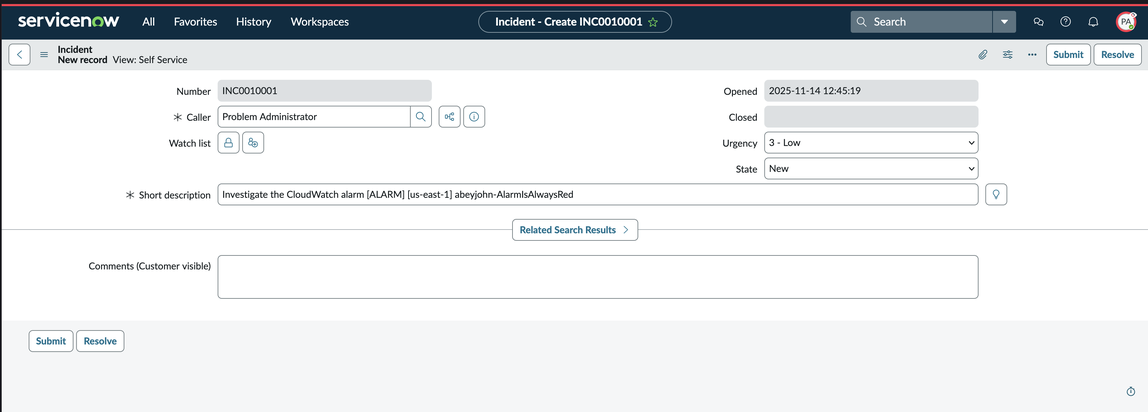
기능 공급자 페이지에서 ServiceNow 연결을 등록하기로 선택한 경우 이제 ServiceNow 인시던트 티켓을 조사하려는 DevOps 에이전트 공간으로 이동하여 기능 → 통신을 선택한 다음 기능 공급자 페이지에 등록한 ServiceNow 인스턴스를 등록해야 합니다. 이제 모든 것을 설정해야 하며 호출자가 “문제 관리자”( AWS DevOps OAuth 클라이언트에 부여한 권한을 모방하기 위해)로 설정된 모든 인시던트는 구성된 DevOps 에이전트 스페이스에서 인시던트 대응 조사를 트리거합니다. ServiceNow에서 새 인시던트를 생성하고 인시던트의 발신자 필드를 “문제 관리자”로 설정하여 이를 테스트할 수 있습니다.
ServiceNow 티켓 업데이트
트리거된 모든 인시던트 대응 조사 중에 DevOps 에이전트는 주요 조사 결과, 근본 원인 분석 및 완화 계획에 대한 업데이트를 원래 티켓에 제공합니다. 에이전트 조사 결과는 인시던트의 설명에 게시되며, 현재는 유형 , finding, cause, investigation_summary mitigation_summary 및 조사 상태 업데이트(예: AWS DevOps Agent started/finished its investigation)의 에이전트 레코드만 게시합니다.
티켓 라우팅 및 오케스트레이션 예제
시나리오: DevOps 에이전트 스페이스로 전송되는 인시던트 필터링
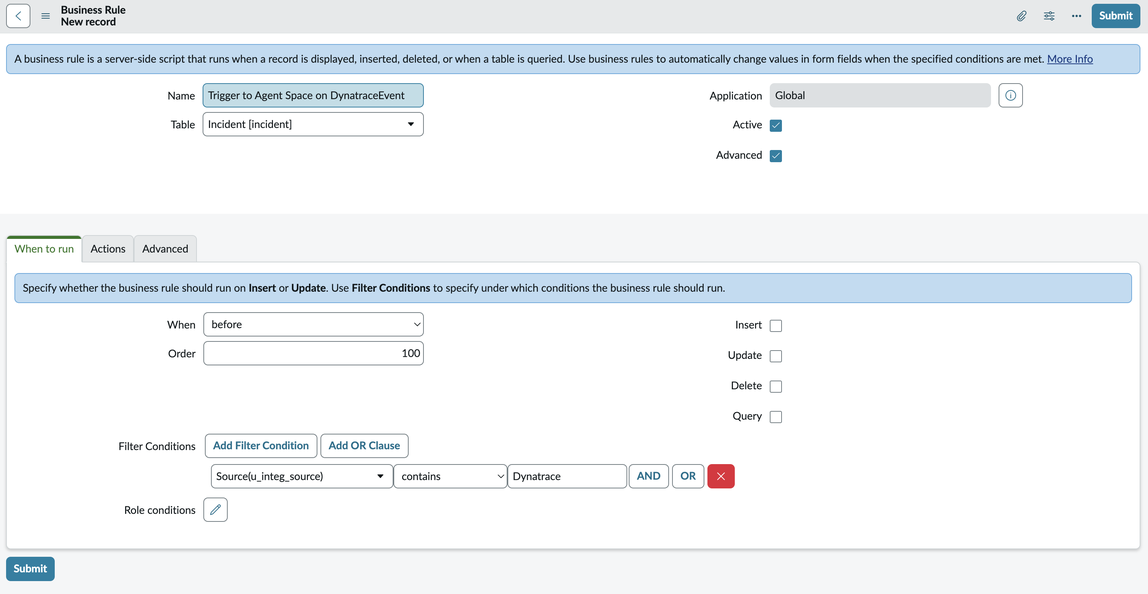
이는 간단한 시나리오이지만 인시던트 소스를 추적하기 위해 ServiceNow에서 필드를 생성하려면 ServiceNow에서 일부 구성이 필요합니다. 이 예제에서는 SNOW 양식 빌더를 사용하여 새 소스(u_source) 필드를 생성합니다. 이렇게 하면 인시던트 소스를 추적하고 이를 사용하여 특정 소스에서 DevOps 에이전트 스페이스로 요청을 라우팅할 수 있습니다. 라우팅은 Service Now Business 규칙을 생성하고 실행 시기 탭에서 “시기” 트리거 및 “조건 필터링”을 설정하여 수행됩니다. 이 예제에서 필터 조건은 다음과 같이 설정됩니다.
시나리오: 여러 DevOps 에이전트 스페이스에서 인시던트 라우팅
이 예제는 긴급성이 , 범주가 1, Software 서비스가 인 경우 DevOps 에이전트 스페이스 B에서 조사를 트리거하고 서비스가 AWS, AWS소스가 인 경우 DevOps 에이전트 스페이스 A에서 조사를 트리거하는 방법을 보여줍니다Dynatrace.
이 시나리오는 두 가지 방법으로 수행할 수 있습니다. 이 비즈니스 로직을 포함하도록 Webhook 스크립트 자체를 업데이트할 수 있습니다. 이 시나리오에서는 투명성을 높이고 디버깅을 간소화하기 위해 ServiceNow 비즈니스 규칙을 사용하여 이를 수행하는 방법을 보여줍니다. 라우팅은 Service Now Business 규칙 2개를 생성하여 수행됩니다.
ServiceNow에서 DevOps 에이전트 공간 A에 대한 비즈니스 규칙을 생성하고 조건 빌더를 사용하여 조건을 생성하여 지정된 조건에 따라 이벤트만 전송합니다.
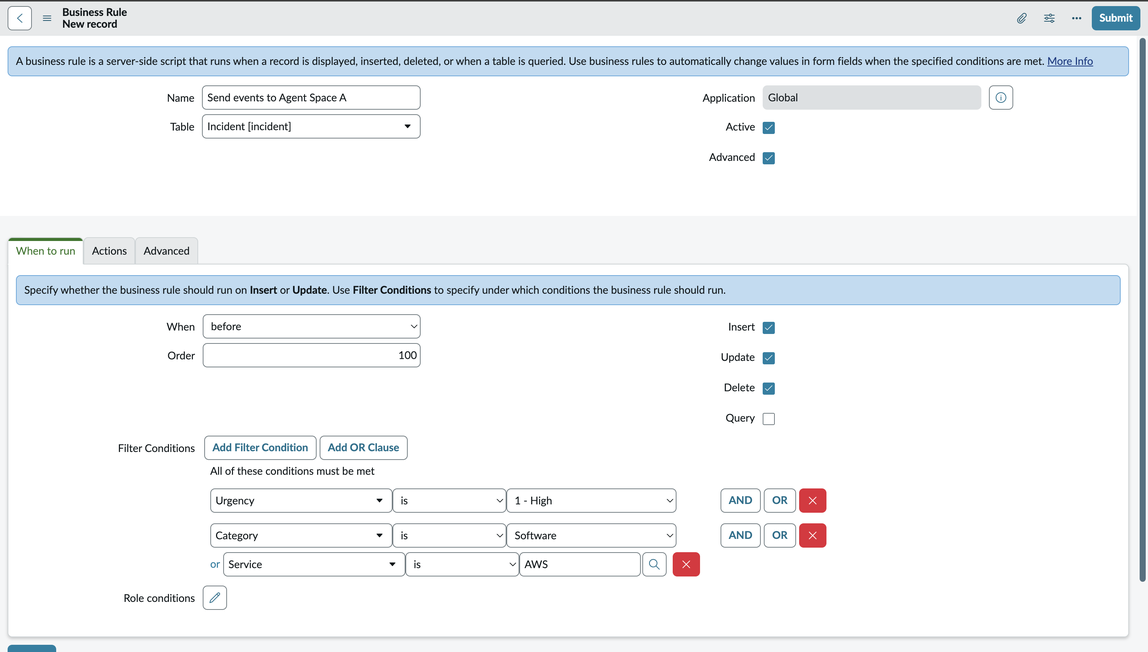
그런 다음 ServiceNow for AgentSpace B에서 서비스가 AWS 이고 소스가 Dynatrace인 경우에만 비즈니스 규칙이 트리거되는 다른 비즈니스 규칙을 생성합니다.
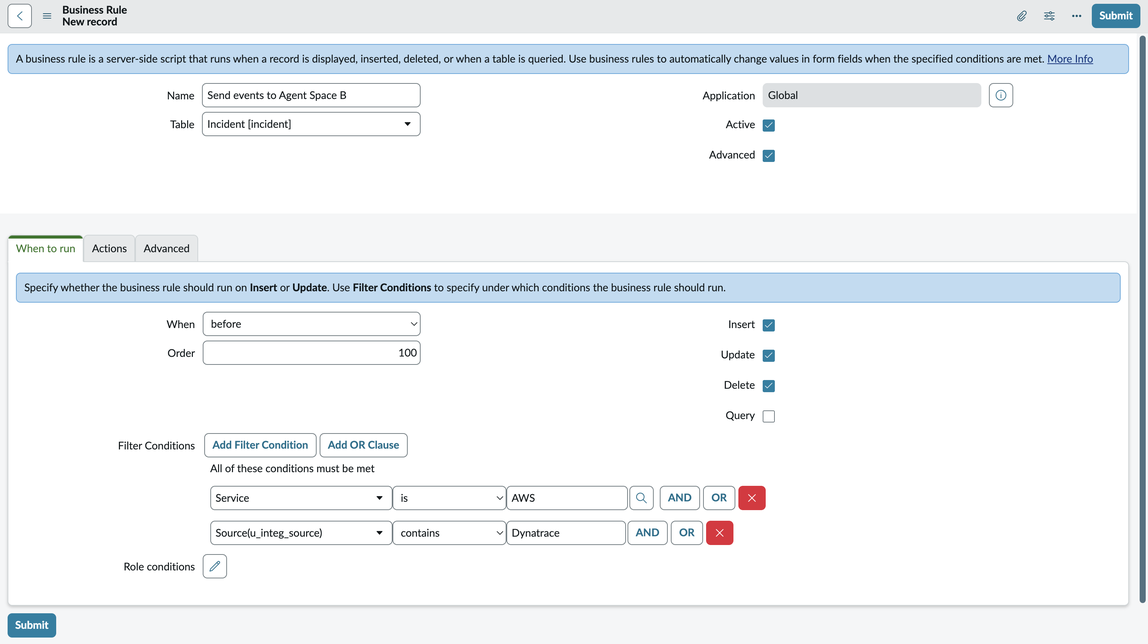
이제 지정된 조건과 일치하는 새 인시던트를 생성하면 DevOps 에이전트 스페이스 A 또는 DevOps 에이전트 스페이스 B에 대한 조사를 트리거하여 인시던트 라우팅을 세밀하게 제어할 수 있습니다.
