• 2026 年 4 月 30 日之後將不再提供 AWS Systems Manager CloudWatch Dashboard。客戶可以繼續使用 Amazon CloudWatch 主控台來檢視、建立和管理其 Amazon CloudWatch 儀表板,就像現在一樣。如需詳細資訊,請參閱 [Amazon CloudWatch Dashboard 文件](https://docs.aws.amazon.com/AmazonCloudWatch/latest/monitoring/CloudWatch_Dashboards.html)。
本文為英文版的機器翻譯版本,如內容有任何歧義或不一致之處,概以英文版為準。
# 在多個 AWS 區域 和 帳戶中執行自動化
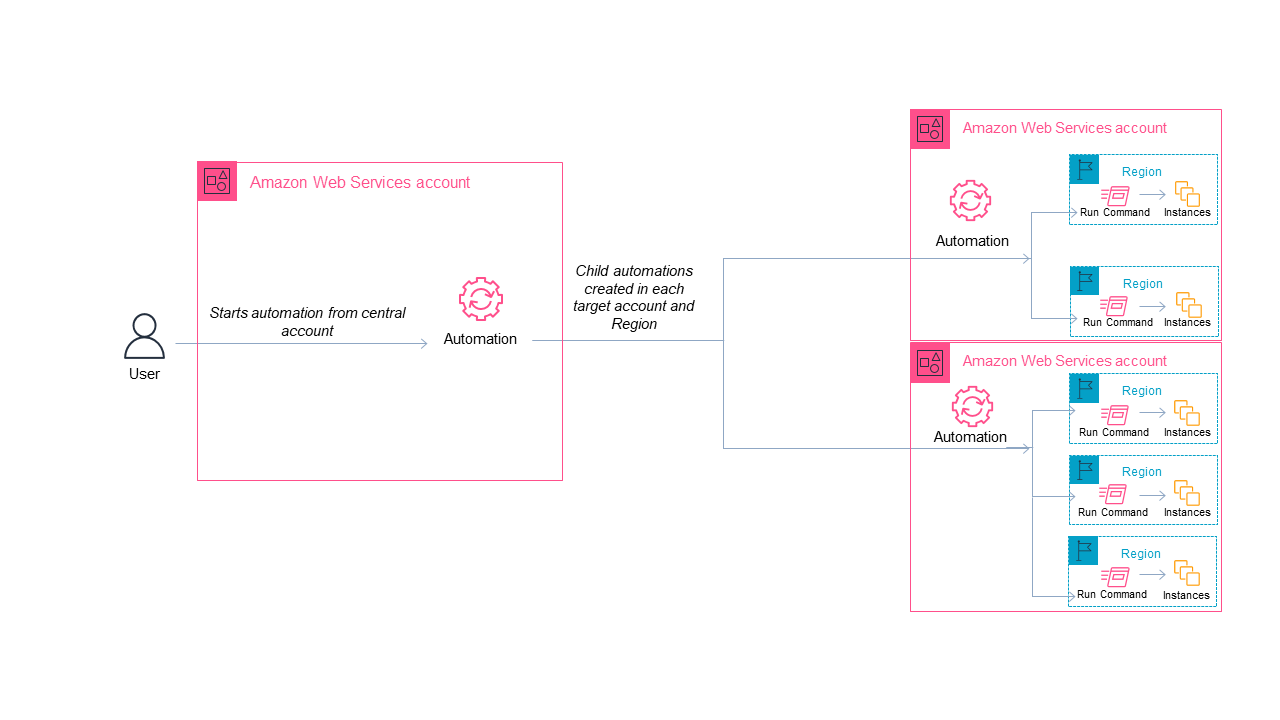
您可以從中央帳戶跨多個 AWS 區域 和 AWS 帳戶 或 AWS Organizations 組織單位 OUs) 執行 AWS Systems Manager 自動化。Automation 是 AWS Systems Manager中的工具。在多個區域和帳戶或 OUs 中執行自動化可減少管理 AWS 資源所需的時間,同時增強運算環境的安全性。
例如,您可以使用自動化 Runbook 來執行下列動作:
+ 集中實作修補和安全性更新。
+ 糾正 VPC 組態或 Amazon S3 儲存貯體政策的合規偏離。
+ 大規模管理資源 (例如 Amazon Elastic Compute Cloud (Amazon EC2) EC2 執行個體)。
下圖顯示範例為使用者從中央帳戶的多個區域和帳戶中執行 `AWS-RestartEC2Instances` Runbook。自動化會使用目標區域和帳戶中的指定標籤找出執行個體。
**選擇自動化的中央帳戶**
如果您想要跨 OU 執行自動化,則中央帳戶必須擁有列出 OU 中所有帳戶的許可。只有委派管理員帳戶或組織的管理帳戶才能執行此操作。我們建議您遵循 AWS Organizations 最佳實務,並使用委派的管理員帳戶。如需 AWS Organizations 最佳實務的詳細資訊,請參閱*AWS Organizations 《 使用者指南*》中的[管理帳戶的最佳實務](https://docs.aws.amazon.com/organizations/latest/userguide/orgs_best-practices_mgmt-acct.html)。若要建立 Systems Manager 的委派管理員帳戶,您可以使用 `register-delegated-administrator`命令搭配 AWS CLI ,如下列範例所示。
```
aws organizations register-delegated-administrator \
--account-id {{delegated admin account ID}} \
--service-principal ssm.amazonaws.com
```
如果您想要在不受 AWS Organizations管理的多個帳戶執行自動化,則我們建議您為自動化管理建立專屬帳戶。從專用帳戶執行所有跨帳戶自動化功能,可簡化 IAM 許可管理、排解疑難,並在作業與管理之間建立分隔層。如果您使用 AWS Organizations,但只想要以個別帳戶為目標,而不是 OUs則建議使用此方法。
**執行自動化的運作方式**
跨多個區域和帳戶或 OU 執行自動化的運作方式如下:
1. 登入您想要設定為自動化主帳戶的帳戶。
1. 使用本主題中的 [設定多區域和多帳戶自動化的管理帳戶許可](#setup-management-account-iam-roles) 處理程序,建立下列 IAM 角色。
+ `AWS-SystemsManager-AutomationAdministrationRole` - 此角色可給予使用者在多個帳戶 和 OU 中執行自動化的許可。
+ `AWS-SystemsManager-AutomationExecutionRole` - 此角色可給予使用者在目標帳戶中執行自動化的許可。
1. 選擇您想要執行自動化的 Runbook、區域、帳戶或 OU。
**注意**
請確定目標 OU 包含所需的帳戶。如果您選擇自訂 Runbook,則 Runbook 必須與所有目標帳戶共用。如需共用 Runbook 的資訊,請參閱 [共用 SSM 文件](documents-ssm-sharing.md)。如需共用 Runbook 的詳細資訊,請參閱 [使用共用的 SSM 文件](documents-ssm-sharing.md#using-shared-documents)。
1. 執行自動化。
1. 使用來自主控台或 的 AWS Systems Manager [GetAutomationExecution](https://docs.aws.amazon.com/systems-manager/latest/APIReference/API_GetAutomationExecution.html)、[DescribeAutomationStepExecutions](https://docs.aws.amazon.com/systems-manager/latest/APIReference/API_DescribeAutomationStepExecutions.html) 和 [DescribeAutomationExecutions](https://docs.aws.amazon.com/systems-manager/latest/APIReference/API_DescribeAutomationExecutions.html) API 操作 AWS CLI 來監控自動化進度。在您的主要帳戶中自動化步驟的輸出將是子系自動化的 `AutomationExecutionId`。若要檢視在目標帳戶中建立之子系自動化的輸出,請務必在您的請求中指定適當的帳戶、區域和 `AutomationExecutionId`。
## 設定多區域和多帳戶自動化的管理帳戶許可
依照以下步驟,使用 AWS CloudFormation建立 Systems Manager Automation 多區域和多帳戶自動化所需的 IAM 角色。此處理程序描述了如何建立 `AWS-SystemsManager-AutomationAdministrationRole` 角色。您只需要在自動化中央帳戶中建立此角色。此處理程序也描述了如何建立 `AWS-SystemsManager-AutomationExecutionRole` 角色。您必須在想要設為目標以執行多區域和多帳戶自動化的*每個*帳戶中建立此角色。建議您使用 CloudFormation StackSets 在帳戶中建立 `AWS-SystemsManager-AutomationExecutionRole` 角色,帳戶是您想要執行多區域和多帳戶自動化的目標帳戶。
**使用 建立多區域和多帳戶自動化所需的 IAM 管理角色 CloudFormation**
1. 下載並解壓縮 [https://docs.aws.amazon.com/systems-manager/latest/userguide/samples/AWS-SystemsManager-AutomationAdministrationRole.zip](https://docs.aws.amazon.com/systems-manager/latest/userguide/samples/AWS-SystemsManager-AutomationAdministrationRole.zip)。
-或-
如果您的帳戶是由 管理 AWS Organizations [https://docs.aws.amazon.com/systems-manager/latest/userguide/samples/AWS-SystemsManager-AutomationAdministrationRole (org).zip](https://docs.aws.amazon.com/systems-manager/latest/userguide/samples/AWS-SystemsManager-AutomationAdministrationRole (org).zip)。
這些檔案分別包含 `AWS-SystemsManager-AutomationAdministrationRole.yaml`和 `AWS-SystemsManager-AutomationAdministrationRole (org).yaml` CloudFormation 範本檔案。
1. 在 https://[https://console.aws.amazon.com/cloudformation](https://console.aws.amazon.com/cloudformation/) 開啟 CloudFormation 主控台。
1. 選擇 **Create Stack** (建立堆疊)。
1. 在 **Specify template** (指定範本) 區段中,選擇 **Upload a template file** (上傳範本檔案)。
1. 選擇**選擇檔案**,然後選擇 `AWS-SystemsManager-AutomationAdministrationRole.yaml`或 `AWS-SystemsManager-AutomationAdministrationRole (org).yaml` CloudFormation 範本檔案,視您在步驟 1 的選擇而定。
1. 選擇**下一步**。
1. 在 **Specify stack details (指定堆疊詳細資訊)** 頁面,於 **Stack name (堆疊名稱)** 欄位輸入名稱。
1. 選擇**下一步**。
1. 在 **Configure stack options** (設定堆疊選項) 頁面,針對您想要使用的任何選項輸入值。選擇**下一步**。
1. 在**檢閱**頁面上,向下捲動並選擇**我確認 CloudFormation 可能會使用自訂名稱選項建立 IAM 資源**。
1. 選擇**建立堆疊**。
CloudFormation 顯示大約三分鐘的 **CREATE\_IN\_PROGRESS** 狀態。狀態會變更為 **CREATE\_COMPLETE (CREATE\_COMPLETE)**。
您必須在您想要設為目標以執行多區域和多帳戶自動化的*每個*帳戶中重複下列程序。
**使用 建立多區域和多帳戶自動化所需的 IAM 自動化角色 CloudFormation**
1. 下載 [https://docs.aws.amazon.com/systems-manager/latest/userguide/samples/AWS-SystemsManager-AutomationExecutionRole.zip](https://docs.aws.amazon.com/systems-manager/latest/userguide/samples/AWS-SystemsManager-AutomationExecutionRole.zip)。
–或
如果您的帳戶是由 管理 AWS Organizations [https://docs.aws.amazon.com/systems-manager/latest/userguide/samples/AWS-SystemsManager-AutomationExecutionRole (org).zip](https://docs.aws.amazon.com/systems-manager/latest/userguide/samples/AWS-SystemsManager-AutomationExecutionRole (org).zip)。
這些檔案分別包含 `AWS-SystemsManager-AutomationExecutionRole.yaml` 和 `AWS-SystemsManager-AutomationExecutionRole (org).yaml`CloudFormation 範本檔案。
1. 在 https://[https://console.aws.amazon.com/cloudformation](https://console.aws.amazon.com/cloudformation/) 開啟 CloudFormation 主控台。
1. 選擇 **Create Stack** (建立堆疊)。
1. 在 **Specify template** (指定範本) 區段中,選擇 **Upload a template file** (上傳範本檔案)。
1. 選擇**選擇檔案**,然後選擇 `AWS-SystemsManager-AutomationExecutionRole.yaml`或 `AWS-SystemsManager-AutomationExecutionRole (org).yaml` CloudFormation 範本檔案,視您在步驟 1 的選擇而定。
1. 選擇**下一步**。
1. 在 **Specify stack details (指定堆疊詳細資訊)** 頁面,於 **Stack name (堆疊名稱)** 欄位輸入名稱。
1. 在 **Parameters** (參數) 區段的 **AdminAccountId** 欄位中,輸入自動化中央帳戶的 ID。
1. 如果您要為 AWS Organizations 環境設定此角色,則 區段中有另一個欄位,稱為 **OrganizationID**。輸入 AWS 組織的 ID。
1. 選擇**下一步**。
1. 在 **Configure stack options** (設定堆疊選項) 頁面,針對您想要使用的任何選項輸入值。選擇**下一步**。
1. 在**檢閱**頁面上,向下捲動並選擇**我確認 CloudFormation 可能會使用自訂名稱選項建立 IAM 資源**。
1. 選擇**建立堆疊**。
CloudFormation 顯示大約三分鐘的 **CREATE\_IN\_PROGRESS** 狀態。狀態會變更為 **CREATE\_COMPLETE (CREATE\_COMPLETE)**。
## 在多個區域和帳戶中執行自動化 (主控台)
以下程序說明如何使用 Systems Manager 主控台,從 Automation 管理帳戶中於多個區域和帳戶內執行自動化。
**開始之前**
完成以下程序之前,請記下以下資訊:
+ 您用來執行多區域或多帳戶自動化的使用者或角色必須具有該 `AWS-SystemsManager-AutomationAdministrationRole` 角色的 `iam:PassRole` 許可。
+ 您要執行自動化的AWS 帳戶 IDs 或 OUs。
+ 您希望執行自動化的 [Systems Manager 支援區域](https://docs.aws.amazon.com/general/latest/gr/ssm.html#ssm_region)。
+ 您希望執行自動化的資源群組標籤鍵或標籤值,或是其名稱。
**在多個區域和帳戶中執行自動化**
1. 在 https://[https://console.aws.amazon.com/systems-manager/](https://console.aws.amazon.com/systems-manager/) 開啟 AWS Systems Manager 主控台。
1. 在導覽窗格中,選擇 **Automation (自動化)**,接著選擇 **Execute automation (執行自動化)**。
1. 在 **Automation document** (自動化文件) 清單中,選擇 Runbook。在 **Document categories** (文件類別) 窗格中選擇一個或多個選項,根據 SSM 文件的用途來進行篩選。若要檢視您擁有的 Runbook,請選擇 **Owned by me** (我所擁有的) 索引標籤。若要檢視與您帳戶共用的 Runbook,請選擇 **Shared with me** (與我共用的) 索引標籤。若要檢視所有 Runbook,請選擇 **All documents** (所有文件) 索引標籤。
**注意**
您可以選擇 Runbook 名稱檢視 Runbook 資訊。
1. 在 **Document details** (文件詳細資訊) 部分,確認 **Document version** (文件版本) 設定為您想要執行的版本。系統包括以下版本選項:
+ **執行期的預設版本**:如果 Automation 執行手冊會定期更新且已指派新的預設版本,則請選擇此選項。
+ **執行期的最新版本**:如果 Automation 執行手冊會定期更新,而您想要執行最近更新的版本,請選擇此選項。
+ **1 (預設)**:選擇此選項以執行文件的第一個版本,也是預設版本。
1. 選擇**下一步**。
1. 在 **Execute automation document (執行自動化文件)** 頁面,選擇 **Multi-account and Region (多帳戶和區域)**。
1. 在**目標帳戶和區域**區段中,使用**帳戶、組織單位 OUs) 和根**欄位來指定您要執行自動化的不同 AWS 帳戶 或 AWS 組織單位 (OUs)。使用逗號分隔多個帳戶或 OU。
1. (選用) 選取**包含子 OU** 核取方塊,以包含指定 OU 中的所有子組織單位。
1. (選用) 在**排除帳戶和組織單位 (OU)** 欄位中,輸入您想要從上面輸入之展開實體中排除的以逗號分隔的帳戶 ID 和 OU ID 清單。
1. 使用**區域**清單選擇您想要執行自動化的一個或多個區域。
1. 使用 **Multi-Region and account rate control (多區域和帳戶速率控制)** 選項將自動化限制為數量有限的帳戶在數量有限的區域中執行。這些選項不會限制能夠執行自動化的 AWS 資源數量。
1. 在 **Location (account-Region pair) concurrency** (位置 (帳戶區域對) 並行) 部分,選擇一個選項以限制能夠同時在多個帳戶和區域中執行的自動化數量。例如,如果您選擇在位於四 (4) 個 的五 AWS 帳戶(5) 個 中執行自動化 AWS 區域,則 Systems Manager 會在總共 20 個帳戶區域對中執行自動化。您可以使用此選項指定一個絕對數字,例如 **2**,這樣自動化就只會同時在兩個帳戶區域對中執行。或者您也能指定可同時執行的帳戶區域對百分比。例如有 20 個帳戶區域對,假設您指定了 20%,則自動化會同時在最多五 (5) 個帳戶區域對中執行。
+ 選擇 **targets** (目標),輸入可以同時執行自動化的帳戶區域對絕對數量。
+ 選擇 **percent** (百分比),輸入可以同時執行自動化的帳戶區域對總數之百分比。
1. 在 **Error threshold (錯誤閾值)** 部分,選擇一個選項:
+ 選擇 **errors** (錯誤),輸入在 Automation 停止傳送自動化至其他資源之前允許的錯誤絕對數量。
+ 選擇 **percent** (百分比),輸入在 Automation 停止傳送自動化至其他資源之前允許的錯誤百分比。
1. 在 **Targets** (目標) 部分,選擇您想如何將要執行自動化的 AWS 資源設為目標。這些選項是必要的。
1. 使用 **Parameter (參數)** 清單選擇一個參數。**Parameter** (參數) 清單中的項目,是由您在此程序一開始所選取自動化 Runbook 中的參數決定。藉由選擇參數,您就會定義自動化工作流程執行的資源類型。
1. 使用 **Targets (目標)** 清單選擇您想要如何將資源設為目標。
1. 如果您選擇使用參數值將資源設為目標,則請在 **Input parameters** (輸入參數) 區段為您所選的參數輸入參數值。
1. 如果您選擇使用 將資源設為目標 AWS Resource Groups,請從資源群組清單中選擇**群組**的名稱。
1. 如果您選擇使用標籤將資源設為目標,請在提供的欄位中輸入標籤索引鍵 (選用) 和標籤值。選擇**新增**。
1. 如果您想要在目前 AWS 帳戶 和 中的所有執行個體上執行 Automation Runbook AWS 區域,請選擇**所有執行個體**。
1. 在 **Input parameters (輸入參數)** 部分,指定所需的輸入。從 **AutomationAssumeRole** 清單中選擇 `AWS-SystemsManager-AutomationAdministrationRole` IAM 服務角色。
**注意**
您可能不必選擇 **Input parameters** (輸入參數) 部分的其中一些選項。這是因為您使用標籤或資源群組在多個區域和帳戶中將資源設為目標。例如,假設您選擇了 `AWS-RestartEC2Instance` Runbook,就不必在 **Input parameters** (輸入參數) 部分指定或選擇執行個體 ID。自動化會使用您指定的標籤找出要重新啟動的執行個體。
1. (選用) 選擇要套用至您的自動化以便加以監控的 CloudWatch 警示。若要將 CloudWatch 警示連接至您的自動化,啟動自動化的 IAM 主體必須具備 `iam:createServiceLinkedRole` 動作的許可。如需有關 CloudWatch 警示的詳細資訊,請參閱[使用 Amazon CloudWatch 警示](https://docs.aws.amazon.com/AmazonCloudWatch/latest/monitoring/AlarmThatSendsEmail.html)。請注意,如果警示啟用,則會取消自動化,並會執行您定義的任何 `OnCancel` 步驟。如果您使用 AWS CloudTrail,您會在線索中看到 API 呼叫。
1. 使用**速率控制**區段中的選項,限制可在每個帳戶區域對內執行自動化 AWS 的資源數量。
在 **Concurrency (並行)** 部分,選擇一個選項:
+ 選擇 **targets (目標)**,輸入可以同時執行自動化工作流程的目標絕對數量。
+ 選擇 **percentage (百分比)**,輸入可以同時執行自動化工作流程的目標集百分比。
1. 在 **Error threshold (錯誤閾值)** 部分,選擇一個選項:
+ 選擇 **errors (錯誤)**,輸入在自動化停止傳送工作流程至其他資源之前允許的錯誤絕對數量。
+ 選擇 **percentage (百分比)**,輸入在自動化停止傳送工作流程至其他資源之前允許的錯誤百分比。
1. 選擇 **Execute (執行)**。
自動化執行完成後,您可以使用相同或修改後的參數將執行重新執行。如需詳細資訊,請參閱[重新執行自動化執行](automation-rerun-executions.md)。
## 在多個區域和帳戶中執行自動化 (命令列)
下列程序說明如何使用 AWS CLI (在 Linux 或 Windows 上) AWS Tools for PowerShell 或從自動化管理帳戶在多個區域和帳戶中執行自動化。
**開始之前**
完成以下程序之前,請記下以下資訊:
+ 您要執行自動化的AWS 帳戶 IDs 或 OUs。
+ 您希望執行自動化的 [Systems Manager 支援區域](https://docs.aws.amazon.com/general/latest/gr/ssm.html#ssm_region)。
+ 您希望執行自動化的資源群組標籤鍵或標籤值,或是其名稱。
**在多個區域和帳戶中執行自動化**
1. AWS Tools for PowerShell如果您尚未安裝和設定 AWS CLI 或 。
如需相關資訊,請參閱[安裝或更新 AWS CLI的最新版本](https://docs.aws.amazon.com/cli/latest/userguide/getting-started-install.html)和[安裝 AWS Tools for PowerShell](https://docs.aws.amazon.com/powershell/latest/userguide/pstools-getting-set-up.html)。
1. 使用以下格式建立命令,在多個區域和帳戶中執行自動化。將每個{{範例資源預留位置}}取代為您自己的資訊。
------
#### [ Linux & macOS ]
```
aws ssm start-automation-execution \
--document-name {{runbook name}} \
--parameters AutomationAssumeRole=arn:aws:iam::{{management account ID}}:role/AWS-SystemsManager-AutomationAdministrationRole \
--target-parameter-name {{parameter name}} \
--targets Key={{tag key}},Values={{value}} \
--target-locations Accounts={{account ID}},{{account ID 2}},Regions={{Region}},{{Region 2}},ExecutionRoleName=AWS-SystemsManager-AutomationExecutionRole
```
------
#### [ Windows ]
```
aws ssm start-automation-execution ^
--document-name {{runbook name}} ^
--parameters AutomationAssumeRole=arn:aws:iam::{{management account ID}}:role/AWS-SystemsManager-AutomationAdministrationRole ^
--target-parameter-name {{parameter name}} ^
--targets Key={{tag key}},Values={{value}} ^
--target-locations Accounts={{account ID}},{{account ID 2}},Regions={{Region}},{{Region 2}},ExecutionRoleName=AWS-SystemsManager-AutomationExecutionRole
```
------
#### [ PowerShell ]
```
$Targets = New-Object Amazon.SimpleSystemsManagement.Model.Target
$Targets.Key = "{{tag key}}"
$Targets.Values = "{{value}}"
Start-SSMAutomationExecution `
-DocumentName "{{runbook name}}" `
-Parameter @{
"AutomationAssumeRole"="arn:aws:iam::{{management account ID}}:role/AWS-SystemsManager-AutomationAdministrationRole" } `
-TargetParameterName "{{parameter name}}" `
-Target $Targets `
-TargetLocation @{
"Accounts"="{{account ID}}","{{account ID 2}}";
"Regions"="{{Region}}","{{Region 2}}";
"ExecutionRoleName"="AWS-SystemsManager-AutomationExecutionRole" }
```
------
**範例:在多個區域和帳戶中執行自動化**
以下是示範如何使用 AWS CLI 和 PowerShell 透過單一命令在多個帳戶和區域中執行自動化的範例。
**範例 1**:此範例會重新啟動整個 AWS Organizations 組織中三個區域中的 EC2 執行個體。這可透過鎖定組織的根 ID 並包含子 OU 來實現。
------
#### [ Linux & macOS ]
```
aws ssm start-automation-execution \
--document-name "AWS-RestartEC2Instance" \
--target-parameter-name InstanceId \
--targets '[{"Key":"AWS::EC2::Instance","Values":["*"]}]' \
--target-locations '[{
"Accounts": ["r-{{example}}"],
"IncludeChildOrganizationUnits": true,
"Regions": ["us-east-1", "us-east-2", "us-west-2"]
}]'
```
------
#### [ Windows ]
```
aws ssm start-automation-execution \
--document-name "AWS-RestartEC2Instance" ^
--target-parameter-name InstanceId ^
--targets '[{"Key":"AWS::EC2::Instance","Values":["*"]}]' ^
--target-locations '[{
"Accounts": ["r-{{example}}"],
"IncludeChildOrganizationUnits": true,
"Regions": ["us-east-1", "us-east-2", "us-west-2"]
}]'
```
------
#### [ PowerShell ]
```
Start-SSMAutomationExecution `
-DocumentName "AWS-RestartEC2Instance" `
-TargetParameterName "InstanceId" `
-Targets '[{"Key":"AWS::EC2::Instance","Values":["*"]}]'
-TargetLocation @{
"Accounts"="r-{{example}}";
"Regions"="us-east-1", "us-east-2", "us-west-2";
"IncludeChildOrganizationUnits"=true}
```
------
**範例 2**:此範例會重新啟動不同帳戶和區域中的特定 EC2 執行個體。
**注意**
您可以使用 AWS CLI 和 AWS SDKs來使用 `TargetLocationMaxConcurrency`選項。
------
#### [ Linux & macOS ]
```
aws ssm start-automation-execution \
--document-name "AWS-RestartEC2Instance" \
--target-parameter-name InstanceId \
--target-locations '[{
"Accounts": ["123456789012"],
"Targets": [{
"Key":"ParameterValues",
"Values":["i-02573cafcfEXAMPLE", "i-0471e04240EXAMPLE"]
}],
"TargetLocationMaxConcurrency": "100%",
"Regions": ["us-east-1"]
}, {
"Accounts": ["987654321098"],
"Targets": [{
"Key":"ParameterValues",
"Values":["i-07782c72faEXAMPLE"]
}],
"TargetLocationMaxConcurrency": "100%",
"Regions": ["us-east-2"]
}]'
```
------
#### [ Windows ]
```
aws ssm start-automation-execution ^
--document-name "AWS-RestartEC2Instance" ^
--target-parameter-name InstanceId ^
--target-locations '[{
"Accounts": ["123456789012"],
"Targets": [{
"Key":"ParameterValues",
"Values":["i-02573cafcfEXAMPLE", "i-0471e04240EXAMPLE"]
}],
"TargetLocationMaxConcurrency": "100%",
"Regions": ["us-east-1"]
}, {
"Accounts": ["987654321098"],
"Targets": [{
"Key":"ParameterValues",
"Values":["i-07782c72faEXAMPLE"]
}],
"TargetLocationMaxConcurrency": "100%",
"Regions": ["us-east-2"]
}]'
```
------
#### [ PowerShell ]
```
Start-SSMAutomationExecution `
-DocumentName "AWS-RestartEC2Instance" `
-TargetParameterName "InstanceId" `
-Targets '[{"Key":"AWS::EC2::Instance","Values":["*"]}]'
-TargetLocation @({
"Accounts"="123456789012",
"Targets"= @{
"Key":"ParameterValues",
"Values":["i-02573cafcfEXAMPLE", "i-0471e04240EXAMPLE"]
},
"TargetLocationMaxConcurrency"="100%",
"Regions"=["us-east-1"]
}, {
"Accounts"="987654321098",
"Targets": @{
"Key":"ParameterValues",
"Values":["i-07782c72faEXAMPLE"]
},
"TargetLocationMaxConcurrency": "100%",
"Regions"=["us-east-2"]
})
```
------
**範例 3**:此範例示範指定使用 `--target-locations-url`選項執行自動化的多個 AWS 帳戶 和 區域。此選項的值必須是可公開存取的[預先簽章 Amazon S3 URL](https://docs.aws.amazon.com/AmazonS3/latest/userguide/using-presigned-url.html) 中的 JSON 檔案。
**注意**
`--target-locations-url` 使用 AWS CLI 和 AWS SDKs時可使用 。
------
#### [ Linux & macOS ]
```
aws ssm start-automation-execution \
--document-name "MyCustomAutomationRunbook" \
--target-locations-url "https://amzn-s3-demo-bucket.s3.amazonaws.com/target-locations.json"
```
------
#### [ Windows ]
```
aws ssm start-automation-execution ^
--document-name "MyCustomAutomationRunbook" ^
--target-locations-url "https://amzn-s3-demo-bucket.s3.amazonaws.com/target-locations.json"
```
------
#### [ PowerShell ]
```
Start-SSMAutomationExecution `
-DocumentName "MyCustomAutomationRunbook" `
-TargetLocationsUrl "https://amzn-s3-demo-bucket.s3.amazonaws.com/target-locations.json"
```
------
JSON 檔案的範例內容:
```
[
{
"Accounts": [ "123456789012", "987654321098", "456789123012" ],
"ExcludeAccounts": [ "111222333444", "999888444666" ],
"ExecutionRoleName": "MyAutomationExecutionRole",
"IncludeChildOrganizationUnits": true,
"Regions": [ "us-east-1", "us-west-2", "ap-south-1", "ap-northeast-1" ],
"Targets": ["Key": "AWS::EC2::Instance", "Values": ["i-2"]],
"TargetLocationMaxConcurrency": "50%",
"TargetLocationMaxErrors": "10",
"TargetsMaxConcurrency": "20",
"TargetsMaxErrors": "12"
}
]
```
**範例 4**:此範例會重新啟動位於 `123456789012`和 `us-west-1`區域的 `us-east-2`和 `987654321098`帳戶中的 EC2 執行個體。執行個體必須使用標籤金鑰對值 `Env-PROD` 加上標籤。
------
#### [ Linux & macOS ]
```
aws ssm start-automation-execution \
--document-name AWS-RestartEC2Instance \
--parameters AutomationAssumeRole=arn:aws:iam::123456789012:role/AWS-SystemsManager-AutomationAdministrationRole \
--target-parameter-name InstanceId \
--targets Key=tag:Env,Values=PROD \
--target-locations Accounts=123456789012,987654321098,Regions=us-east-2,us-west-1,ExecutionRoleName=AWS-SystemsManager-AutomationExecutionRole
```
------
#### [ Windows ]
```
aws ssm start-automation-execution ^
--document-name AWS-RestartEC2Instance ^
--parameters AutomationAssumeRole=arn:aws:iam::123456789012:role/AWS-SystemsManager-AutomationAdministrationRole ^
--target-parameter-name InstanceId ^
--targets Key=tag:Env,Values=PROD ^
--target-locations Accounts=123456789012,987654321098,Regions=us-east-2,us-west-1,ExecutionRoleName=AWS-SystemsManager-AutomationExecutionRole
```
------
#### [ PowerShell ]
```
$Targets = New-Object Amazon.SimpleSystemsManagement.Model.Target
$Targets.Key = "tag:Env"
$Targets.Values = "PROD"
Start-SSMAutomationExecution `
-DocumentName "AWS-RestartEC2Instance" `
-Parameter @{
"AutomationAssumeRole"="arn:aws:iam::123456789012:role/AWS-SystemsManager-AutomationAdministrationRole" } `
-TargetParameterName "InstanceId" `
-Target $Targets `
-TargetLocation @{
"Accounts"="123456789012","987654321098";
"Regions"="us-east-2","us-west-1";
"ExecutionRoleName"="AWS-SystemsManager-AutomationExecutionRole" }
```
------
**範例 5**:此範例會重新啟動位於 `eu-central-1` 區域的 `123456789012` 和 `987654321098` 帳戶中的 EC2 執行個體。執行個體必須是`prod-instances` AWS 資源群組的成員。
------
#### [ Linux & macOS ]
```
aws ssm start-automation-execution \
--document-name AWS-RestartEC2Instance \
--parameters AutomationAssumeRole=arn:aws:iam::123456789012:role/AWS-SystemsManager-AutomationAdministrationRole \
--target-parameter-name InstanceId \
--targets Key=ResourceGroup,Values=prod-instances \
--target-locations Accounts=123456789012,987654321098,Regions=eu-central-1,ExecutionRoleName=AWS-SystemsManager-AutomationExecutionRole
```
------
#### [ Windows ]
```
aws ssm start-automation-execution ^
--document-name AWS-RestartEC2Instance ^
--parameters AutomationAssumeRole=arn:aws:iam::123456789012:role/AWS-SystemsManager-AutomationAdministrationRole ^
--target-parameter-name InstanceId ^
--targets Key=ResourceGroup,Values=prod-instances ^
--target-locations Accounts=123456789012,987654321098,Regions=eu-central-1,ExecutionRoleName=AWS-SystemsManager-AutomationExecutionRole
```
------
#### [ PowerShell ]
```
$Targets = New-Object Amazon.SimpleSystemsManagement.Model.Target
$Targets.Key = "ResourceGroup"
$Targets.Values = "prod-instances"
Start-SSMAutomationExecution `
-DocumentName "AWS-RestartEC2Instance" `
-Parameter @{
"AutomationAssumeRole"="arn:aws:iam::123456789012:role/AWS-SystemsManager-AutomationAdministrationRole" } `
-TargetParameterName "InstanceId" `
-Target $Targets `
-TargetLocation @{
"Accounts"="123456789012","987654321098";
"Regions"="eu-central-1";
"ExecutionRoleName"="AWS-SystemsManager-AutomationExecutionRole" }
```
------
**範例 6**:此範例會重新啟動`ou-1a2b3c-4d5e6c` AWS 組織單位 (OU) 中的 EC2 執行個體。這些執行個體位於 `us-west-1` 和 `us-west-2` 區域。執行個體必須是`WebServices` AWS 資源群組的成員。
------
#### [ Linux & macOS ]
```
aws ssm start-automation-execution \
--document-name AWS-RestartEC2Instance \
--parameters AutomationAssumeRole=arn:aws:iam::123456789012:role/AWS-SystemsManager-AutomationAdministrationRole \
--target-parameter-name InstanceId \
--targets Key=ResourceGroup,Values=WebServices \
--target-locations Accounts=ou-1a2b3c-4d5e6c,Regions=us-west-1,us-west-2,ExecutionRoleName=AWS-SystemsManager-AutomationExecutionRole
```
------
#### [ Windows ]
```
aws ssm start-automation-execution ^
--document-name AWS-RestartEC2Instance ^
--parameters AutomationAssumeRole=arn:aws:iam::123456789012:role/AWS-SystemsManager-AutomationAdministrationRole ^
--target-parameter-name InstanceId ^
--targets Key=ResourceGroup,Values=WebServices ^
--target-locations Accounts=ou-1a2b3c-4d5e6c,Regions=us-west-1,us-west-2,ExecutionRoleName=AWS-SystemsManager-AutomationExecutionRole
```
------
#### [ PowerShell ]
```
$Targets = New-Object Amazon.SimpleSystemsManagement.Model.Target
$Targets.Key = "ResourceGroup"
$Targets.Values = "WebServices"
Start-SSMAutomationExecution `
-DocumentName "AWS-RestartEC2Instance" `
-Parameter @{
"AutomationAssumeRole"="arn:aws:iam::123456789012:role/AWS-SystemsManager-AutomationAdministrationRole" } `
-TargetParameterName "InstanceId" `
-Target $Targets `
-TargetLocation @{
"Accounts"="ou-1a2b3c-4d5e6c";
"Regions"="us-west-1";
"ExecutionRoleName"="AWS-SystemsManager-AutomationExecutionRole" }
```
------
系統會傳回與以下相似的資訊。
------
#### [ Linux & macOS ]
```
{
"AutomationExecutionId": "4f7ca192-7e9a-40fe-9192-5cb15EXAMPLE"
}
```
------
#### [ Windows ]
```
{
"AutomationExecutionId": "4f7ca192-7e9a-40fe-9192-5cb15EXAMPLE"
}
```
------
#### [ PowerShell ]
```
4f7ca192-7e9a-40fe-9192-5cb15EXAMPLE
```
------
1. 執行以下命令檢視自動化的詳細資訊。把{{自動化執行 ID}} 取代為您自己的資訊。
------
#### [ Linux & macOS ]
```
aws ssm describe-automation-executions \
--filters Key=ExecutionId,Values={{automation execution ID}}
```
------
#### [ Windows ]
```
aws ssm describe-automation-executions ^
--filters Key=ExecutionId,Values={{automation execution ID}}
```
------
#### [ PowerShell ]
```
Get-SSMAutomationExecutionList | `
Where {$_.AutomationExecutionId -eq "{{automation execution ID}}"}
```
------
1. 執行以下命令檢視自動化進度的詳細資訊。
------
#### [ Linux & macOS ]
```
aws ssm get-automation-execution \
--automation-execution-id {{4f7ca192-7e9a-40fe-9192-5cb15EXAMPLE}}
```
------
#### [ Windows ]
```
aws ssm get-automation-execution ^
--automation-execution-id {{4f7ca192-7e9a-40fe-9192-5cb15EXAMPLE}}
```
------
#### [ PowerShell ]
```
Get-SSMAutomationExecution `
-AutomationExecutionId {{a4a3c0e9-7efd-462a-8594-01234EXAMPLE}}
```
------
**注意**
您也可以在主控台中監控自動化的狀態。在 **Automation executions** (自動化執行清單) 中,選擇您剛執行的自動化,接著選擇 **Execution steps** (執行步驟) 標籤。此索引標籤會顯示自動化動作的狀態。
**詳細資訊**
[以 AWS Systems Manager 自動化集中多帳戶和多區域修補](https://aws.amazon.com/blogs/mt/centralized-multi-account-and-multi-region-patching-with-aws-systems-manager-automation/)