Manage feature groups in Feature Store
Amazon SageMaker Feature Store is a centralized repository for creating, storing, sharing, and managing ML features. With the Feature Store interface in Amazon SageMaker Unified Studio, you can create, discover, and update feature groups directly from the project UI without writing code.
The Feature Store interface described on this page is available in Amazon SageMaker Unified Studio domains configured with AWS IAM. You can use Feature Store from a notebook or IDE using the SDK in any domain type.
A feature group is a collection of features defined in your feature store to describe a record. You can visualize a feature group as a table in which each column is a feature, with a unique identifier for each row. A record is a collection of values for features that correspond to a unique record identifier.
When creating a feature group, you choose a storage configuration:
-
Online stores retain only the latest feature values for low-latency (millisecond) reads and high-throughput predictions. To automatically expire records from the online store, configure time to live (TTL) using the SDK from a notebook in your project.
-
Offline stores keep a historical record of all feature values in your Amazon S3 bucket, stored in Parquet format. Use the offline store for data exploration, model training, and batch inference.
-
Online and Offline combines both modes.
Note
For a full overview of Feature Store concepts and capabilities, see Create, store, and share features with Feature Store in the Amazon SageMaker AI Developer Guide. The Amazon SageMaker AI Developer Guide documents the same Feature Store capabilities but might describe a different UI experience. Use those pages as a conceptual reference rather than step-by-step instructions for Amazon SageMaker Unified Studio.
Navigate to Feature Store
-
Open your project in Amazon SageMaker Unified Studio.
-
In the left navigation pane, under AI/ML, choose Feature Store.
The Feature Store landing page displays two tabs: Feature groups and Features. The Features tab lets you search across individual features in all feature groups without selecting a specific group first.
Browse feature groups
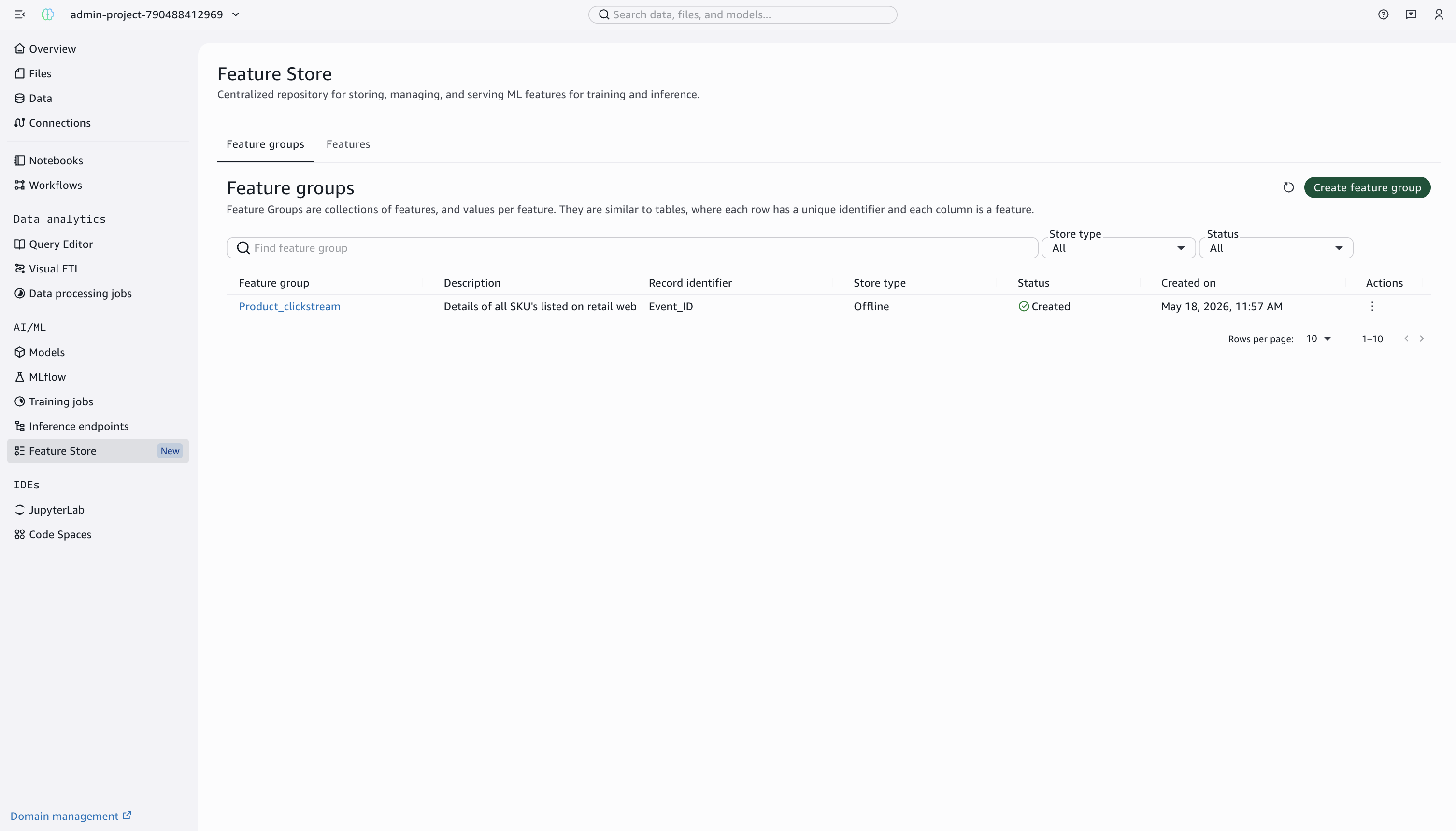
The Feature groups tab lists all feature groups in your project. The following table describes the columns displayed.
| Column | Description |
|---|---|
| Feature group | The name of the feature group. Choose the name to open the detail page. |
| Description | A brief description of the feature group |
| Record identifier | The feature designated as the unique record identifier |
| Store type | The storage configuration: Online, Offline, or Online and Offline |
| Status | The current status of the feature group (for example, Created) |
| Created on | The date and time the feature group was created |
| Actions | Additional actions menu |
You can filter feature groups by store type and status using the dropdown filters, or search by name using the search bar.
Create a feature group
-
On the Feature Store page, choose Create feature group.
The Create feature group wizard opens with three steps.
-
In Step 1 (Feature group details), enter the following information:
Field Description Feature group name A unique name for your feature group. Feature group names are unique within an AWS Region and account. Description (optional) A text description of the feature group. You cannot change this after creation. Store configuration Choose how your features are stored and accessed: Online for real-time serving, Offline for training and batch jobs, or both. Online store feature groups with the InMemory storage type do not support replication to the offline store. For the offline store table format, choose Apache Iceberg in most use cases for better query performance. For more information, see Online store and Offline store. 
-
Choose Next.
-
In Step 2 (Feature definitions), define the input features for your ML model. Each feature requires a name and a data type. You must also designate one feature as the record identifier and one as the event time feature.
Field Description Feature name The name of the feature Type The data type. Scalar types include String, Integral, and Fractional. For feature groups that use the in-memory online store, collection types are also available: List, Set, and Vector. Record identifier Designates the feature that serves as the unique identifier for each record Event time feature Designates the feature that tracks when each record was created or last updated You can add up to 2,500 features per feature group. Choose Add feature to add additional rows.
The following table describes the collection types available for feature groups that use the in-memory online store. For more information, see Collection types.
Collection type Description List An ordered collection of elements. Allows duplicate values. Set An unordered collection of unique elements. Vector A fixed-size array of Fractional elements. Maximum dimension of 8192. Only one vector collection type is allowed per feature group. You cannot edit or delete features after the feature group is saved.

-
Choose Next.
-
In Step 3 (Tags - optional), add tags to organize and identify your feature group.
-
Choose Submit to create the feature group.
After creation, feature groups are mutable and can evolve their schema by adding new feature definitions.
View feature group details
To view the details of a feature group, choose its name from the feature groups list. The detail page opens with tabs for Overview, Features, Sample notebook, and Tags.
The Overview tab displays the following information.
Details
| Field | Description |
|---|---|
| Store type | Online, Offline, or Online and Offline |
| Feature group ARN | The Amazon Resource Name for the feature group |
| Throughput mode | The read and write capacity mode (for example, On-demand) |
| Created by | The account ID that created the feature group |
| Created on | The creation date and time |
Offline storage settings (displayed for feature groups with offline storage)
| Field | Description |
|---|---|
| Offline store status | When null, indicates that no data has been replicated to the offline store. When non-null, indicates whether replication into the offline store has encountered a failure. A Blocked status may include a reason for the failure. |
| Role ARN | The IAM role used for offline store operations |
| Table format | The table format used to catalog the data (for example, Glue Data Catalog) |
| Data catalog name | The catalog where the feature group table is registered |
| S3 URI | The Amazon S3 location for offline store data |
| Resolved output S3 URI | The full Amazon S3 path for offline store output |
| Database name | The database that contains the feature group table |
| Table name | The table name in the data catalog |

View features in a feature group
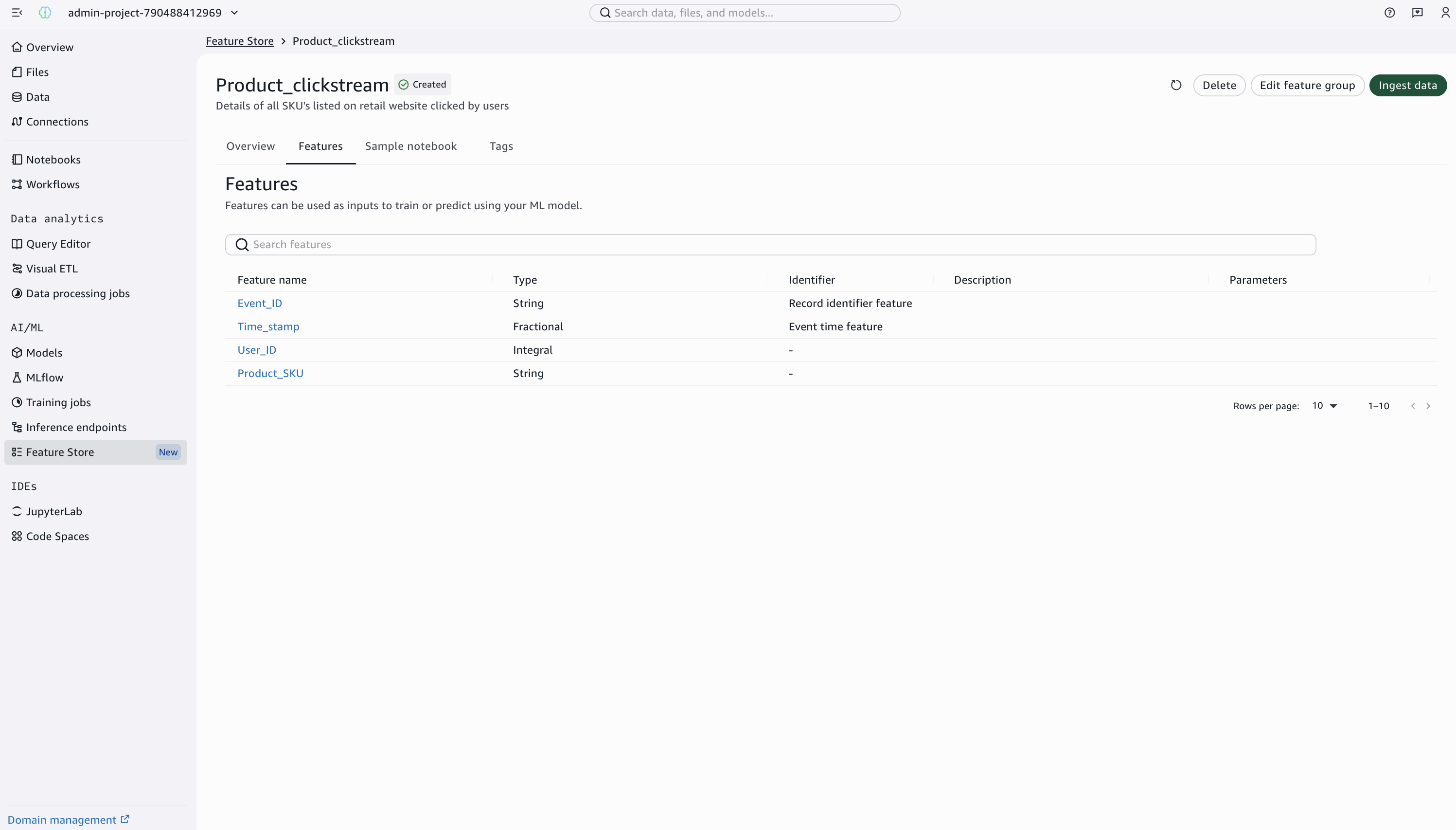
On the feature group detail page, choose the Features tab to see all features defined in the feature group. The following table describes the columns displayed.
| Column | Description |
|---|---|
| Feature name | The name of the feature. Choose the name to view feature details. |
| Type | The data type. Scalar types include String, Integral, and Fractional. For feature groups that use the in-memory online store, collection types are also available: List, Set, and Vector. |
| Identifier | Indicates if the feature is the record identifier or event time feature |
| Description | An optional description of the feature |
| Parameters | Any additional searchable parameters associated with the feature. For more information, see Adding searchable metadata to your features. |
You can search features by name using the search bar.
Edit a feature group
After creation, you can add new feature definitions to a feature group, but you cannot modify or remove existing features. You can also change the throughput configuration.
-
On the feature group detail page, choose Edit feature group.
-
In the Edit feature group panel, you can modify the following settings:
Throughput configuration
The throughput mode controls how you are charged for read and write throughput and how you manage capacity. The default is On-demand.
Feature definitions
Add new features by entering a feature name and selecting a type (String, Integral, or Fractional). For feature groups that use the in-memory online store, you can also select collection types: List, Set, and Vector.
-
Choose Submit to save your changes.

Ingest data with sample notebooks
Each feature group includes a Sample notebook tab that provides a pre-configured notebook template for ingesting data and reading it back from your feature group.
The sample notebook works with the existing feature group and performs the following tasks:
-
Discovers the feature definitions from the feature group
-
Generates type-conformant mock data (scalar and collection types)
-
Ingests data into the feature group (respects online/offline configuration)
-
Reads data back from online or offline stores
-
Optionally deletes mock records from the online store
To use the sample notebook, choose the Sample notebook tab on your feature group detail page. You can open the notebook in JupyterLab or Code Spaces from the IDE options in the left navigation.
For more information about additional ingestion methods available through the SDK and API, including streaming and batch ingestion, see Data sources and ingestion.
To build training datasets by joining multiple feature groups with point-in-time accuracy, use the SageMaker Python SDK from a notebook in your project. For more information, see Create a dataset from your feature groups.

Delete a feature group
-
On the feature group detail page, choose Delete.
-
Confirm the deletion when prompted.
Deleting a feature group removes the feature group and its metadata. Data stored in the offline store (Amazon S3) is not automatically deleted.
To delete individual records from a feature group, use the
DeleteRecord API from a notebook in your project. Feature Store supports
hard delete (permanently removes the record) and soft delete modes. For more
information, see Delete a feature group.
Related resources
-
Create, store, and share features with Feature Store: Overview of Feature Store concepts and architecture
-
Feature Store concepts: Detailed definitions of feature groups, records, online and offline stores
-
Use Feature Store with SDK for Python (Boto3): Create and manage feature groups programmatically
-
Data sources and ingestion: Streaming and batch ingestion methods
-
Batch ingestion with Amazon SageMaker Feature Store Spark: Use the Spark connector to batch ingest features from Amazon EMR
-
Find features in your feature groups: Search and discover features across feature groups
-
Online store: Storage tiers and configuration for real-time serving
-
Security and access control: KMS encryption, access control, and IAM policies for Feature Store
