Correlations
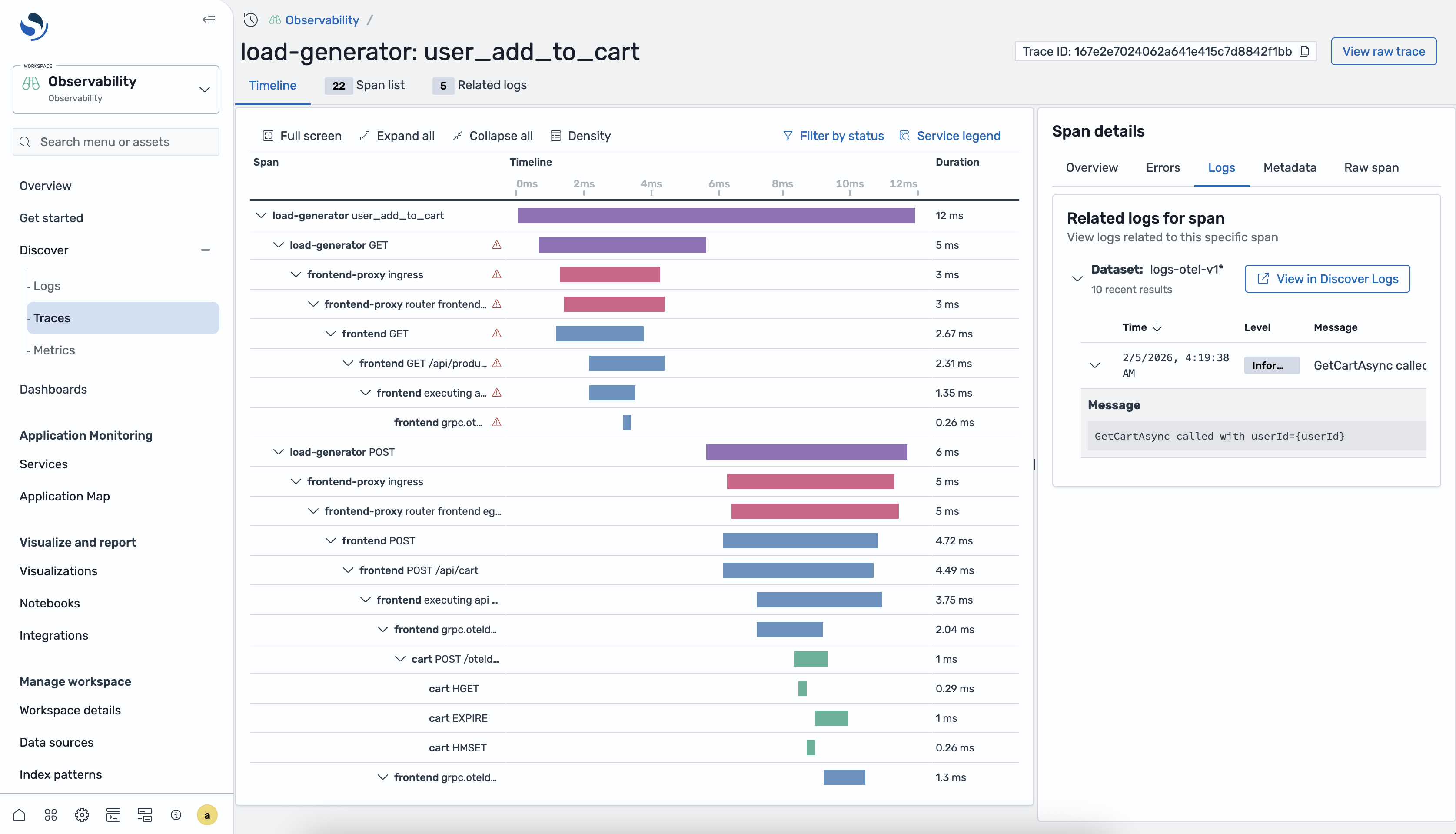
Correlations link a traces dataset to a logs dataset so that you can view related log entries when you investigate trace spans. By defining a correlation, you enable the Discover Traces page to display logs that occurred during a span's execution, helping you diagnose issues faster without switching between pages.
Correlation requirements
To create a correlation, your log and trace data must contain matching fields. The following table describes the fields that the correlation uses to join trace and log data.
| Field | Description | Required |
|---|---|---|
| Trace ID | The unique identifier for the trace. Must exist in both the trace span index and the log index. | Yes |
| Span ID | The unique identifier for the span. Used to match logs to a specific span within a trace. | No |
| Service name | The name of the service that generated the telemetry. Used to filter related logs by service. | No |
| Timestamp | The time field used to scope related logs to the span's time range. | Yes |
To create a trace-to-logs correlation
Complete the following steps to create a correlation between a traces dataset and a logs dataset.
-
In your observability workspace, expand Discover in the left navigation and choose Traces.
-
Select the traces dataset that you want to correlate.
-
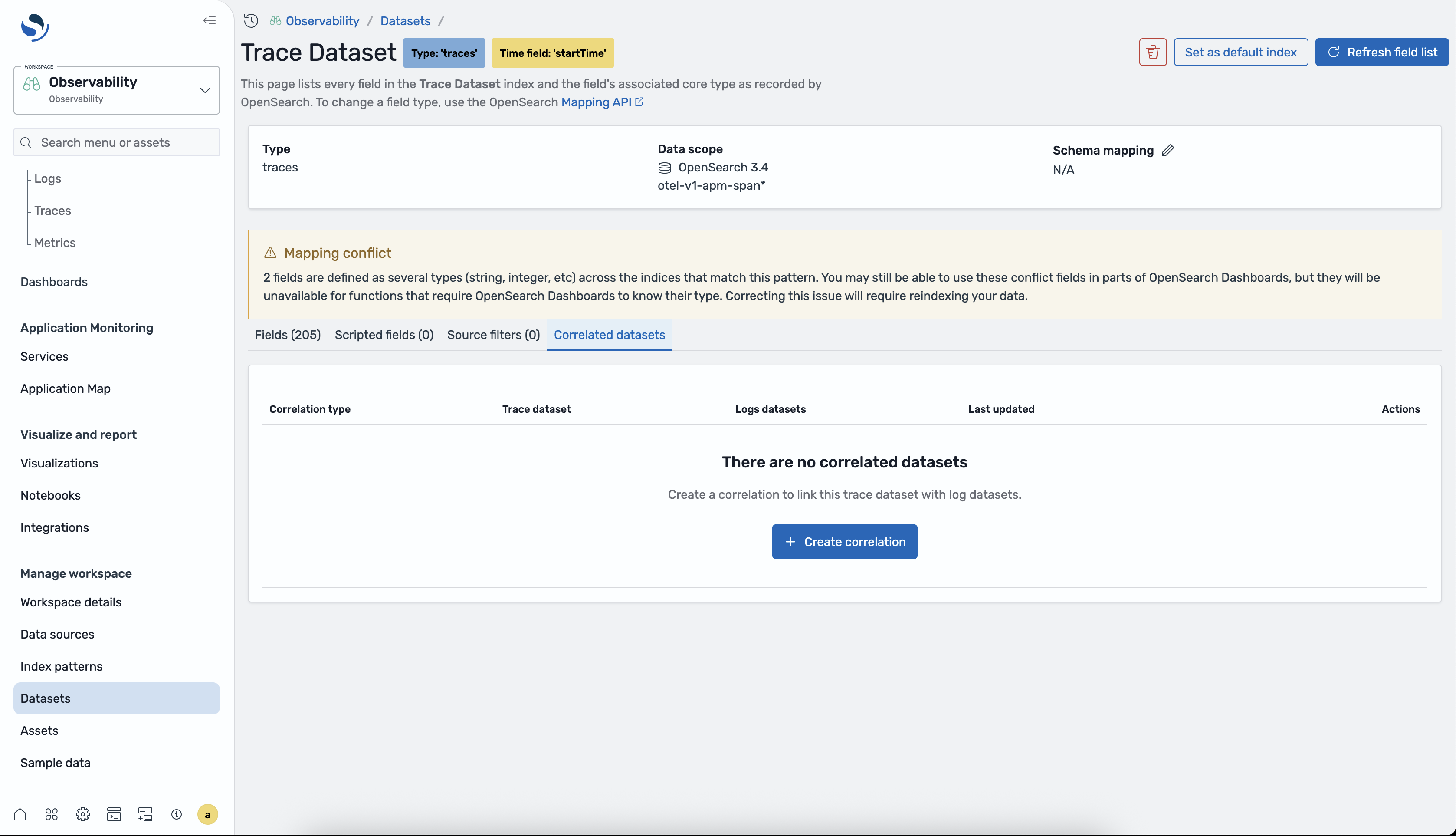
Choose the Correlations tab in the dataset configuration panel.
-
Choose Create correlation.
-
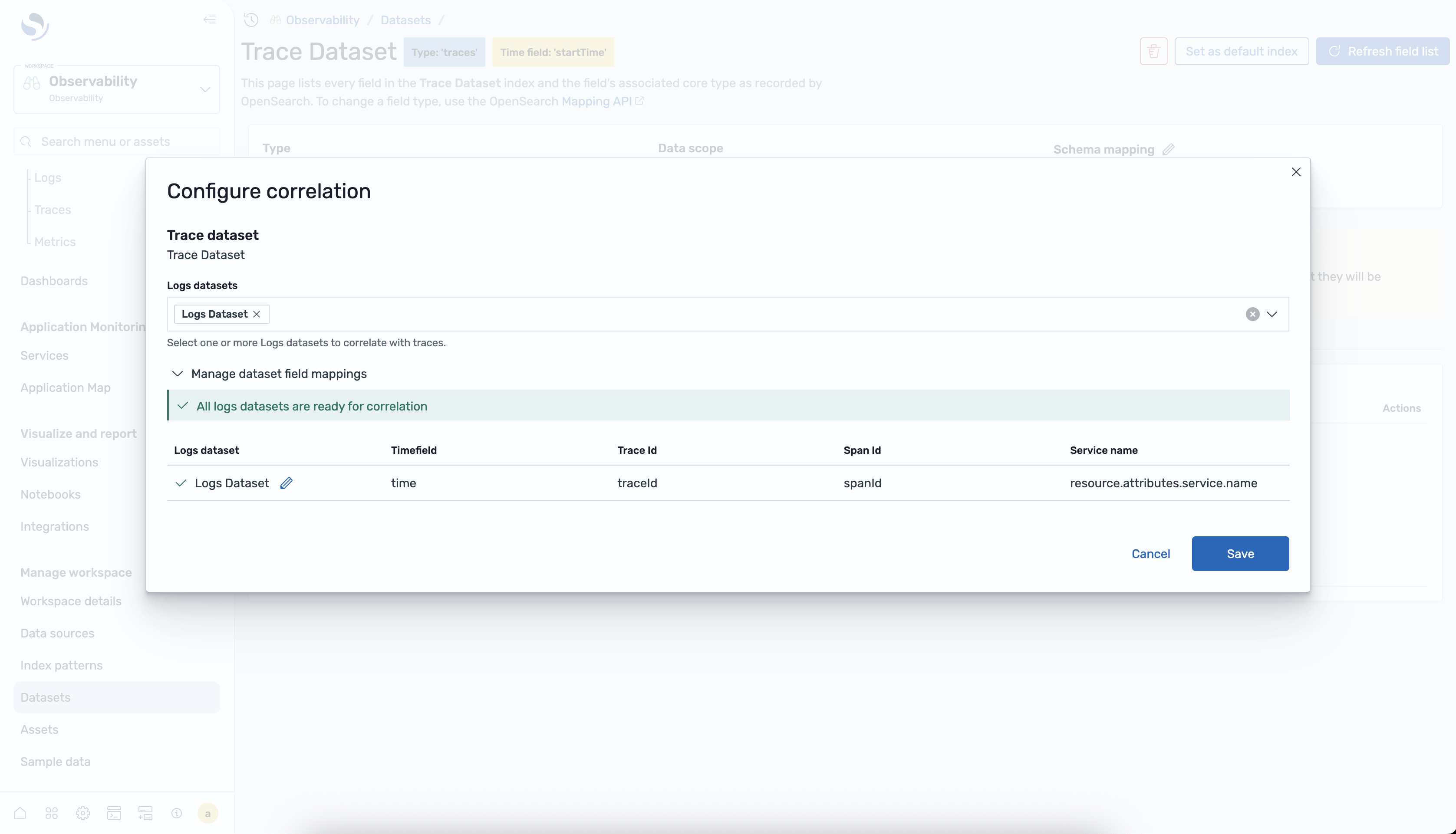
In the configuration dialog, select the target logs dataset and map the required correlation fields (trace ID and timestamp). Optionally, map span ID and service name for more precise matching.
-
Choose Create to save the correlation.
-
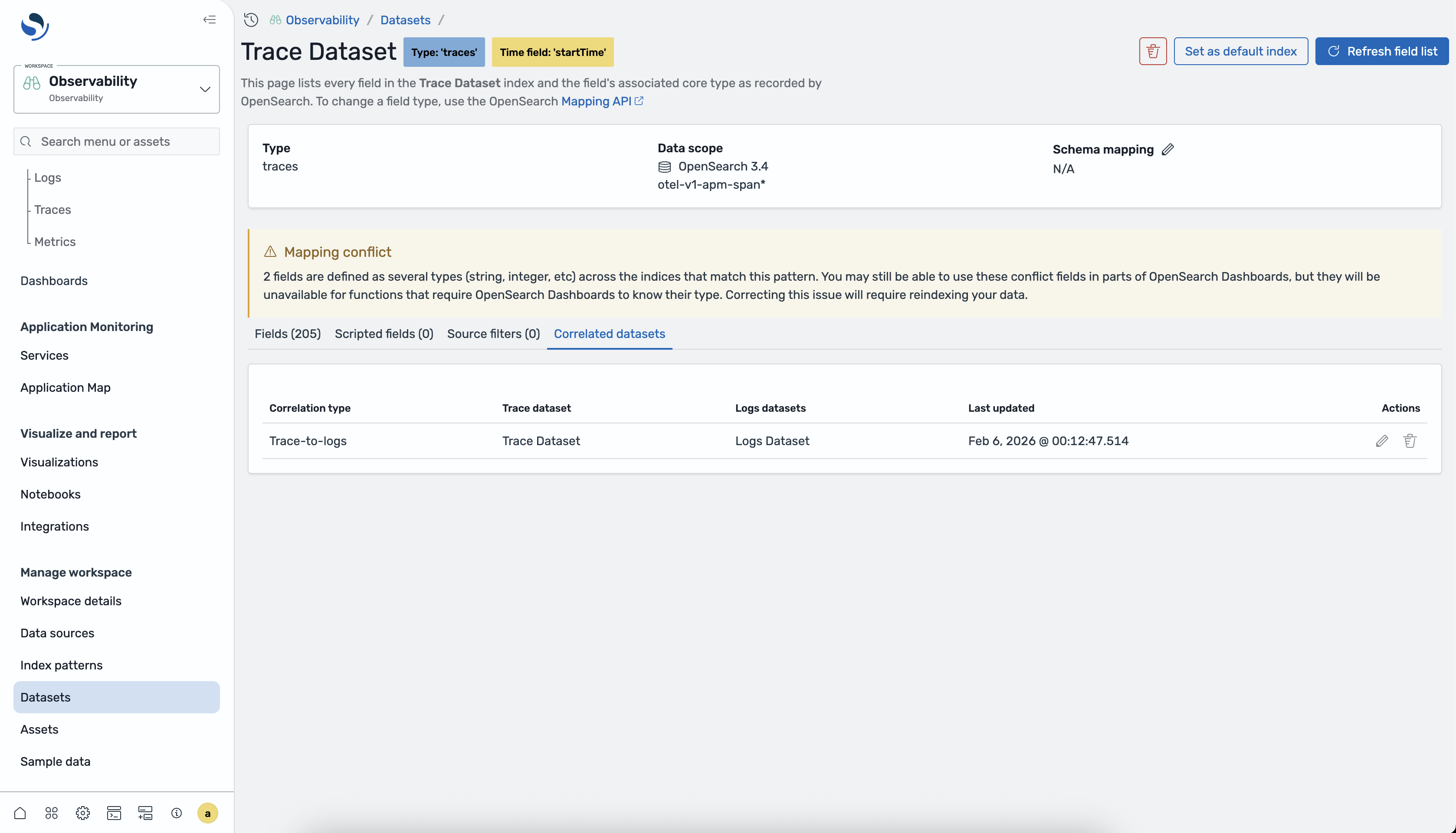
Verify that the correlation appears in the correlations table.
Viewing correlations in logs datasets
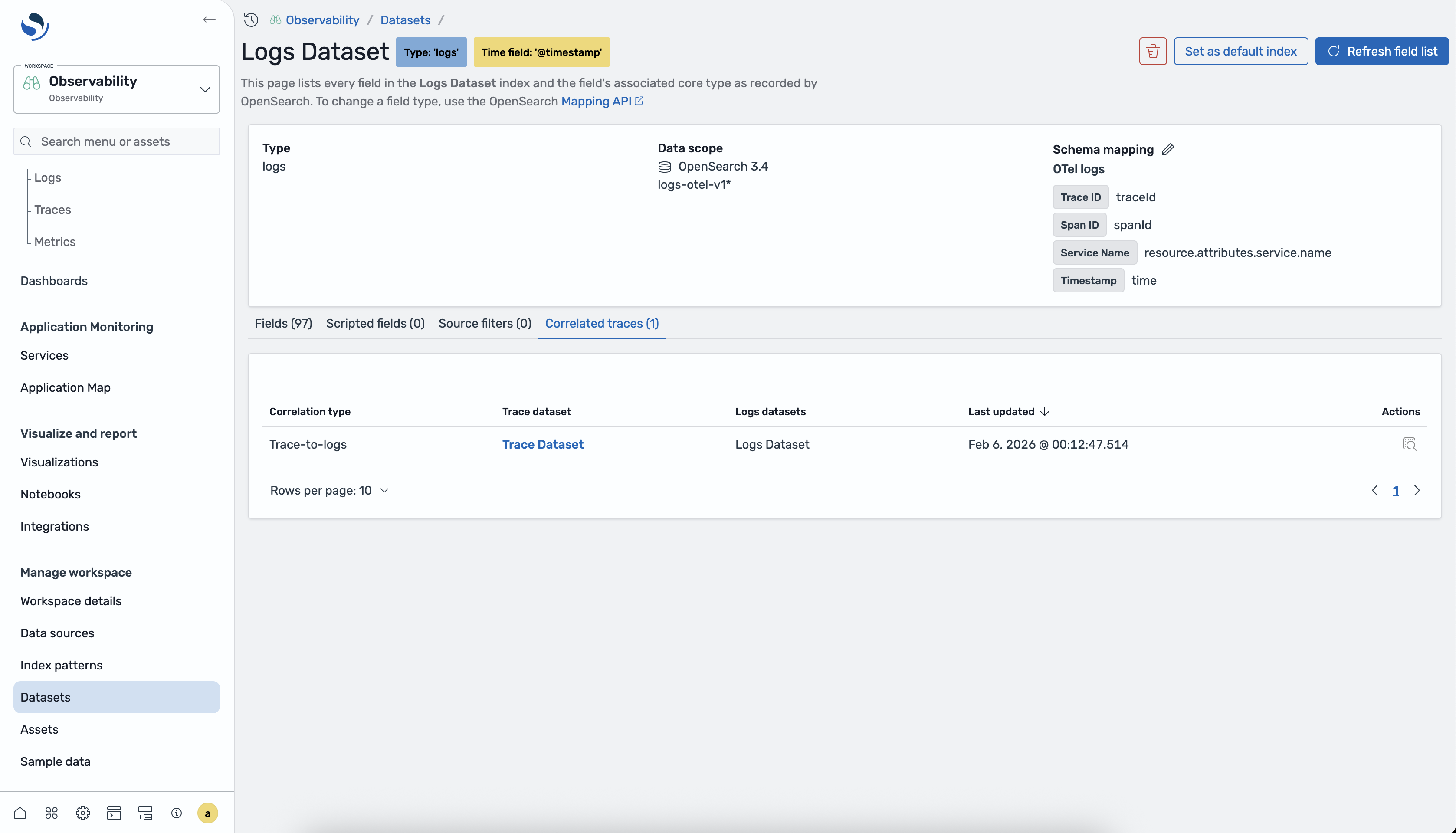
After you create a correlation, you can also view it from the logs dataset side. Navigate to the Discover Logs page, select the correlated logs dataset, and choose the Correlations tab to see the linked traces dataset.
Using correlations in the Traces page
When a correlation exists, the Discover Traces page displays related logs in the span details view. Choose a span in the span table to open the details flyout, then choose the Related logs tab to view correlated log entries.
Managing correlations
You can edit or remove correlations from the Correlations tab of either the traces or logs dataset.
-
Editing – Choose the correlation in the table and choose Edit to update the field mappings or target dataset.
-
Removing – Choose the correlation in the table and choose Delete to remove the correlation. Removing a correlation does not delete any data.