本文属于机器翻译版本。若本译文内容与英语原文存在差异,则一律以英文原文为准。
使用 Amazon EC2 测试设置
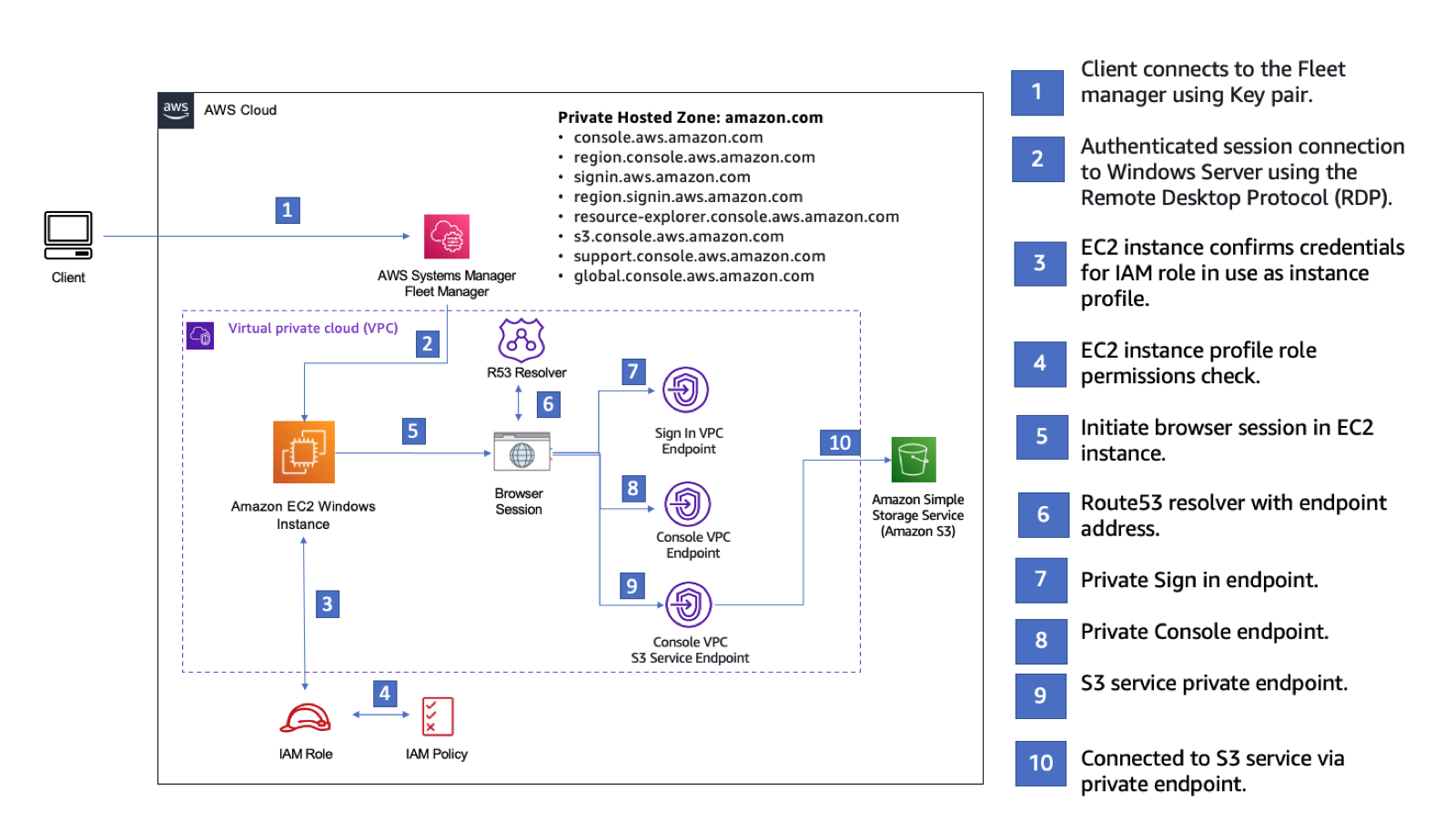
此设置演示了从 Amazon EC2 实例到亚马逊简单存储服务的AWS 管理控制台私有访问连接。该示例用于创建网络配置,并使用CloudFormation远程桌面协议 (RDP) 通过队列管理器(一种功能AWS Systems Manager)连接到 Amazon EC2 Windows 实例。
下图描述了使用 Amazon EC2 访问 AWS 管理控制台私有访问设置的工作流程。它显示了用户如何使用私有端点连接到 Amazon S3。
复制以下CloudFormation模板并将其保存到您将在设置网络过程的第三步中使用的文件中。
Description: |
  AWS Management Console Private Access.
Parameters:
  VpcCIDR:
    Type: String
    Default: 172.16.0.0/16
    Description: CIDR range for VPC
  PrivateSubnet1CIDR:
    Type: String
    Default: 172.16.1.0/24
    Description: CIDR range for Private Subnet 1
  PrivateSubnet2CIDR:
    Type: String
    Default: 172.16.2.0/24
    Description: CIDR range for Private Subnet 2
  Ec2KeyPair:
    Type: AWS::EC2::KeyPair::KeyName
    Description: The EC2 KeyPair to use to connect to the Windows instance
  LatestWindowsAmiId:
    Type: AWS::SSM::Parameter::Value<AWS::EC2::Image::Id>
    Default: /aws/service/ami-windows-latest/Windows_Server-2022-English-Full-Base
  InstanceTypeParameter:
    Type: String
    Default: m5.large
Resources:

  #########################
  # VPC AND SUBNETS
  #########################

  AppVPC:
    Type: AWS::EC2::VPC
    Properties:
      CidrBlock: !Ref VpcCIDR
      InstanceTenancy: default
      EnableDnsSupport: true
      EnableDnsHostnames: true

  PrivateSubnet1:
    Type: AWS::EC2::Subnet
    Properties:
      VpcId: !Ref AppVPC
      CidrBlock: !Ref PrivateSubnet1CIDR
      AvailabilityZone:
        Fn::Select:
          - 0
          - Fn::GetAZs: ""

  PrivateSubnet2:
    Type: AWS::EC2::Subnet
    Properties:
      VpcId: !Ref AppVPC
      CidrBlock: !Ref PrivateSubnet2CIDR
      AvailabilityZone:
        Fn::Select:
          - 1
          - Fn::GetAZs: ""

  #########################
  # Route Tables
  #########################

  PrivateRouteTable:
    Type: AWS::EC2::RouteTable
    Properties:
      VpcId: !Ref AppVPC

  PrivateSubnet1RouteTableAssociation:
    Type: AWS::EC2::SubnetRouteTableAssociation
    Properties:
      RouteTableId: !Ref PrivateRouteTable
      SubnetId: !Ref PrivateSubnet1

  PrivateSubnet2RouteTableAssociation:
    Type: AWS::EC2::SubnetRouteTableAssociation
    Properties:
      RouteTableId: !Ref PrivateRouteTable
      SubnetId: !Ref PrivateSubnet2

  #########################
  # SECURITY GROUPS
  #########################

  VPCEndpointSecurityGroup:
    Type: AWS::EC2::SecurityGroup
    Properties:
      GroupDescription: Allow TLS for VPC Endpoint
      VpcId: !Ref AppVPC
      SecurityGroupIngress:
        - IpProtocol: tcp
          FromPort: 443
          ToPort: 443
          CidrIp: !GetAtt AppVPC.CidrBlock

  EC2SecurityGroup:
    Type: AWS::EC2::SecurityGroup
    Properties:
      GroupDescription: Default EC2 Instance SG
      VpcId: !Ref AppVPC
      SecurityGroupIngress:
        - IpProtocol: tcp
          FromPort: 3389
          ToPort: 3389
          CidrIp: !Ref VpcCIDR

  #########################
  # VPC ENDPOINTS
  #########################

  VPCEndpointInterfaceSsm:
    Type: AWS::EC2::VPCEndpoint
    Properties:
      VpcEndpointType: Interface
      PrivateDnsEnabled: true
      SubnetIds:
        - !Ref PrivateSubnet1
        - !Ref PrivateSubnet2
      SecurityGroupIds:
        - !Ref VPCEndpointSecurityGroup
      ServiceName: !Sub com.amazonaws.${AWS::Region}.ssm
      VpcId: !Ref AppVPC
      PolicyDocument:
        Version: 2012-10-17
        Statement:
          - Effect: Allow
            Principal: '*'
            Action: '*'
            Resource: '*'
            Condition:
              StringEquals:
                aws:PrincipalAccount: !Ref AWS::AccountId
                aws:ResourceAccount: !Ref AWS::AccountId
                aws:SourceVpc: !Ref AppVPC
          - Effect: Deny
            Principal: '*'
            Action: '*'
            Resource: '*'
            Condition:
              StringNotEquals:
                aws:PrincipalAccount: !Ref AWS::AccountId
                aws:ResourceAccount: !Ref AWS::AccountId
                aws:SourceVpc: !Ref AppVPC

  VPCEndpointInterfaceEc2Messages:
    Type: AWS::EC2::VPCEndpoint
    Properties:
      VpcEndpointType: Interface
      PrivateDnsEnabled: true
      SubnetIds:
        - !Ref PrivateSubnet1
        - !Ref PrivateSubnet2
      SecurityGroupIds:
        - !Ref VPCEndpointSecurityGroup
      ServiceName: !Sub com.amazonaws.${AWS::Region}.ec2messages
      VpcId: !Ref AppVPC
      PolicyDocument:
        Version: 2012-10-17
        Statement:
          - Effect: Allow
            Principal: '*'
            Action: '*'
            Resource: '*'
            Condition:
              StringEquals:
                aws:PrincipalAccount: !Ref AWS::AccountId
                aws:ResourceAccount: !Ref AWS::AccountId
                aws:SourceVpc: !Ref AppVPC
          - Effect: Deny
            Principal: '*'
            Action: '*'
            Resource: '*'
            Condition:
              StringNotEquals:
                aws:PrincipalAccount: !Ref AWS::AccountId
                aws:ResourceAccount: !Ref AWS::AccountId
                aws:SourceVpc: !Ref AppVPC

  VPCEndpointInterfaceSsmMessages:
    Type: AWS::EC2::VPCEndpoint
    Properties:
      VpcEndpointType: Interface
      PrivateDnsEnabled: true
      SubnetIds:
        - !Ref PrivateSubnet1
        - !Ref PrivateSubnet2
      SecurityGroupIds:
        - !Ref VPCEndpointSecurityGroup
      ServiceName: !Sub com.amazonaws.${AWS::Region}.ssmmessages
      VpcId: !Ref AppVPC
      PolicyDocument:
        Version: 2012-10-17
        Statement:
          - Effect: Allow
            Principal: '*'
            Action: '*'
            Resource: '*'
            Condition:
              StringEquals:
                aws:PrincipalAccount: !Ref AWS::AccountId
                aws:ResourceAccount: !Ref AWS::AccountId
                aws:SourceVpc: !Ref AppVPC
          - Effect: Deny
            Principal: '*'
            Action: '*'
            Resource: '*'
            Condition:
              StringNotEquals:
                aws:PrincipalAccount: !Ref AWS::AccountId
                aws:ResourceAccount: !Ref AWS::AccountId
                aws:SourceVpc: !Ref AppVPC

  VPCEndpointInterfaceSignin:
    Type: AWS::EC2::VPCEndpoint
    Properties:
      VpcEndpointType: Interface
      PrivateDnsEnabled: true
      SubnetIds:
        - !Ref PrivateSubnet1
        - !Ref PrivateSubnet2
      SecurityGroupIds:
        - !Ref VPCEndpointSecurityGroup
      ServiceName: !Sub com.amazonaws.${AWS::Region}.signin
      VpcId: !Ref AppVPC
      PolicyDocument:
        Version: 2012-10-17
        Statement:
          - Effect: Allow
            Principal: '*'
            Action: signin:Authenticate
            Resource: '*'
            Condition:
              StringEquals:
                aws:ResourceAccount: !Ref AWS::AccountId
          - Effect: Allow
            Principal: '*'
            Action:
              - signin:AuthorizeOAuth2Access
              - signin:CreateOAuth2Token
            Resource: '*'
            Condition:
              StringEquals:
                aws:PrincipalAccount: !Ref AWS::AccountId

  VPCEndpointInterfaceConsole:
    Type: AWS::EC2::VPCEndpoint
    Properties:
      VpcEndpointType: Interface
      PrivateDnsEnabled: true
      SubnetIds:
        - !Ref PrivateSubnet1
        - !Ref PrivateSubnet2
      SecurityGroupIds:
        - !Ref VPCEndpointSecurityGroup
      ServiceName: !Sub com.amazonaws.${AWS::Region}.console
      VpcId: !Ref AppVPC
      PolicyDocument:
        Version: 2012-10-17
        Statement:
          - Effect: Allow
            Principal: '*'
            Action: '*'
            Resource: '*'
            Condition:
              StringEquals:
                aws:PrincipalAccount: !Ref AWS::AccountId
                aws:ResourceAccount: !Ref AWS::AccountId
                aws:SourceVpc: !Ref AppVPC
          - Effect: Deny
            Principal: '*'
            Action: '*'
            Resource: '*'
            Condition:
              StringNotEquals:
                aws:PrincipalAccount: !Ref AWS::AccountId
                aws:ResourceAccount: !Ref AWS::AccountId
                aws:SourceVpc: !Ref AppVPC

  VPCEndpointInterfaceConsoleStatic:
  # console-static only supports the full access endpoint policy
    Type: AWS::EC2::VPCEndpoint
    Properties:
      VpcEndpointType: Interface
      PrivateDnsEnabled: true
      SubnetIds:
        - !Ref PrivateSubnet1
        - !Ref PrivateSubnet2
      SecurityGroupIds:
        - !Ref VPCEndpointSecurityGroup
      ServiceName: !Sub com.amazonaws.${AWS::Region}.console-static
      VpcId: !Ref AppVPC

  #########################
  # EC2 INSTANCE
  #########################

  Ec2InstanceRole:
    Type: AWS::IAM::Role
    Properties:
      AssumeRolePolicyDocument:
        Version: 2012-10-17
        Statement:
          - Effect: Allow
            Principal:
              Service:
                - ec2.amazonaws.com
            Action:
              - sts:AssumeRole
      Path: /
      ManagedPolicyArns:
        - arn:aws:iam::aws:policy/AmazonSSMManagedInstanceCore

  Ec2InstanceProfile:
    Type: AWS::IAM::InstanceProfile
    Properties:
      Path: /
      Roles:
        - !Ref Ec2InstanceRole

  Ec2LaunchTemplate:
    Type: AWS::EC2::LaunchTemplate
    Properties:
      LaunchTemplateData:
        MetadataOptions:
          HttpTokens: required

  EC2WinInstance:
    Type: AWS::EC2::Instance
    Properties:
      ImageId: !Ref LatestWindowsAmiId
      IamInstanceProfile: !Ref Ec2InstanceProfile
      KeyName: !Ref Ec2KeyPair
      InstanceType: !Ref InstanceTypeParameter
      SubnetId: !Ref PrivateSubnet1
      SecurityGroupIds:
        - !Ref EC2SecurityGroup
      BlockDeviceMappings:
        - DeviceName: /dev/sda1
          Ebs:
            VolumeSize: 50
      LaunchTemplate:
        LaunchTemplateId: !Ref Ec2LaunchTemplate
        Version: !GetAtt Ec2LaunchTemplate.LatestVersionNumber
      Tags:
        - Key: Name
          Value: Console VPCE test instance
设置网络
-
登录您所在组织的管理账户并打开 CloudFormation 控制台
。 -
选择创建堆栈。
-
选择使用新资源(标准)。上传您之前创建的CloudFormation模板文件,然后选择下一步。
-
输入堆栈的名称(例如
PrivateConsoleNetworkForS3),然后选择下一步。 -
对于 VPC 和子网,输入您的首选 IP CIDR 范围,或使用提供的默认值。如果您使用默认值,请确认它们不与您的现有 VPC 资源重叠AWS 账户。
-
对于Ec2KeyPair参数,请从您账户中的现有 Amazon EC2 密钥对中选择一个。如果您没有现有的 Amazon EC2 密钥对,必须先创建一个密钥对,然后转至下一步。有关更多信息,请参阅《Amazon EC2 用户指南》中的使用 Amazon EC2 创建密钥对。
-
选择创建堆栈。
-
创建堆栈后,选择资源选项卡以查看已创建的资源。
连接到 Amazon EC2 实例
-
登录您所在组织的管理账户并打开 Amazon EC2 控制台
。 -
在导航窗格中,选择 Instances (实例)。
-
在实例页面上,选择由模板创建的控制台 VPCE 测试实例。CloudFormation然后选择连接。
注意
此示例使用队列管理器(一种功能)连接到您的 Windows 服务器。AWS Systems Manager Explorer可能需要几分钟才能开始连接。
-
在连接到实例页面上,选择 RDP 客户端,然后使用 Fleet Manager 进行连接。
-
选择 Fleet Manager 远程桌面。
-
要获取 Amazon EC2 实例的管理密码并使用网页界面访问 Windows 桌面,请使用与您在创建CloudFormation模板时使用的 Amazon EC2 密钥对关联的私钥。
-
在 Amazon EC2 Windows 实例中,AWS 管理控制台在浏览器中打开。
-
使用AWS凭证登录后,打开 Amazon S3 控制台
并确认您已使用AWS 管理控制台私有访问权限进行连接。
要测试AWS 管理控制台私密访问设置
-
登录您所在组织的管理账户并打开 Amazon S3 控制台
。 -
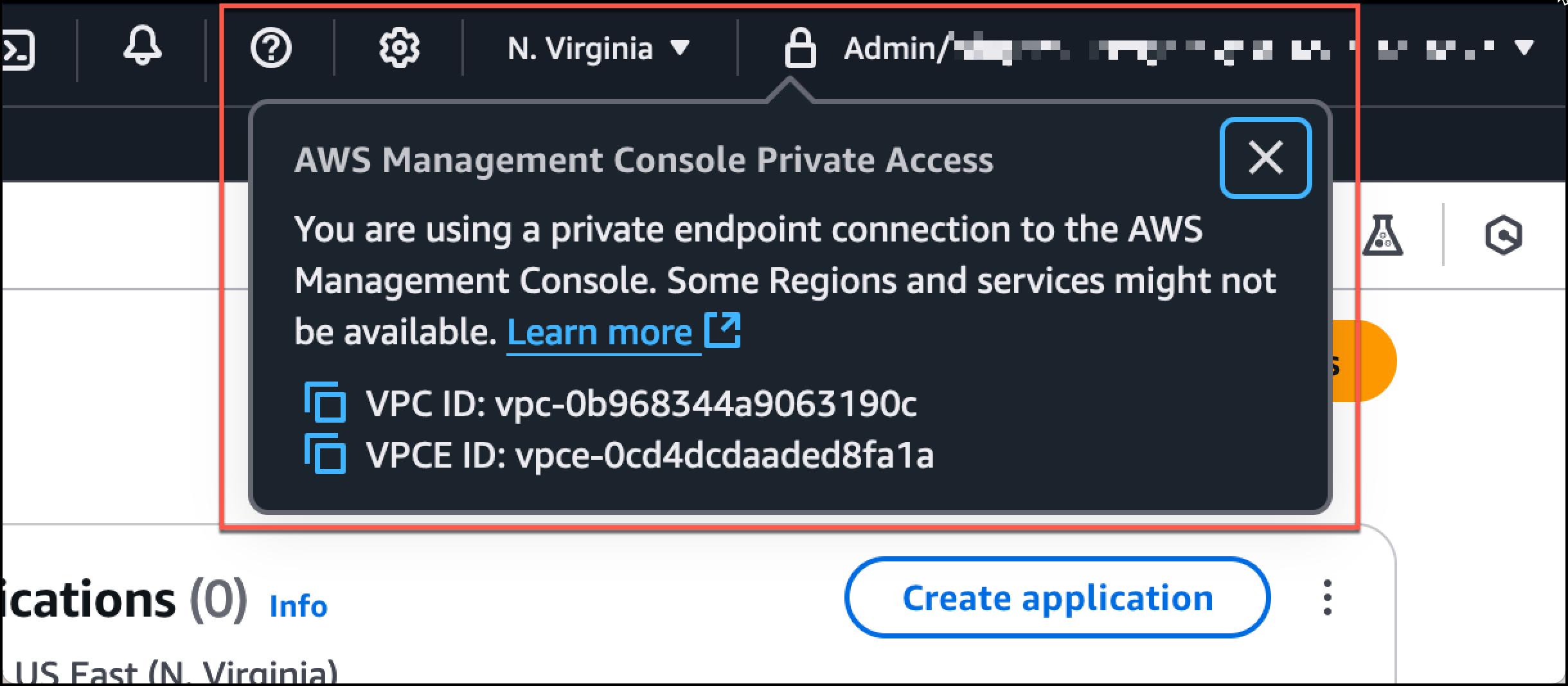
在导航栏中选择锁定私有图标,以查看所使用的 VPC 端点。以下屏幕截图显示了锁定私有图标的位置和 VPC 信息。