기계 번역으로 제공되는 번역입니다. 제공된 번역과 원본 영어의 내용이 상충하는 경우에는 영어 버전이 우선합니다.
# AWS Transfer Family 서버 엔드포인트 유형을 VPC\_ENDPOINT에서 VPC로 업데이트
AWS Management Console CloudFormation또는 Transfer Family API를 사용하여 서버의를 `EndpointType`에서 로 업데이트할 수 `VPC_ENDPOINT` 있습니다`VPC`. 이러한 각 방법을 사용하여 서버 엔드포인트 타입을 업데이트하는 자세한 절차와 예가 다음 섹션에 나와 있습니다. 여러 AWS 리전과 여러 AWS 계정에 서버가 있는 경우 다음 섹션에 제공된 예제 스크립트를 수정하여 업데이트해야 하는 `VPC_ENDPOINT` 유형을 사용하여 서버를 식별할 수 있습니다.
**Topics**
+ [`VPC_ENDPOINT` 엔드포인트 타입을 사용한 서버 식별](#id-servers)
+ [를 사용하여 서버 엔드포인트 유형 업데이트 AWS Management Console](#update-endpoint-console)
+ [를 사용하여 서버 엔드포인트 유형 업데이트 CloudFormation](#update-endpoint-cloudformation)
+ [API를 사용하여 서버 엔드포인트 타입 업데이트](#update-endpoint-cli)
## `VPC_ENDPOINT` 엔드포인트 타입을 사용한 서버 식별
AWS Management Console을 사용하여 `VPC_ENDPOINT`를 사용하는 서버를 식별할 수 있습니다.
**콘솔을 사용하여 `VPC_ENDPOINT` 엔드포인트 타입을 사용하는 서버를 식별하려면**
1. [https://console.aws.amazon.com/transfer/](https://console.aws.amazon.com/transfer/) AWS Transfer Family 콘솔을 엽니다.
1. 탐색 창에서 **서버**를 선택하면 해당 리전의 사용자 계정에 있는 서버 목록이 표시됩니다.
1. **엔드포인트 타입**별로 서버 목록을 정렬하면 `VPC_ENDPOINT`를 사용하는 모든 서버를 볼 수 있습니다.
**여러 AWS 리전 및 계정`VPC_ENDPOINT`에서를 사용하여 서버를 식별하려면**
여러 AWS 리전과 여러 AWS 계정에 서버가 있는 경우 다음 예제 스크립트를 수정하여 `VPC_ENDPOINT` 엔드포인트 유형을 사용하여 서버를 식별할 수 있습니다. 예제 스크립트는 Amazon EC2 [DescribeRegions](https://docs.aws.amazon.com/AWSEC2/latest/APIReference/API_DescribeRegions.html) 및 Transfer Family [https://docs.aws.amazon.com/transfer/latest/APIReference/API_ListServers.html](https://docs.aws.amazon.com/transfer/latest/APIReference/API_ListServers.html) API 작업을 사용합니다. AWS 계정이 많은 경우 자격 증명 공급자에 대한 세션 프로필을 사용하여 인증하면 읽기 전용 감사자 액세스 권한이 있는 IAM 역할을 사용하여 계정을 순회할 수 있습니다.
1. 다음은 간단한 예입니다.
```
import boto3
profile = input("Enter the name of the AWS account you'll be working in: ")
session = boto3.Session(profile_name=profile)
ec2 = session.client("ec2")
regions = ec2.describe_regions()
for region in regions['Regions']:
region_name = region['RegionName']
if region_name=='ap-northeast-3': #https://github.com/boto/boto3/issues/1943
continue
transfer = session.client("transfer", region_name=region_name)
servers = transfer.list_servers()
for server in servers['Servers']:
if server['EndpointType']=='VPC_ENDPOINT':
print(server['ServerId'], region_name)
```
1. 업데이트할 서버 목록을 확보한 후에는 다음 섹션에 설명된 방법 중 하나를 사용하여 `EndpointType`을 `VPC`(으)로 업데이트할 수 있습니다.
## 를 사용하여 서버 엔드포인트 유형 업데이트 AWS Management Console
1. [https://console.aws.amazon.com/transfer/](https://console.aws.amazon.com/transfer/) AWS Transfer Family 콘솔을 엽니다.
1. 탐색 창에서 **서버**를 선택합니다.
1. 엔드포인트 타입을 변경하려는 서버의 확인란을 선택합니다.
**중요**
엔드포인트를 변경하려면 먼저 서버를 중지해야 합니다.
1. **작업**에서 **중지**를 선택합니다.
1. 표시되는 확인 대화 상자에서 **중지**를 선택하여 서버 중지를 확인합니다.
**참고**
다음 단계로 진행하기 전에 서버 **상태**가 **오프라인**으로 변경될 때까지 기다리세요. 몇 분 정도 걸릴 수 있습니다. 상태 변경을 보려면 **서버** 페이지에서 **새로 고침**을 선택해야 할 수도 있습니다.
1. 상태가 **오프라인**으로 변경되면 서버 세부 정보 페이지를 표시할 서버를 선택합니다.
1. **엔드포인트 세부 정보** 섹션에서 **편집**을 선택합니다.
1. **엔드포인트** 타입으로 **VPC 호스팅**을 선택합니다.
1. **저장**을 선택합니다.
1. **작업**에서 **시작**을 선택하고 서버 상태가 **온라인**으로 변경될 때까지 기다립니다. 이 작업은 몇 분 정도 걸릴 수 있습니다.
## 를 사용하여 서버 엔드포인트 유형 업데이트 CloudFormation
이 섹션에서는를 사용하여 서버의 CloudFormation 를 로 업데이트`EndpointType`하는 방법을 설명합니다`VPC`. 를 사용하여 배포한 Transfer Family 서버에 대해이 절차를 사용합니다 CloudFormation. 이 예에서 Transfer Family 서버를 배포하는 데 사용된 원본 CloudFormation 템플릿은 다음과 같습니다.
```
AWS TemplateFormatVersion: '2010-09-09'
Description: 'Create AWS Transfer Server with VPC_ENDPOINT endpoint type'
Parameters:
SecurityGroupId:
Type: AWS::EC2::SecurityGroup::Id
SubnetIds:
Type: List
VpcId:
Type: AWS::EC2::VPC::Id
Resources:
TransferServer:
Type: AWS::Transfer::Server
Properties:
Domain: S3
EndpointDetails:
VpcEndpointId: !Ref VPCEndpoint
EndpointType: VPC_ENDPOINT
IdentityProviderType: SERVICE_MANAGED
Protocols:
- SFTP
VPCEndpoint:
Type: AWS::EC2::VPCEndpoint
Properties:
ServiceName: com.amazonaws.us-east-1.transfer.server
SecurityGroupIds:
- !Ref SecurityGroupId
SubnetIds:
- !Select [0, !Ref SubnetIds]
- !Select [1, !Ref SubnetIds]
- !Select [2, !Ref SubnetIds]
VpcEndpointType: Interface
VpcId: !Ref VpcId
```
템플릿이 다음과 같이 변경되어 업데이트되었습니다.
+ `EndpointType`이(가) `VPC`(으)로 변경되었습니다.
+ `AWS::EC2::VPCEndpoint` 리소스가 제거됩니다.
+ `SecurityGroupId`, `SubnetIds`, 및 `VpcId`(이)가 `AWS::Transfer::Server` 리소스의 `EndpointDetails` 섹션으로 이동되었습니다.
+ `EndpointDetails`의 `VpcEndpointId` 속성이 삭제되었습니다.
업데이트된 템플릿입니다.
```
AWS TemplateFormatVersion: '2010-09-09'
Description: 'Create AWS Transfer Server with VPC endpoint type'
Parameters:
SecurityGroupId:
Type: AWS::EC2::SecurityGroup::Id
SubnetIds:
Type: List
VpcId:
Type: AWS::EC2::VPC::Id
Resources:
TransferServer:
Type: AWS::Transfer::Server
Properties:
Domain: S3
EndpointDetails:
SecurityGroupIds:
- !Ref SecurityGroupId
SubnetIds:
- !Select [0, !Ref SubnetIds]
- !Select [1, !Ref SubnetIds]
- !Select [2, !Ref SubnetIds]
VpcId: !Ref VpcId
EndpointType: VPC
IdentityProviderType: SERVICE_MANAGED
Protocols:
- SFTP
```
**를 사용하여 배포된 Transfer Family 서버의 엔드포인트 유형을 업데이트하려면 CloudFormation**
1. 다음 단계를 사용하여 업데이트하려는 서버를 중지합니다.
1. [https://console.aws.amazon.com/transfer/](https://console.aws.amazon.com/transfer/) AWS Transfer Family 콘솔을 엽니다.
1. 탐색 창에서 **서버**를 선택합니다.
1. 엔드포인트 타입을 변경하려는 서버의 확인란을 선택합니다.
**중요**
엔드포인트를 변경하려면 먼저 서버를 중지해야 합니다.
1. **작업**에서 **중지**를 선택합니다.
1. 표시되는 확인 대화 상자에서 **중지**를 선택하여 서버 중지를 확인합니다.
**참고**
다음 단계로 진행하기 전에 서버 **상태**가 **오프라인**으로 변경될 때까지 기다리세요. 몇 분 정도 걸릴 수 있습니다. 상태 변경을 보려면 **서버** 페이지에서 **새로 고침**을 선택해야 할 수도 있습니다.
1. CloudFormation 스택 업데이트
1. [https://console.aws.amazon.com/cloudformation](https://console.aws.amazon.com/cloudformation/) CloudFormation 콘솔을 엽니다.
1. Transfer Family 서버를 생성하는 데 사용할 스택을 선택합니다.
1. **업데이트**를 선택합니다.
1. **현재 템플릿 교체**를 선택합니다.
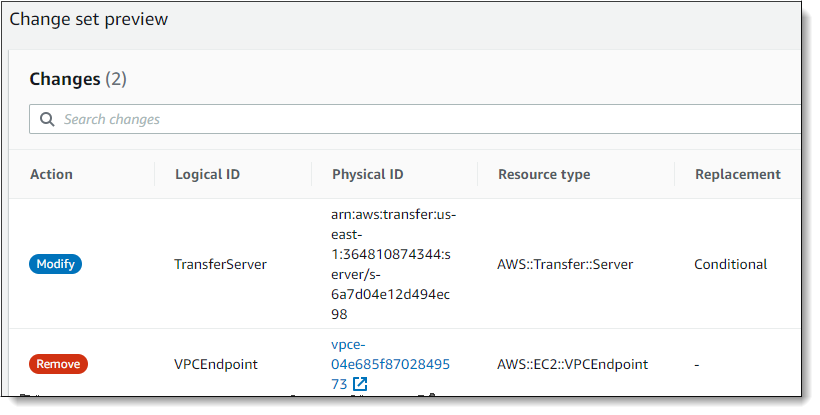
1. 새 템플릿을 업로드합니다. CloudFormation 변경 세트를 사용하면 템플릿 변경 사항을 구현하기 전에 템플릿 변경이 실행 중인 리소스에 미치는 영향에 대해 이해하는 데 도움이 됩니다. 이 예에서는 전송 서버 리소스가 수정되고 VPCendPoint 리소스가 제거됩니다. VPC 엔드포인트 타입 서버는 사용자를 대신하여 VPC 엔드포인트를 생성하여 원본 `VPCEndpoint` 리소스를 대체합니다.
새 템플릿을 업로드한 후 변경 세트는 다음과 유사합니다.
1. 스택을 업데이트합니다.
1. 스택 업데이트가 완료되면 Transfer Family 관리 콘솔 [https://console.aws.amazon.com/transfer/](https://console.aws.amazon.com/transfer/) 로 이동합니다.
1. 서버를 시작합니다. 업데이트한 서버를 선택한 CloudFormation다음 **작업** 메뉴에서 **시작**을 선택합니다.
## API를 사용하여 서버 엔드포인트 타입 업데이트
[describe-server](https://docs.aws.amazon.com/cli/latest/reference/transfer/update-server.html) AWS CLI 명령 또는 [UpdateServer](https://docs.aws.amazon.com/transfer/latest/APIReference/API_UpdateServer.html) API 명령을 사용할 수 있습니다. 다음 예 스크립트는 Transfer Family 서버를 중지하고, 엔드포인트 타입을 업데이트하고, VPC\_ENDPOINT를 제거하고, 서버를 시작합니다.
```
import boto3
import time
profile = input("Enter the name of the AWS account you'll be working in: ")
region_name = input("Enter the AWS Region you're working in: ")
server_id = input("Enter the AWS Transfer Server Id: ")
session = boto3.Session(profile_name=profile)
ec2 = session.client("ec2", region_name=region_name)
transfer = session.client("transfer", region_name=region_name)
group_ids=[]
transfer_description = transfer.describe_server(ServerId=server_id)
if transfer_description['Server']['EndpointType']=='VPC_ENDPOINT':
transfer_vpc_endpoint = transfer_description['Server']['EndpointDetails']['VpcEndpointId']
transfer_vpc_endpoint_descriptions = ec2.describe_vpc_endpoints(VpcEndpointIds=[transfer_vpc_endpoint])
for transfer_vpc_endpoint_description in transfer_vpc_endpoint_descriptions['VpcEndpoints']:
subnet_ids=transfer_vpc_endpoint_description['SubnetIds']
group_id_list=transfer_vpc_endpoint_description['Groups']
vpc_id=transfer_vpc_endpoint_description['VpcId']
for group_id in group_id_list:
group_ids.append(group_id['GroupId'])
if transfer_description['Server']['State']=='ONLINE':
transfer_stop = transfer.stop_server(ServerId=server_id)
print(transfer_stop)
time.sleep(300) #safe
transfer_update = transfer.update_server(ServerId=server_id,EndpointType='VPC',EndpointDetails={'SecurityGroupIds':group_ids,'SubnetIds':subnet_ids,'VpcId':vpc_id})
print(transfer_update)
time.sleep(10)
transfer_start = transfer.start_server(ServerId=server_id)
print(transfer_start)
delete_vpc_endpoint = ec2.delete_vpc_endpoints(VpcEndpointIds=[transfer_vpc_endpoint])
```