翻訳は機械翻訳により提供されています。提供された翻訳内容と英語版の間で齟齬、不一致または矛盾がある場合、英語版が優先します。
# 通話後分析の文字起こしを開始する
通話後分析文字起こしを開始する前に、音声で一致 Amazon Transcribe させるすべての[カテゴリ](tca-categories-batch.md)を作成する必要があります。
**注記**
コール分析トランスクリプトを新しいカテゴリと遡及的に一致させることはできません。コール分析文字起こしを開始する*前*に作成したカテゴリのみ、その文字起こし出力に適用することができます。
1 つ以上のカテゴリを作成し、音声が少なくとも 1 つのカテゴリですべてのルールに一致する場合、 Amazon Transcribe は一致するカテゴリで出力にフラグ付けを行います。カテゴリを使用しないことを選択した場合、または音声がカテゴリで指定したルールに一致しない場合、トランスクリプトにフラグ付けは行われません。
通話後分析文字起こしを開始するには、**AWS マネジメントコンソール**、**AWS CLI**、または **AWS SDK** を使用できます。例については以下を参照してください。
## AWS マネジメントコンソール
通話後分析ジョブをスタートするには、次の手順を実行します。カテゴリで定義されたすべての特性に一致する通話は、該当するカテゴリでラベル付けされます。
1. ナビゲーションペインの「分析 Amazon Transcribe の呼び出し」で、**「分析ジョブの呼び出し**」を選択します。
1. **[ジョブの作成]** を選択します。
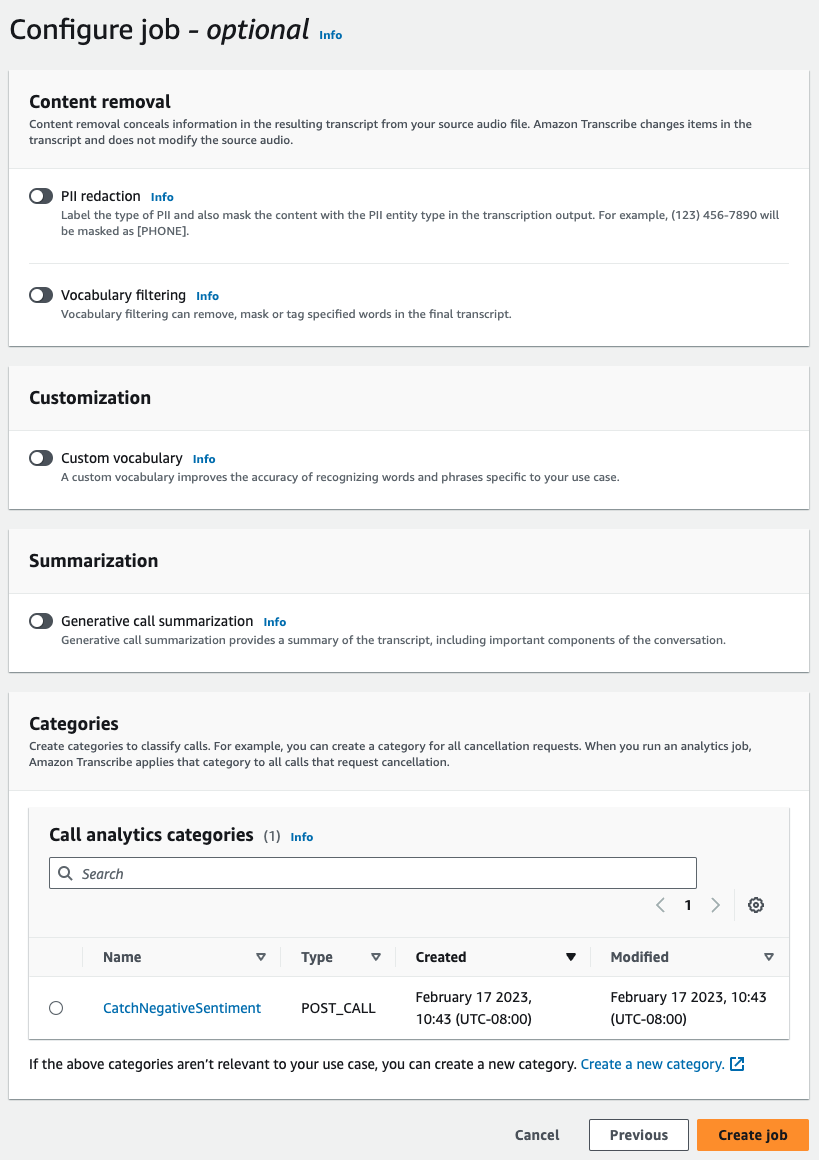
1. [**ジョブ詳細の指定**] ページで、入力データの場所など、コール分析ジョブに関する情報を提供します。
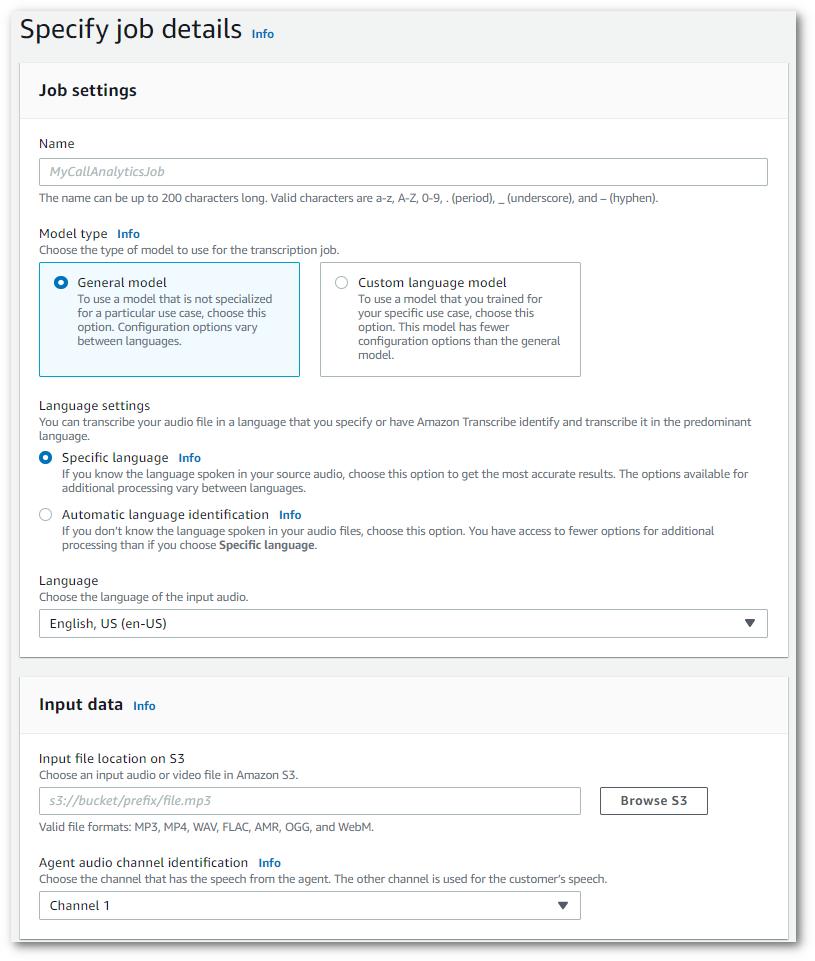
出力データの目的 Amazon S3 の場所と使用する IAM ロールを指定します。
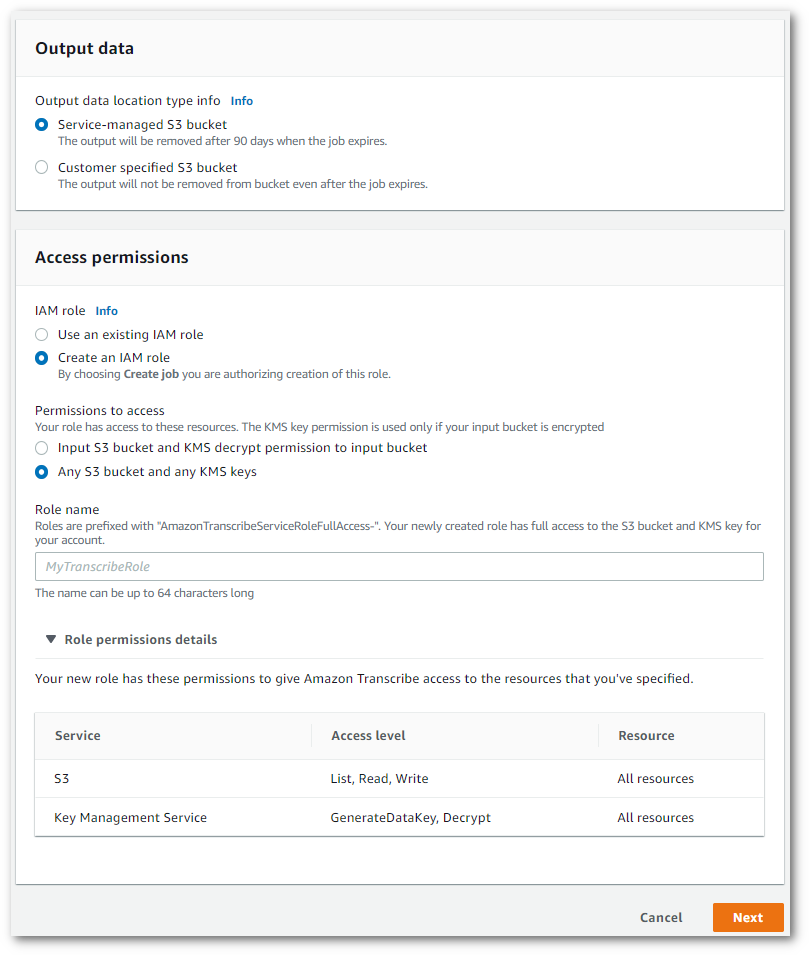
1. [**次へ**] を選択します。
1. **ジョブの設定**で、コール分析ジョブに含めたいオプション機能をオンにします。以前にカテゴリを作成した場合、そのカテゴリは**カテゴリ**パネルに表示され、コール分析ジョブに自動的に適用されます。
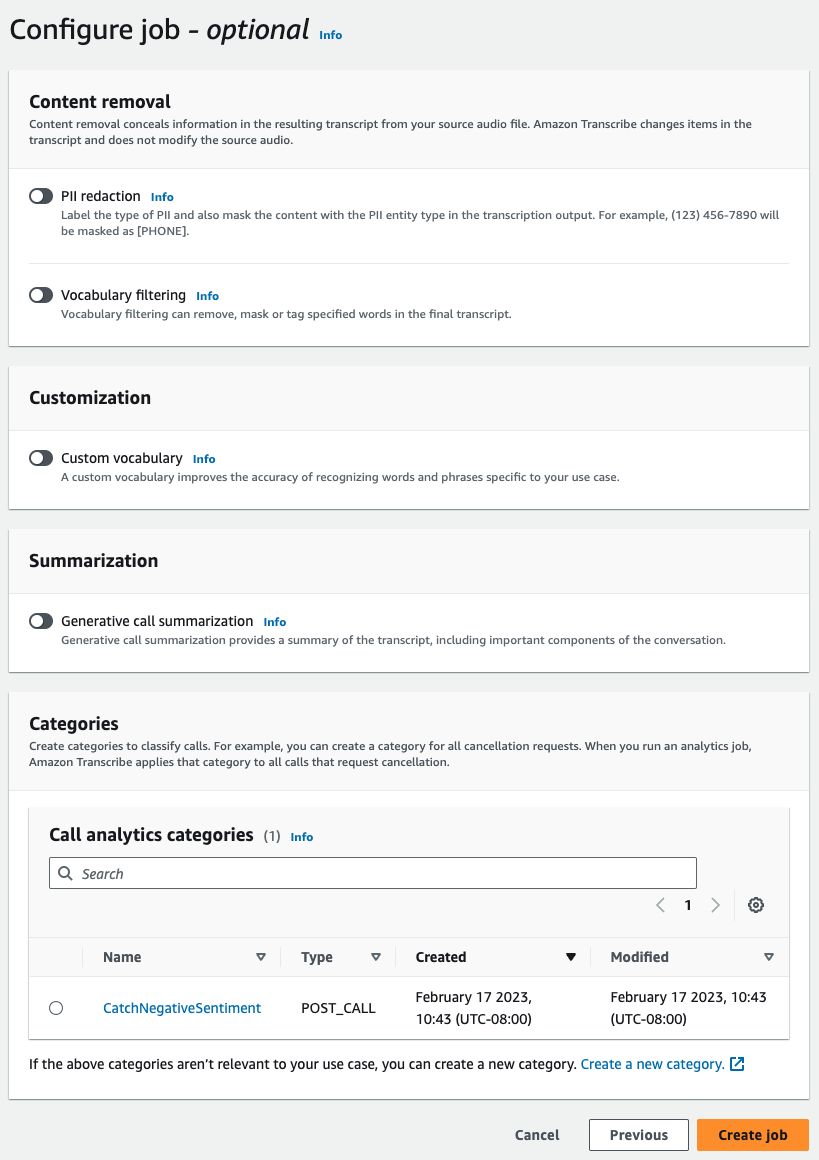
1. **[ジョブの作成]** を選択します。
## AWS CLI
この例では、[start-call-analytics-job](https://awscli.amazonaws.com/v2/documentation/api/latest/reference/transcribe/start-call-analytics-job.html) のコマンドと `channel-definitions` パラメータを使用します。詳細については、「[https://docs.aws.amazon.com/transcribe/latest/APIReference/API_StartCallAnalyticsJob.html](https://docs.aws.amazon.com/transcribe/latest/APIReference/API_StartCallAnalyticsJob.html)」および「[https://docs.aws.amazon.com/transcribe/latest/APIReference/API_ChannelDefinition.html](https://docs.aws.amazon.com/transcribe/latest/APIReference/API_ChannelDefinition.html)」を参照してください。
```
aws transcribe start-call-analytics-job \
--region {{us-west-2}} \
--call-analytics-job-name {{my-first-call-analytics-job}} \
--media MediaFileUri=s3://{{amzn-s3-demo-bucket}}/{{my-input-files}}/{{my-media-file}}.{{flac}} \
--output-location s3://{{amzn-s3-demo-bucket}}/{{my-output-files}}/ \
--data-access-role-arn arn:aws:iam::{{111122223333}}:role/{{ExampleRole}} \
--channel-definitions ChannelId=0,ParticipantRole={{AGENT}} ChannelId=1,ParticipantRole={{CUSTOMER}}
```
次に、[start-call-analytics-job](https://awscli.amazonaws.com/v2/documentation/api/latest/reference/transcribe/start-call-analytics-job.html) コマンドと、そのジョブのコール分析を有効にするリクエストボディを使用した別の例を示します。
```
aws transcribe start-call-analytics-job \
--region {{us-west-2}} \
--cli-input-json file://{{filepath}}/{{my-call-analytics-job}}.json
```
ファイル *my-call-analytics-job.json* には、次のリクエストボディが含まれています。
```
{
"CallAnalyticsJobName": "{{my-first-call-analytics-job}}",
"DataAccessRoleArn": "arn:aws:iam::{{111122223333}}:role/{{ExampleRole}}",
"Media": {
"MediaFileUri": "s3://{{amzn-s3-demo-bucket}}/{{my-input-files}}/{{my-media-file}}.{{flac}}"
},
"OutputLocation": "s3://{{amzn-s3-demo-bucket}}/{{my-output-files}}/",
"ChannelDefinitions": [
{
"ChannelId": 0,
"ParticipantRole": "{{AGENT}}"
},
{
"ChannelId": 1,
"ParticipantRole": "{{CUSTOMER}}"
}
]
}
```
## AWS SDK for Python (Boto3)
この例では AWS SDK for Python (Boto3) 、 を使用して [start\_call\_analytics\_job ](https://boto3.amazonaws.com/v1/documentation/api/latest/reference/services/transcribe.html#TranscribeService.Client.start_call_analytics_job)メソッドを使用してコール分析ジョブを開始します。詳細については、「[https://docs.aws.amazon.com/transcribe/latest/APIReference/API_StartCallAnalyticsJob.html](https://docs.aws.amazon.com/transcribe/latest/APIReference/API_StartCallAnalyticsJob.html)」および「[https://docs.aws.amazon.com/transcribe/latest/APIReference/API_ChannelDefinition.html](https://docs.aws.amazon.com/transcribe/latest/APIReference/API_ChannelDefinition.html)」を参照してください。
機能固有の例、シナリオ例、クロスサービス例など、 AWS SDKs[SDK を使用した Amazon Transcribe のコード例 AWS SDKs](service_code_examples.md)「」の章を参照してください。
```
from __future__ import print_function
import time
import boto3
transcribe = boto3.client('transcribe', '{{us-west-2}}')
job_name = "{{my-first-call-analytics-job}}"
job_uri = "s3://{{amzn-s3-demo-bucket}}/{{my-input-files}}/{{my-media-file}}.{{flac}}"
output_location = "s3://{{amzn-s3-demo-bucket}}/{{my-output-files}}/"
data_access_role = "arn:aws:iam::{{111122223333}}:role/{{ExampleRole}}"
transcribe.start_call_analytics_job(
CallAnalyticsJobName = job_name,
Media = {
'MediaFileUri': job_uri
},
DataAccessRoleArn = data_access_role,
OutputLocation = output_location,
ChannelDefinitions = [
{
'ChannelId': 0,
'ParticipantRole': '{{AGENT}}'
},
{
'ChannelId': 1,
'ParticipantRole': '{{CUSTOMER}}'
}
]
)
while True:
status = transcribe.get_call_analytics_job(CallAnalyticsJobName = job_name)
if status['CallAnalyticsJob']['CallAnalyticsJobStatus'] in ['COMPLETED', 'FAILED']:
break
print("Not ready yet...")
time.sleep(5)
print(status)
```