翻訳は機械翻訳により提供されています。提供された翻訳内容と英語版の間で齟齬、不一致または矛盾がある場合、英語版が優先します。
# 代替文字起こし
は音声を Amazon Transcribe 書き起こすと、同じトランスクリプトの異なるバージョンを作成し、各バージョンに信頼スコアを割り当てます。一般的な文字起こしでは、信頼スコアが最も高いバージョンしか得られません。
代替文字起こしを有効にすると、 は信頼レベルが低い他のバージョンの文字起こし Amazon Transcribe を返します。最大 10 個の代替文字起こしを返すように選択できます。が Amazon Transcribe 識別する選択肢よりも多くの選択肢を指定すると、実際の選択肢の数のみが返されます。
代替案はすべて同じ文字起こし出力ファイルにあり、セグメントレベルで表示されます。セグメントは、スピーカーの変更や音声の一時停止など、音声の自然な間のことです。
代替文字起こしは、バッチ文字起こしでのみ使用できます。
文字起こし出力は次のように構成されています。コード例の省略記号 ({{...}}) は、簡潔にするためにコンテンツが削除された場所を示しています。
1. 指定されたセグメントの完全な最終文字起こし。
```
"results": {
"language_code": "en-US",
"transcripts": [
{
"transcript": "The amazon is the largest rainforest on the planet."
}
],
```
1. 前の `transcript` セクションの各単語の信頼スコア。
```
"items": [
{
"start_time": "1.15",
"end_time": "1.35",
"alternatives": [
{
"confidence": "1.0",
"content": "The"
}
],
"type": "pronunciation"
},
{
"start_time": "1.35",
"end_time": "2.05",
"alternatives": [
{
"confidence": "1.0",
"content": "amazon"
}
],
"type": "pronunciation"
},
```
1. 代替の文字起こしは、文字起こし出力の `segments` 部分にあります。各セグメントの代替案は、信頼スコアの降順で並べられています。
```
"segments": [
{
"start_time": "1.04",
"end_time": "5.065",
"alternatives": [
{
{{...}}
"transcript": "The amazon is the largest rain forest on the planet.",
"items": [
{
"start_time": "1.15",
"confidence": "1.0",
"end_time": "1.35",
"type": "pronunciation",
"content": "The"
},
{{...}}
{
"start_time": "3.06",
"confidence": "0.0037",
"end_time": "3.38",
"type": "pronunciation",
"content": "rain"
},
{
"start_time": "3.38",
"confidence": "0.0037",
"end_time": "3.96",
"type": "pronunciation",
"content": "forest"
},
```
1. 文字起こし出力の最後にあるステータス。
```
"status": "COMPLETED"
}
```
## 代替文字起こしのリクエスト
**AWS マネジメントコンソール**、**AWS CLI**、または **AWS SDK** を使用して代替文字起こしをリクエストできます。例については、以下を参照してください。
### AWS マネジメントコンソール
1. [AWS マネジメントコンソール](https://console.aws.amazon.com/transcribe/) にサインインします。
1. ナビゲーションペインで、[**文字起こしジョブ**] を選択後、[**ジョブの作成**] (右上) を選択します。これにより、「**ジョブの詳細を指定**」ページが開きます。
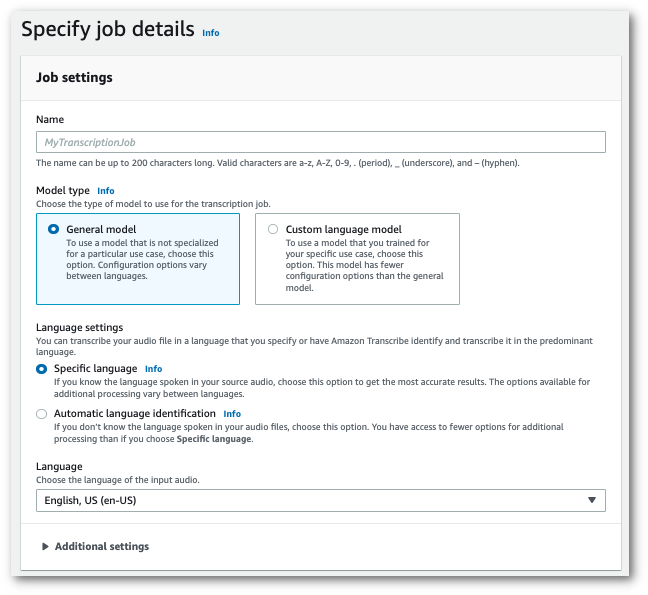
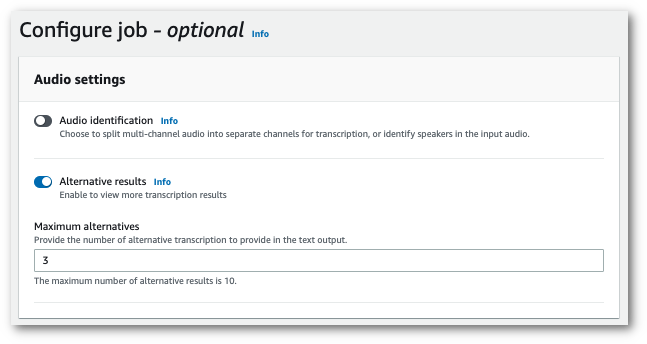
1. **ジョブの詳細を指定**ページで追加したいフィールドに入力後、「**次へ**」を選択します。これにより、**ジョブの設定 - *オプション***ページへ移動します。
「**代替結果**」を選択し、トランスクリプトに必要な代替文字起こし結果の最大数を指定します。
1. [**ジョブの作成**] を選択して、文字起こしジョブを実行します。
### AWS CLI
この例では、[start-transcription-job](https://awscli.amazonaws.com/v2/documentation/api/latest/reference/transcribe/start-transcription-job.html) コマンドと `ShowAlternatives` パラメータを使用します。詳細については、「[https://docs.aws.amazon.com/transcribe/latest/APIReference/API_StartTranscriptionJob.html](https://docs.aws.amazon.com/transcribe/latest/APIReference/API_StartTranscriptionJob.html)」および「[https://docs.aws.amazon.com/transcribe/latest/APIReference/API_Settings.html#transcribe-Type-Settings-ShowAlternatives](https://docs.aws.amazon.com/transcribe/latest/APIReference/API_Settings.html#transcribe-Type-Settings-ShowAlternatives)」を参照してください。
`ShowAlternatives=true` をリクエストに含める場合は、`MaxAlternatives` も含める必要があることに注意してください。
```
aws transcribe start-transcription-job \
--region {{us-west-2}} \
--transcription-job-name {{my-first-transcription-job}} \
--media MediaFileUri=s3://{{amzn-s3-demo-bucket}}/{{my-input-files}}/{{my-media-file}}.{{flac}} \
--output-bucket-name {{amzn-s3-demo-bucket}} \
--output-key {{my-output-files}}/ \
--language-code {{en-US}} \
--settings ShowAlternatives=true,MaxAlternatives={{4}}
```
別の例として、[start-transcription-job](https://awscli.amazonaws.com/v2/documentation/api/latest/reference/transcribe/start-transcription-job.html) コマンド、および代替文字起こしを含むリクエストボディを使用します。
```
aws transcribe start-transcription-job \
--region {{us-west-2}} \
--cli-input-json file://{{filepath}}/{{my-first-alt-transcription-job.json}}
```
ファイル *my-first-transcription-job.json* には、次のリクエストボディが含まれています。
```
{
"TranscriptionJobName": "{{my-first-transcription-job}}",
"Media": {
"MediaFileUri": "s3://{{amzn-s3-demo-bucket}}/{{my-input-files}}/{{my-media-file}}.{{flac}}"
},
"OutputBucketName": "{{amzn-s3-demo-bucket}}",
"OutputKey": "{{my-output-files}}/",
"LanguageCode": "{{en-US}}",
"Settings": {
"ShowAlternatives": true,
"MaxAlternatives": {{4}}
}
}
```
### AWS SDK for Python (Boto3)
次の例では AWS SDK for Python (Boto3) 、 を使用して[、start\_transcription\_job](https://boto3.amazonaws.com/v1/documentation/api/latest/reference/services/transcribe.html#TranscribeService.Client.start_transcription_job) メソッドの `ShowAlternatives`引数を使用して代替文字起こしをリクエストします。詳細については、「[https://docs.aws.amazon.com/transcribe/latest/APIReference/API_StartTranscriptionJob.html](https://docs.aws.amazon.com/transcribe/latest/APIReference/API_StartTranscriptionJob.html)」および「[https://docs.aws.amazon.com/transcribe/latest/APIReference/API_Settings.html#transcribe-Type-Settings-ShowAlternatives](https://docs.aws.amazon.com/transcribe/latest/APIReference/API_Settings.html#transcribe-Type-Settings-ShowAlternatives)」を参照してください。
機能固有の例、シナリオ例、クロスサービス例など、 AWS SDKs[SDK を使用した Amazon Transcribe のコード例 AWS SDKs](service_code_examples.md)「」の章を参照してください。
`'ShowAlternatives':True` をリクエストに含める場合は、`MaxAlternatives` も含める必要があることに注意してください。
```
from __future__ import print_function
import time
import boto3
transcribe = boto3.client('transcribe', '{{us-west-2}}')
job_name = "{{my-first-transcription-job}}"
job_uri = "s3://{{amzn-s3-demo-bucket}}/{{my-input-files}}/{{my-media-file}}.{{flac}}"
transcribe.start_transcription_job(
TranscriptionJobName = job_name,
Media = {
'MediaFileUri': job_uri
},
OutputBucketName = '{{amzn-s3-demo-bucket}}',
OutputKey = '{{my-output-files}}/',
LanguageCode = '{{en-US}}',
Settings = {
'ShowAlternatives':True,
'MaxAlternatives':{{4}}
}
)
while True:
status = transcribe.get_transcription_job(TranscriptionJobName = job_name)
if status['TranscriptionJob']['TranscriptionJobStatus'] in ['COMPLETED', 'FAILED']:
break
print("Not ready yet...")
time.sleep(5)
print(status)
```