Terjemahan disediakan oleh mesin penerjemah. Jika konten terjemahan yang diberikan bertentangan dengan versi bahasa Inggris aslinya, utamakan versi bahasa Inggris.
Korelasi
Korelasi menautkan kumpulan data jejak ke kumpulan data log sehingga Anda dapat melihat entri log terkait saat menyelidiki rentang jejak. Dengan mendefinisikan korelasi, Anda mengaktifkan halaman Discover Traces untuk menampilkan log yang terjadi selama eksekusi rentang, membantu Anda mendiagnosis masalah lebih cepat tanpa beralih antar halaman.
Persyaratan korelasi
Untuk membuat korelasi, data log dan jejak Anda harus berisi bidang yang cocok. Tabel berikut menjelaskan bidang yang digunakan korelasi untuk menggabungkan data jejak dan log.
| Bidang | Deskripsi | Diperlukan |
|---|---|---|
| ID Jejak | Pengidentifikasi unik untuk jejak. Harus ada di indeks rentang jejak dan indeks log. | Ya |
| ID rentang | Pengidentifikasi unik untuk rentang. Digunakan untuk mencocokkan log ke rentang tertentu dalam jejak. | Tidak |
| Nama layanan | Nama layanan yang menghasilkan telemetri. Digunakan untuk memfilter log terkait berdasarkan layanan. | Tidak |
| Stempel waktu | Bidang waktu yang digunakan untuk lingkup log terkait dengan rentang waktu rentang. | Ya |
Untuk membuat korelasi trace-to-logs
Selesaikan langkah-langkah berikut untuk membuat korelasi antara kumpulan data jejak dan kumpulan data log.
-
Di ruang kerja observabilitas Anda, perluas Temukan di navigasi kiri dan pilih Jejak.
-
Pilih kumpulan data jejak yang ingin Anda korelasikan.
-
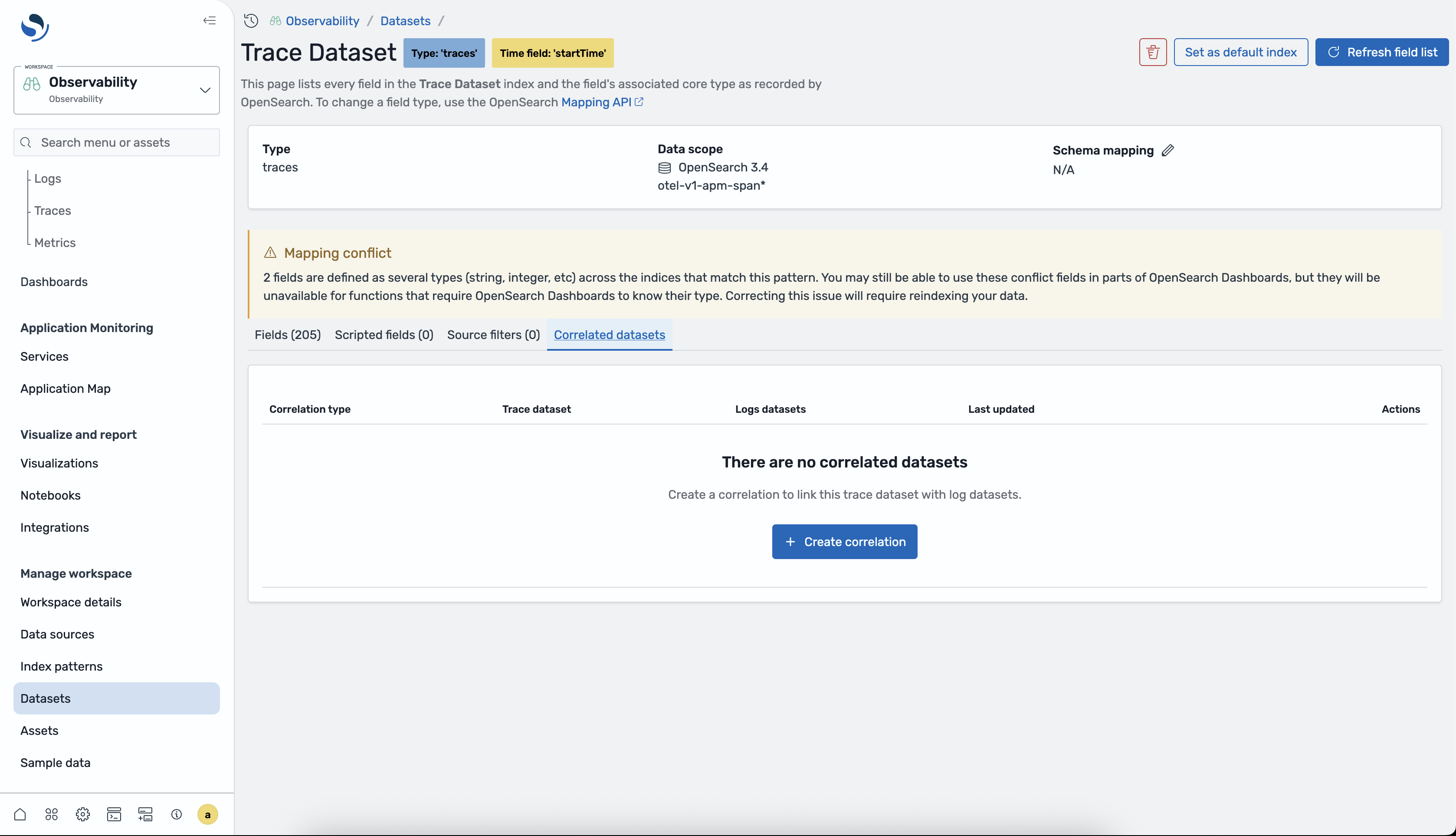
Pilih tab Korelasi di panel konfigurasi kumpulan data.
-
Pilih Buat korelasi.
-
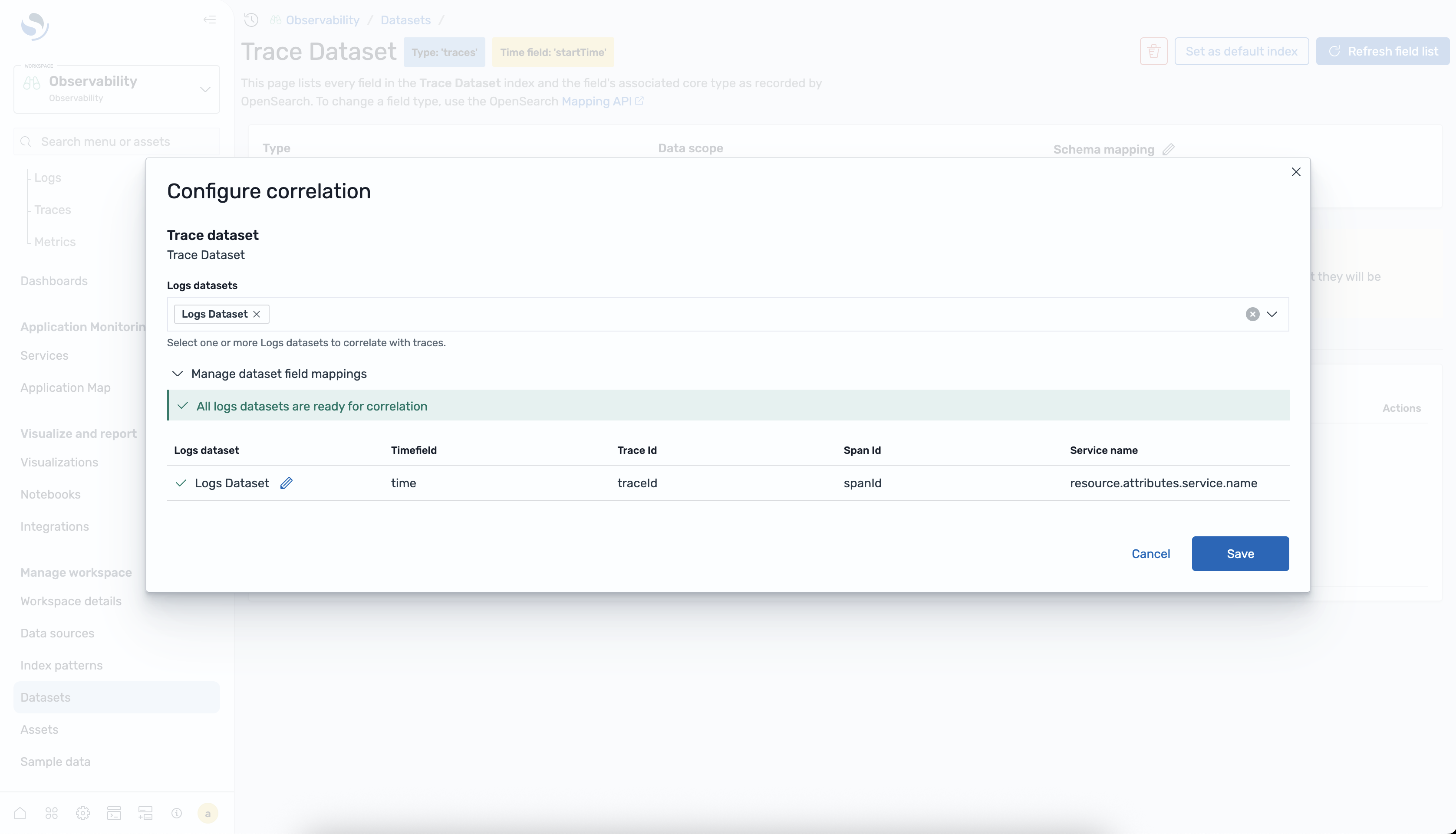
Dalam dialog konfigurasi, pilih kumpulan data log target dan petakan bidang korelasi yang diperlukan (ID jejak dan stempel waktu). Secara opsional, ID rentang peta dan nama layanan untuk pencocokan yang lebih tepat.
-
Pilih Buat untuk menyimpan korelasi.
-
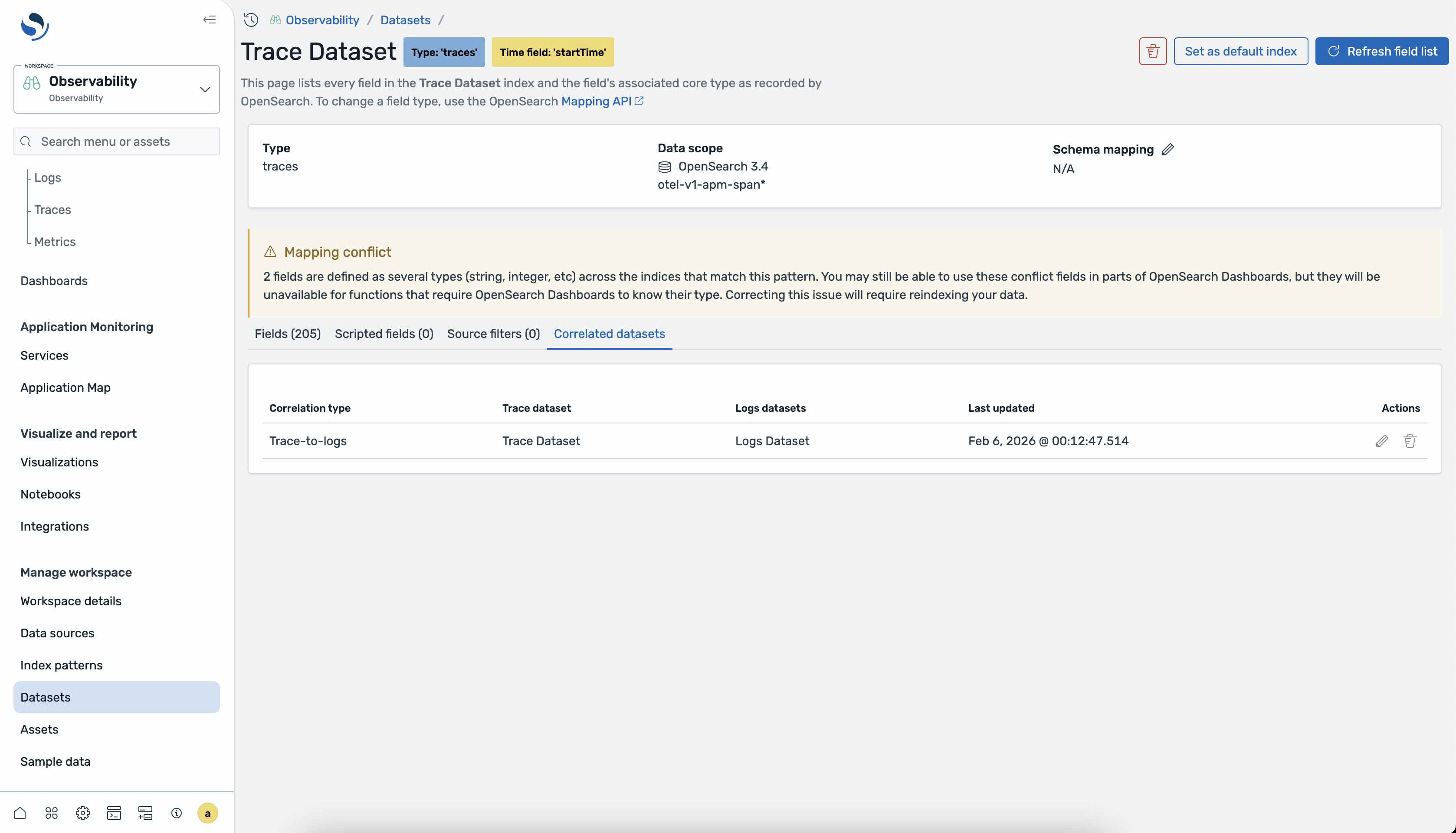
Verifikasi bahwa korelasi muncul di tabel korelasi.
Melihat korelasi dalam kumpulan data log
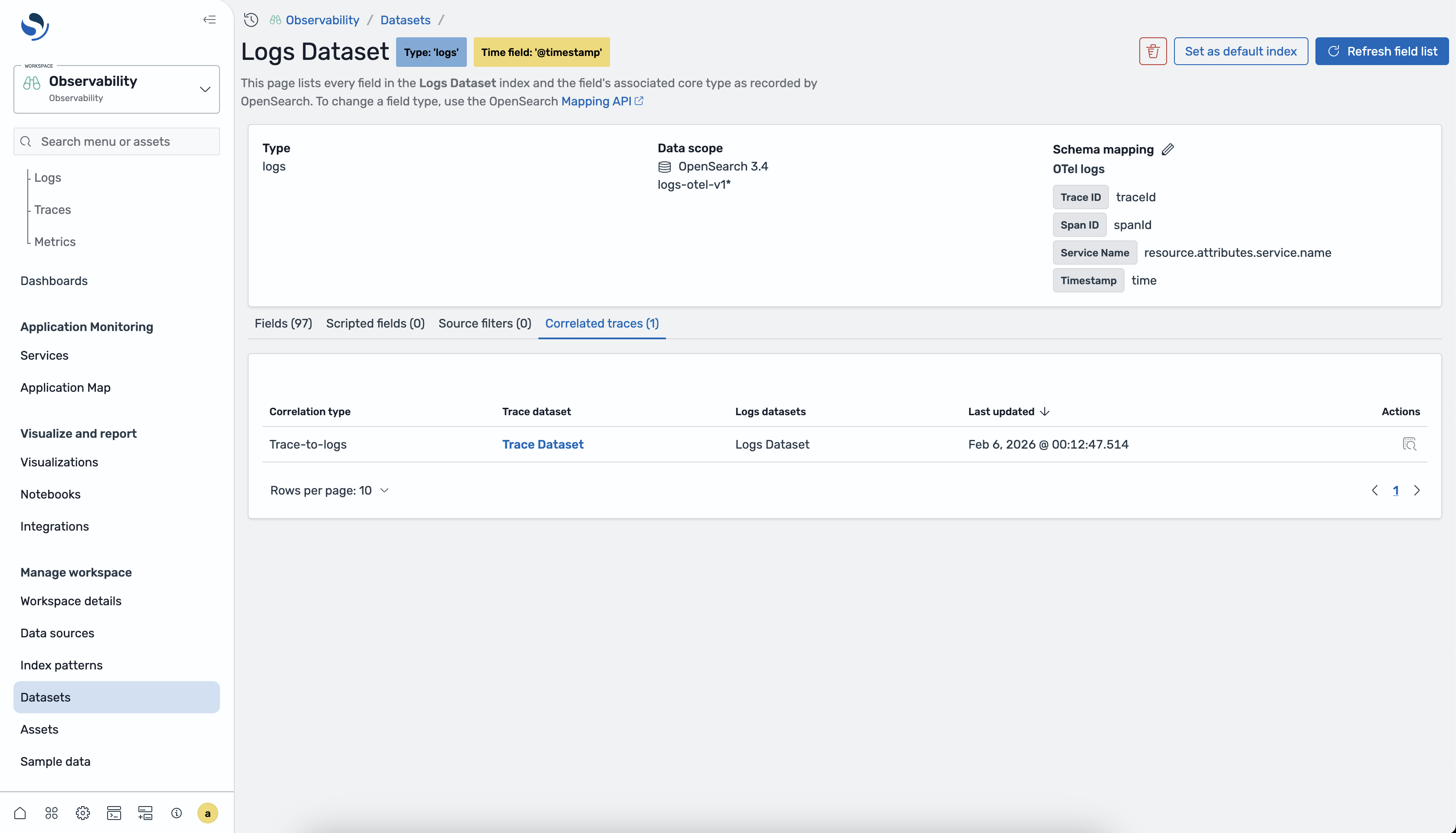
Setelah Anda membuat korelasi, Anda juga dapat melihatnya dari sisi dataset log. Arahkan ke halaman Temukan Log, pilih kumpulan data log yang berkorelasi, dan pilih tab Korelasi untuk melihat kumpulan data jejak yang ditautkan.
Menggunakan korelasi di halaman Jejak
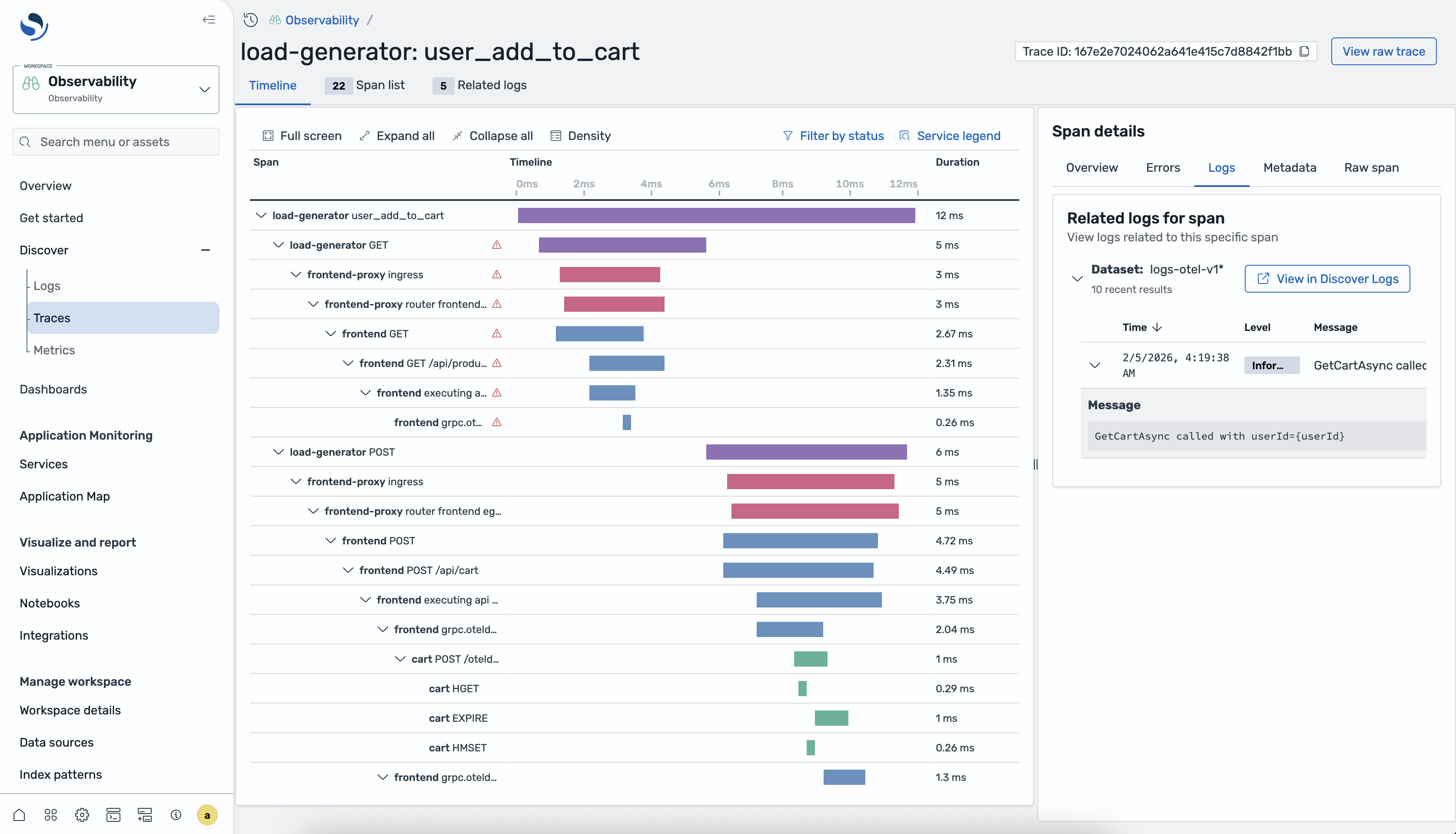
Ketika ada korelasi, halaman Discover Traces menampilkan log terkait dalam tampilan detail rentang. Pilih rentang dalam tabel rentang untuk membuka flyout detail, lalu pilih tab Log terkait untuk melihat entri log yang berkorelasi.
Mengelola korelasi
Anda dapat mengedit atau menghapus korelasi dari tab Korelasi baik dari jejak atau kumpulan data log.
-
Pengeditan — Pilih korelasi dalam tabel dan pilih Edit untuk memperbarui pemetaan bidang atau kumpulan data target.
-
Menghapus - Pilih korelasi dalam tabel dan pilih Hapus untuk menghapus korelasi. Menghapus korelasi tidak menghapus data apa pun.
