Building a Consolidated Dashboard
Last Updated
May 2026
Introduction
The Cloud Intelligence Dashboards are a suite of multiple dashboards, each focused on a specific area or requirement. While this separation keeps each dashboard focused and performant, it can mean switching between dashboards to get a complete picture of your cloud environment.
By following this guide, you can build a consolidated dashboard that brings together the most relevant visuals from across all of your Cloud Intelligence Dashboards into a single view. This gives stakeholders a unified summary without needing to navigate between individual dashboards, making it easier to spot trends, correlate data, and drive action from one place.
In this guide, you will learn how to create a new Quick Sight analysis that references datasets from your existing Cloud Intelligence Dashboards, add visuals from multiple sources onto shared sheets, and publish the result as a single consolidated dashboard.
Prerequisites
For this solution you must have the following:
-
Ability to save a dashboard to create a new analysis
-
Ability to save and publish dashboards in Amazon Quick Sight
Step 1 - Creating A New Analysis and Sheet
-
Select the dashboard you would like to add a consolidated view to and save it as an analysis.
-
Choose the plus icon in the top right to create a new sheet
-
Rename your sheet using the down arrow next to your new sheet
-
Drag the new sheet to the far left side to make it the first sheet in your analysis
For more details on the process including a demo, visit Creating an Analysis
Step 2 - Importing Visuals To Your New Sheet
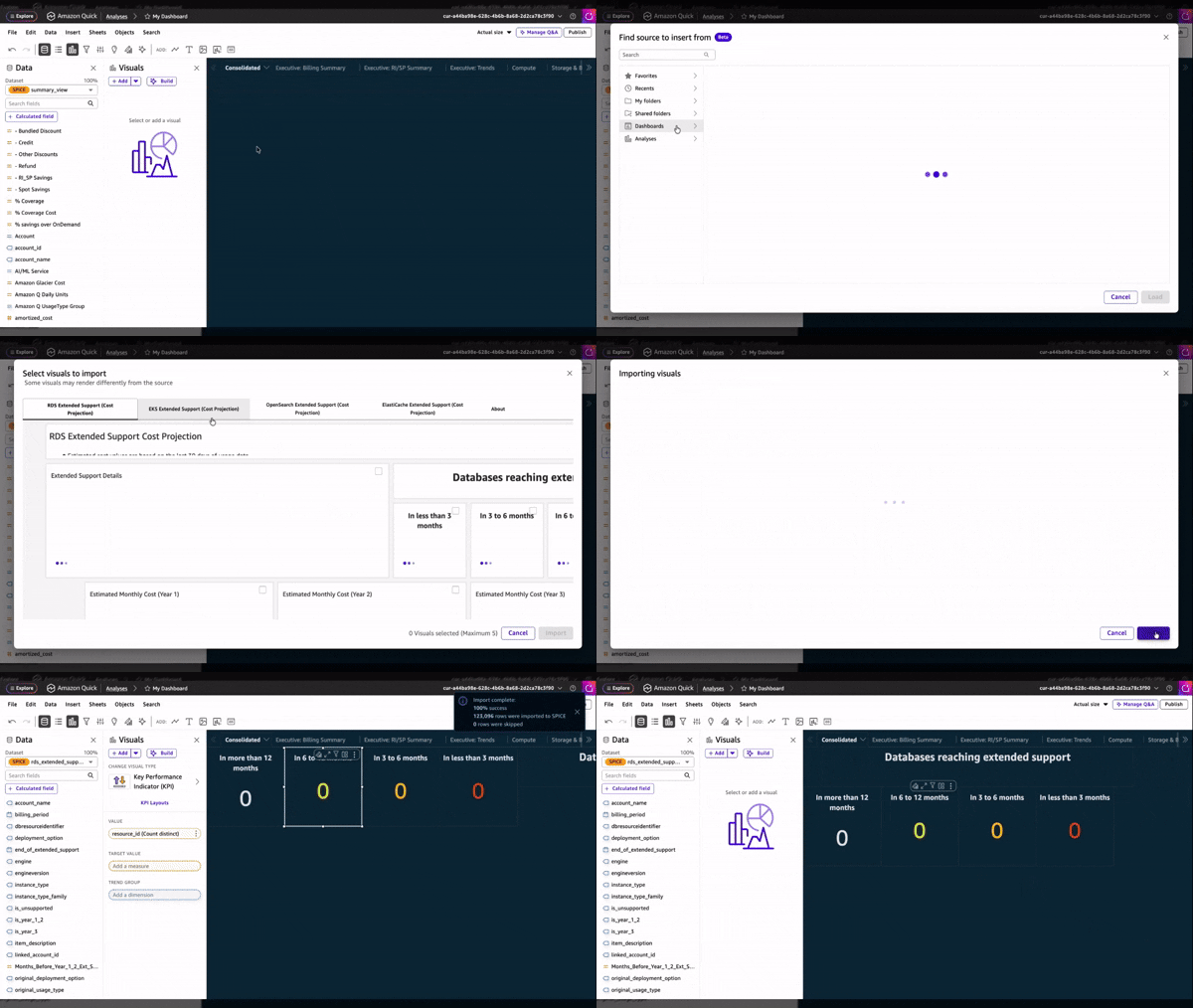
With your new sheet, you can now select the visuals you want to add to your sheet. For visuals that are within the current dashboard and on another sheet, you can simply select the three dots icon and choose "Duplicate Visual To: [Your Sheet"]. This will place a copy of that visual onto your new sheet which you can then customize further, or move it to the correct position. To insert a visual that is present on another dashboard, you’ll need to Import it onto your current sheet.
-
Select File in the top left and choose Import
-
On the Import screen, you will see a navigation panel on the left where you can view other Analyses and Dashboards
-
Select the Dashboard that contains the visual and choose "Load"
-
On the next screen you will see a preview of the selected dashboard and each visual required can be ticked
Note
At the time of writing, you can select up to 5 visuals to be imported at one time. If you need more than 5, you will need to go through these steps again to import a further 5.
-
Choose "Import" and after a short while, the visuals will be imported and placed onto your sheet in the analysis.
-
Repeat these steps across all of the required visuals that you want to bring in to your consolidated sheet
Step 3 - Publishing Your New Consolidated Dashboard
Once you’ve finished making edits and imported all of your visuals, you can go ahead and Publish your analysis as a new dashboard.
-
Select "Publish" in the top right.
-
Give your dashboard a name and add notes as required
-
Complete any other customizations of the Dashboard options section, and then choose "Publish Dashboard"
After a short while, your new Consolidated Dashboard is published and ready, so you can look at all of the key insights from one single place.
Additional information
