# Downloading artifacts in Device Farm
Device Farm gathers artifacts such as reports, log files, and images for each test in the run.
You can download artifacts created during your test run:
**Files**
Files generated during the test run including Device Farm reports. For more information, see [Viewing test reports in Device Farm](how-to-use-reports.md).
**Logs**
Output from each test in the test run.
**Screenshots**
Screen images recorded for each test in the test run.
## Download artifacts (console)
1. On the test run report page, from **Devices**, choose a mobile device.
1. To download a file, choose one from **Files**.
1. To download the logs from your test run, from **Logs**, choose **Download logs**.
1. To download a screenshot, choose a screenshot from **Screenshots**.
For more information about downloading artifacts in a custom test environment, see [Downloading artifacts in a custom test environment](using-artifacts-custom.md).
## Download artifacts (AWS CLI)
You can use the AWS CLI to list your test run artifacts.
**Topics**
+ [Step 1: Get your Amazon Resource Names (ARN)](#artifacts-cli-step1)
+ [Step 2: List your artifacts](#artifacts-cli-step2)
+ [Step 3: Download your artifacts](#artifacts-cli-step3)
### Step 1: Get your Amazon Resource Names (ARN)
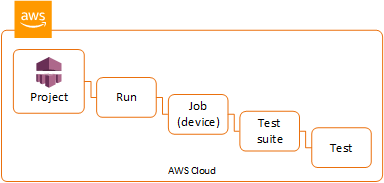
You can list your artifacts by run, job, test suite, or test. You need the corresponding ARN. This table shows the input ARN for each of the AWS CLI list commands:
| AWS CLI List Command | Required ARN |
| --- | --- |
| list-projects | This command returns all projects and does not require an ARN. |
| list-runs | project |
| list-jobs | run |
| list-suites | job |
| list-tests | suite |
For example, to find a test ARN, run **list-tests** using your test suite ARN as an input parameter.
Example:
```
aws devicefarm list-tests –-arn {{arn:MyTestSuiteARN}}
```
The response includes a test ARN for each test in the test suite.
```
{
"tests": [
{
"status": "COMPLETED",
"name": "Tests.FixturesTest.testExample",
"created": 1537563725.116,
"deviceMinutes": {
"unmetered": 0.0,
"total": 1.89,
"metered": 1.89
},
"result": "PASSED",
"message": "testExample passed",
"arn": "arn:aws:devicefarm:us-west-2:123456789101:test:5e01a8c7-c861-4c0a-b1d5-12345EXAMPLE",
"counters": {
"skipped": 0,
"warned": 0,
"failed": 0,
"stopped": 0,
"passed": 1,
"errored": 0,
"total": 1
}
}
]
}
```
### Step 2: List your artifacts
The AWS CLI [list-artifacts](https://docs.aws.amazon.com/cli/latest/reference/devicefarm/list-artifacts.html) command returns a list of artifacts, such as files, screenshots, and logs. Each artifact has a URL so you can download the file.
+ Call **list-artifacts** specifying a run, job, test suite, or test ARN. Specify a type of FILE, LOG, or SCREENSHOT.
This example returns a download URL for each artifact available for an individual test:
```
aws devicefarm list-artifacts --arn {{arn:MyTestARN}} --type "FILE"
```
The response contains a download URL for each artifact.
```
{
"artifacts": [
{
"url": "https://prod-us-west-2-uploads.s3-us-west-2.amazonaws.com/ExampleURL",
"extension": "txt",
"type": "APPIUM_JAVA_OUTPUT",
"name": "Appium Java Output",
"arn": "arn:aws:devicefarm:us-west-2:123456789101:artifact:5e01a8c7-c861-4c0a-b1d5-12345EXAMPLE",
}
]
}
```
### Step 3: Download your artifacts
+ Download your artifact using the URL from the previous step. This example uses **curl** to download an Android Appium Java output file:
```
curl "https://prod-us-west-2-uploads.s3-us-west-2.amazonaws.com/ExampleURL" > {{MyArtifactName.txt}}
```
## Download artifacts (API)
The Device Farm API [ListArtifacts](https://docs.aws.amazon.com/devicefarm/latest/APIReference/API_ListArtifacts.html) method returns a list of artifacts, such as files, screenshots, and logs. Each artifact has a URL so you can download the file.