Autodesk 3ds Max
Note
When using Autodesk 3ds Max with AWS Deadline Cloud, you can use Autodesk Cloud Rights included with your subscription. For more information about Cloud Rights and subscription benefits, see Subscription Benefits FAQ: Cloud Rights
Autodesk 3ds Max is a professional 3D computer graphics program for creating 3D animations, models, games, and images. Deadline Cloud provides comprehensive support for 3ds Max with integrated submitters, host configuration scripts, usage-based licensing, and adaptors for increased rendering performance. This guide provides step-by-step instructions for using AWS Deadline Cloud with 3ds Max to render your projects faster by distributing rendering tasks across multiple machines.
Support overview
3ds Max is supported by the following components:
-
Submitter: Integrated submitter for direct job submission from 3ds Max with automatic scene and asset detection.
-
Host Configuration Script: Example host configuration script to install 3ds Max.
-
Adaptor: Middleware for efficient rendering with sticky sessions and additional monitoring.
-
Cross-platform compatibility: Submitter support for Windows with worker support for Windows and automatic path mapping.
-
Usage-based Licensing: Pay-as-you-go licensing for 3ds Max and Corona.
3ds Max version compatibility
The following table shows current support levels for 3ds Max versions:
| Major Version | Submitter Support | Host Configuration Support |
|---|---|---|
| 2024 | Windows | Windows |
| 2025 | Windows | Windows |
| 2026 | Windows | Windows |
| 2027 | Windows | Windows |
3ds Max differences from other digital content creation tools
In Deadline Cloud, 3ds Max is installed using host configuration scripts instead of conda packages. This differs from most other DCCs in Deadline Cloud due to unique requirements of the 3ds Max installation process, as the application must be installed by a system administrator.
Getting started
To use 3ds Max with Deadline Cloud:
-
Create a service-managed fleet and associate it with a queue. Configure the fleet with GPU support if you intend to use GPU-accelerated rendering features. The fleet must be configured with a host configuration script that installs 3ds Max. For more information, see 3ds Max Host Configuration script setup
and the 3ds Max Host Config example on GitHub . -
Install the Deadline Cloud monitor and 3ds Max submitter on your artist workstation using the Deadline Cloud Submitter and monitor Installers. For more information, see Set up your workstation.
-
Submit your job directly from 3ds Max using the integrated submitter to the queue.
-
Monitor the job and download the output using the Deadline Cloud monitor.
Fleet host configuration
Before setting up the 3ds Max submitter, configure the Deadline Cloud fleet as follows.
3ds Max is a popular digital content creation tool provided by Autodesk. 3ds Max runs on Windows, and requires administrative access to install onto a host. Because of the administrative requirement, Deadline Cloud recommends installing 3ds Max onto the worker host using host configuration scripts.
Custom fleet host configuration scripts allow you to perform administrative tasks, such as software installation, on your service-managed fleet workers. These scripts run with elevated privileges, giving you the flexibility to configure your workers for your system.
Examples
Examples are available for 3ds Max 2024 and 2025 with V-Ray, and for integrations with plugins such as tyFlow. To request additional examples, suggest ideas in the discussion forum
For complete host configuration script examples, see deadline-cloud-samples/host_configuration_scripts/3dsmax
Note
Although the examples install specific 3ds Max versions, the Deadline Cloud submitter supports 3ds Max 2025, 2026, and 2027 as well. The installation script should work equivalently for 3ds Max 2025, 2026, and 2027.
Installation
To install the Deadline Cloud submitter for Autodesk 3ds Max, prepare the following environment:
Windows workstation.
Autodesk 3ds Max 2024, 2025, 2026, or 2027 installation.
Optional: V-Ray 6 or 7 for 3ds Max installation.
-
Access to an Deadline Cloud farm with either:
A Windows service-managed fleet with Autodesk 3ds Max host configuration.
A customer-managed fleet with Autodesk 3ds Max and licensing set up.
Installing the submitter
The Autodesk 3ds Max submitter extension allows you to submit jobs to Deadline Cloud directly from within 3ds Max. To install the submitter:
Download the Deadline Cloud submitter installer.
Run the installer and follow the on-screen instructions.
Launch 3ds Max after installation.
Updating the submitter
To update the submitter to the latest version, download and run the latest submitter installer.
Using the Autodesk 3ds Max submitter
To use the Deadline Cloud submitter for 3ds Max, make sure that your farm is configured with a 3ds Max-capable fleet, and that the submitter is installed. Log into Deadline Cloud monitor or provide AWS credentials using a configuration profile for Deadline Cloud access.
Submitting a job
To submit a job from 3ds Max to Deadline Cloud:
Save your 3ds Max file.
On the 3ds Max menu bar, choose Deadline Cloud.
Use the tabs in the dialog to customize your job.
-
(Optional) To export a job's associated files to your job history directory without submitting it, choose Export bundle.
Choose Submit and follow the prompts to send your job to Deadline Cloud.
Shared job settings
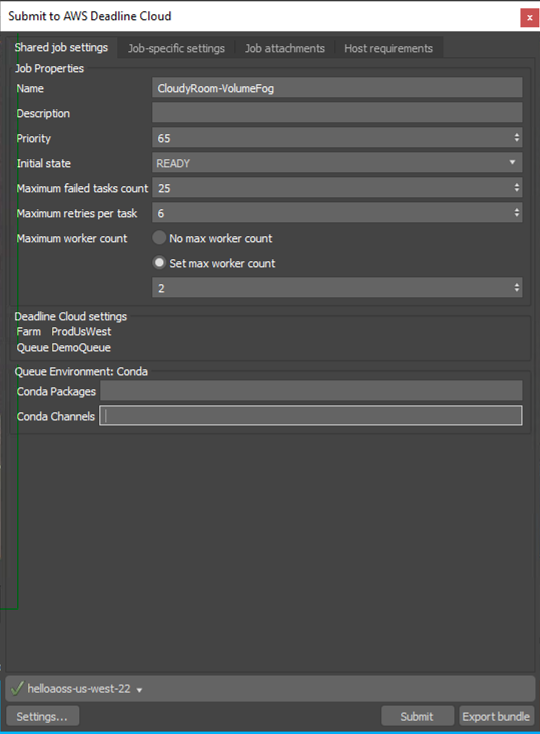
The following settings apply to the entire job:
Farm Selection - Choose which farm your job will render on.
Queue Selection - Select the specific queue within your chosen farm.
Job Name - Give your render job a descriptive name.
Job Description - Add optional details about your render job.
Priority - Set job priority for queue management.
Initial State - Control whether the job starts immediately or remains paused.
Max Failed Tasks Count - Maximum number of tasks that can fail before the job is marked as failed.
Max Retries Per Task - Number of times a failed task will be retried.
Max Worker Count - Maximum number of workers that can work on this job simultaneously.
Conda Packages - This setting must be empty as 3ds Max does not use conda.
Conda Channels - This setting must be empty as 3ds Max does not use conda.
3ds Max-specific settings

The following settings are specific to 3ds Max rendering:
Project Path - The 3ds Max project path (automatically detected).
Output Path - Directory where rendered images will be saved.
Output Filename - Base name for rendered image files. Use ### to represent the frame number.
Output File Extension - File format for rendered images (for example, .exr, .png, .jpg).
State Sets - Select which 3ds Max state set to use for rendering.
Renderer - Current renderer from 3ds Max render settings (read-only).
Stereo Cameras Selection - Choose stereo camera rendering options if a stereo plugin is available.
Cameras To Render - Select specific cameras or render all cameras.
Override Frame Range - Optionally override the scene's frame range with custom values.
Scene tweaks
The following options modify the scene during submission:
Merge Object XRefs - Merge external object references into the scene.
Merge Scene XRefs - Merge external scene references into the scene.
Clear Material Editor In The Submitted File - Remove materials from the material editor.
Unlock Material Editor Renderer - Unlock the material editor renderer.
Apply Custom Material To Scene - Apply a custom material to all scene objects.
Render elements
Render elements in 3ds Max are specialized output passes. They separate different aspects of the rendered image into individual components for advanced compositing and post-production workflows. These elements allow artists to isolate specific rendering components, such as diffuse color, specular highlights, shadows, reflections, and material properties. Artists can then precisely control and adjust these components in post-production without re-rendering the entire scene. Deadline Cloud for 3ds Max provides comprehensive render elements support with advanced path management, V-Ray integration, and automatic configuration during rendering.
The submitter provides enhanced render elements support with the following options:
Modify Render Elements - Enables any changes to render element settings for this scene. If selected, the following options are applied at render time.
Output Render Elements - Control enable/disable render elements output.
Update Render Element Paths - Automatically update output paths during submission.
Include Name/Type in Path - Add render element names or types to output directory paths.
Include Name/Type in Filename - Add render element names or types to output filenames.
V-Ray Specific Settings - VFB control and split buffer support for V-Ray render elements.
Ignore Render Elements by Name - Exclude specific render elements from output.
For information about the other submitter tabs, see the Deadline Cloud guide for using a submitter.
Known limitations
Maximum number of state sets / batch views per job
The Open Job Description (OpenJD) specification
The submitter uses a fixed set of global parameters, plus per-step parameters that scale with the number of state sets or batch views:
| Parameter group | Count |
|---|---|
| Base parameters (scene file, error checking) | 2 |
| Camera parameter (when a specific camera is selected) | 0 or 1 |
| Render element parameters (when scene has render elements) | up to 10 |
| Per state set in Default mode (frames, output path/name/format, resolution) | 6 each |
| Per batch view in Batch Render mode (frames, output path/name/format, resolution, camera, scene state, preset, pixel aspect) | 10 each |
The practical limits are:
| Submission mode | Render elements | Specific camera | Max per job |
|---|---|---|---|
| Default | No | No | 8 state sets |
| Default | No | Yes | 7 state sets |
| Default | Yes | No | 6 state sets |
| Default | Yes | Yes | 6 state sets |
| Batch Render | No | N/A | 4 batch views |
| Batch Render | Yes | N/A | 3 batch views |
Submitting a job that exceeds 50 parameters will fail with a validation error. If you need to render more state sets or batch views than the limit allows, split them across multiple job submissions.
V-Ray standalone tile rendering
For advanced V-Ray users, you can export V-Ray scene files (.vrscene) locally within 3ds Max and submit them as standalone job bundles with tile rendering support. This workflow is particularly useful for large resolution renders where tiling can reduce memory footprint and optimize render times.
When to use this workflow
Tile rendering with V-Ray Standalone on Linux workers is beneficial for:
Large resolution renders (outdoor advertising, high-resolution entertainment content).
Scenes with high memory requirements that benefit from processing smaller regions.
Optimizing render resources by splitting images into evenly sized regions rendered in parallel.
Minimizing rendering time through parallel processing.
Reducing infrastructure costs by using Linux Amazon Elastic Compute Cloud (Amazon EC2) workers instead of Windows workers (Linux Amazon EC2 instances typically have lower hourly rates than equivalent Windows instances).
Exporting V-Ray scene files
V-Ray for 3ds Max includes a Scene Exporter that creates .vrscene files containing all scene information (geometry, lights, shaders) that can be rendered with V-Ray Standalone.
To export a V-Ray scene file:
In 3ds Max, configure your V-Ray render settings as needed.
Use the V-Ray Scene Exporter to export your scene as a
.vrscenefile.
The exported file is a text-based format that contains complete scene data.
Submitting tile rendering jobs
Once you have exported your .vrscene file, you can use the standalone tile rendering job bundle to submit optimized rendering jobs to Deadline Cloud.
For general information about creating and submitting job bundles, see Open Job Description templates for Deadline Cloud in the Deadline Cloud Developer Guide.
Reference implementation:
The tile_render_with_vray_linux
How to split large images into tiles.
Parallel rendering of tiles on Linux workers.
Automatic tile assembly after rendering completes.
You can submit this job bundle using the Deadline Cloud CLI:
deadline bundle submit <path-to-job-bundle>
Or use the GUI submitter:
deadline bundle gui-submit <path-to-job-bundle>
Benefits of this approach:
Reduced memory usage per render task.
Parallel processing of tiles for faster overall render times.
Better resource utilization across your Deadline Cloud farm.
Flexibility to customize tile dimensions based on your scene requirements.
Cost savings by using Linux workers instead of Windows workers (Linux Amazon EC2 instances typically cost less than equivalent Windows instances).
Job bundle structure
The tile rendering job bundle uses Open Job Description templates to define:
Job parameters for specifying the number of horizontal and vertical tiles.
Task parameters that create individual tasks for each tile.
A rendering step that processes each tile in parallel.
An assembly step that stitches tiles together after rendering completes.
Requirements
V-Ray for 3ds Max with Scene Exporter.
Deadline Cloud farm configured with Linux workers.
V-Ray Standalone installed on worker nodes.
FFmpeg or similar tool for tile assembly (can be provided using conda).
3ds Max plugins
Because 3ds Max is installed with host configuration scripts instead of conda packages, third-party 3ds Max plugins are also installed with host configuration scripts that run when each worker launches. The following architectural visualization (AEC) plugins from iToo Software are included in the example scripts alongside 3ds Max and V-Ray:
-
Forest Pack provides scattering and distribution tools for creating forests, vegetation, and other scattered objects.
-
RailClone is a parametric modeling plugin for creating linear and area-based structures such as fences, roads, and buildings.
For example host configuration scripts that include these plugins, see 3dsmax-2025-vray-and-aec-plugins
Advanced configurations
Using unsupported versions
Deadline Cloud only supports and tests the workstation and worker software versions in the table above. You must ensure the version of 3ds Max used by the artist is compatible with the version of 3ds Max configured in your fleet's host configuration.
Support for older 3ds Max versions is possible via host configuration scripts. However, the integrated submitter may not function due to older Python versions. In such cases, custom job bundles can still be submitted as Deadline Cloud jobs.
3ds Max renderers
Deadline Cloud supports rendering 3ds Max jobs using the following renderers when using a host configuration script that includes them:
| Renderer | Renderer Version | Host Configuration Script Provided | Usage-based Licensing Support |
|---|---|---|---|
| Autodesk Scanline | Built-in | N/A | N/A |
| Autodesk Raytracer (ART) | Built-in | N/A | N/A |
| Chaos V-Ray 6 | 6.x | Yes | Yes |
| Chaos V-Ray 7 | 7.x | Yes | Yes |
| Corona | Latest | Yes | No |
Open source resources
The submitter and adaptor are open source and available on GitHub:
