Delete your Connect Customer instance
If you no longer need your Connect Customer instance, you can delete it. Here's what happens when you delete it:
-
Its claimed phone number is released back to inventory.
-
When customers call the phone number that you've released, they'll get a message that it's not a working phone number.
Important things to know
-
You can't restore a deleted Connect Customer instance or access its settings, data, metrics, and reports.
-
Due to GDPR compliance, scheduling data is retained for 30 days and you are be billed for usage during this time. For information about GDPR compliance and Connect Customer forecasting, capacity planning, and scheduling, see this FAQ
. -
If you have enabled Connect Customer flow logging, you need to delete the CloudWatch log groups manually if they are no longer needed. You can do this by using the CloudWatch console. For programmatic instructions, see Use DeleteLogGroup with an AWS SDK or CLI.
Delete your instance
You must have the appropriate AWS permissions to delete an Connect Customer. If your organization is using IAM, see Required permissions for using custom IAM policies to manage access to the Connect Customer console.
Open the Connect Customer console at https://console.aws.amazon.com/connect/
. -
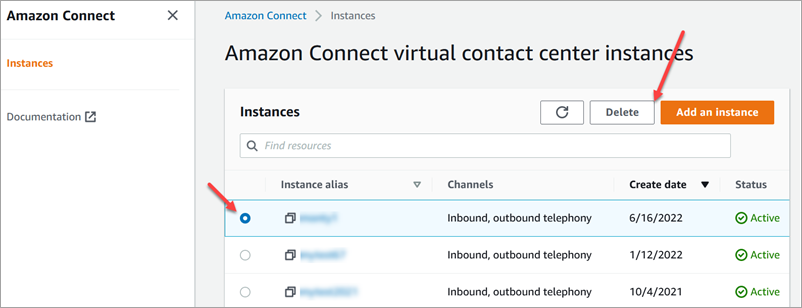
Select the radio button for the instance.
-
Choose Delete. If you don't see the Delete button, you don't have permissions to delete instances. Contact your AWS administrator for help.
-
When prompted, enter the name of the instance and then choose Delete.
Error message: "Region Unsupported. Connect Customer is not available in [Region]"
If you get this error message, it means that you selected a Region in the AWS Management Console that is not the Region in which you created the Connect Customer instance, and Connect Customer isn't available in that Region.
To switch Regions and delete your Connect Customer instance
-
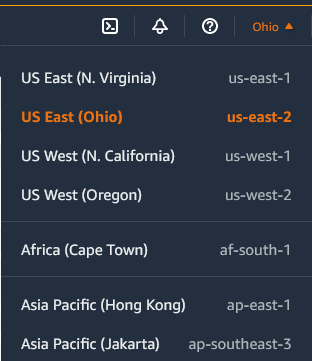
From the navigation bar, open the Region selector. Select the Region in which you created the Connect Customer instance.
-
From the navigation bar, choose Connect Customer from the list of services to open the Connect Customer console. If you don't see the instance, keep selecting from the supported Regions until you find your instance.
-
Select the radio button for the instance.
-
Choose Delete. If you don't see the Delete button, you don't have permissions to delete instances. Contact your AWS administrator for help.
-
When prompted, enter the name of the instance and then choose Delete.
