Troubleshoot an agent's workstation for call quality and disconnect problems
Before you read this topic, we recommend that you confirm your agent's workstation meets the minimum hardware requirements for using Connect Customer.
This topic explains how to investigate device problems:
-
To investigate platform issues, do the following:
-
Run the Endpoint Test Utility from the affected agent's machine and check the results.
-
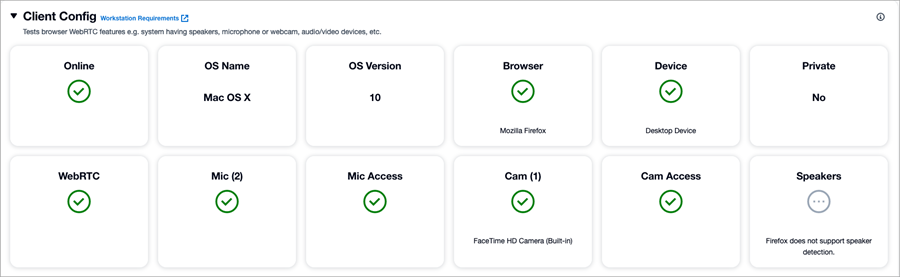
Check whether the agent workstation meets minimum hardware requirements for Connect Customer. For a workstation that meets the requirements, the results are similar to those in the following image.
-
Review the DeviceInfo field in the contact record, which shows the participant's platform, platform version, and operating system. Use the
deviceInfoparameter to identify the agent's workstation settings."deviceInfo": { "platformName": "Chrome", "platformVersion": "116", "operatingSystem": "Windows" }, -
Check whether there are any recent operating system or browser upgrades or patches applied for the affected agents. If so, confirm whether the issue can be resolved by rolling back to the last known working revision.
-
Check whether the issue is reproducible across all browsers supported by Connect Customer.
-
-
To investigate headset issues, do the following:
-
Make sure that the agent's headset meets the minimum headset requirements.
-
Check whether the issue occurs when a different headset (or no headset) is used.
-
If using a wireless headset, consider using a wired one.
-
-
If your audio input device supports noise cancellation, consider adjusting the noise cancellation settings as needed.
-
-
To check for application incompatibility, do the following:
-
Check whether any recently installed software or application on the workstation might be doing one of the following:
-
Taking exclusive control of the agent's microphone or speaker. This issue is documented in Contact Control Panel (CCP) Issues
-
Consuming excessive network bandwidth and preventing Connect Customer from receiving the bandwidth it needs.
If so, to find the problematic application, remove the recently installed applications one at a time until the issue is resolved.
-
-
-
To investigate issues with your custom Contact Control Panel (CCP), do the following:
-
If you are using a custom CCP (not the default CCP), does the issue reproduce on a default CCP?
-
