Optimize Connect Customer audio for Citrix cloud desktops
Connect Customer makes it easier to deliver high-quality voice experiences when your agents are using Citrix Virtual Desktop Infrastructure (VDI) environments. Your agents can use their Citrix remote desktop applications such as Citrix Workspaces, to offload audio processing to the agent's local device and to automatically redirect audio to Connect Customer, resulting in improved audio quality over challenging networks.
To get started, you can use the Connect Customer open source
libraries
System requirements
This section describes the system requirements for using the Citrix Unified Communications SDK with Connect Customer.
Important
Chrome 147 and Edge 147 introduce Local Network Access prompts that
can block Citrix UCSDK optimization. If you use these browser versions,
audio optimization does not function until you apply the workaround.
For details and workaround steps, see Chrome 147 and Edge 147 Local Network Access Prompts Block UCSDK
Optimization
-
Citrix Workspace Application Version
It is recommended to use the latest version of the Citrix Workspace Application, as outlined in this documentation
. However, at a minimum, you must use CWA 2305 or later. -
Citrix Server Version
The version of Citrix VDA (Virtual Delivery Agent) is recommended to be 2203 LTSR or later.
-
Citrix Server Setup
The Citrix UC SDK is not supported to use by default and the admin of the system needs to add an allow-list registry entry as follows:
-
Key Path:
Computer\HKEY_LOCAL_MACHINE\SOFTWARE\WOW6432Node\Citrix\WebSocketService -
Key Name:
ProcessWhitelist -
Key Type:
REG_MULTI_SZ -
Key Value:
-
Chrome.exe -
msedge.exe
-
After you configure the registry successfully, restart the
CitrixHdxWebSocketServiceusing Task Manager to finish the setup.
-
-
Networking/Firewall Configurations
-
Citrix server configuration
The admin needs to allow the Citrix server to access Connect Customer TCP/443 traffic to the domains mentioned in the following diagram. For more information, see Set up your network.
-
Agent machine configuration
This solution requires a media connection between the agent's thin client and Connect Customer. To allow traffic between the agent's machine and Connect Customer's Softphone Media UDP Port 3478, see Set up your network.

-
-
Unsupported CCP Deployment
-
Native CCP
-
Confirm media flows between thin client and Connect Customer during the call
-
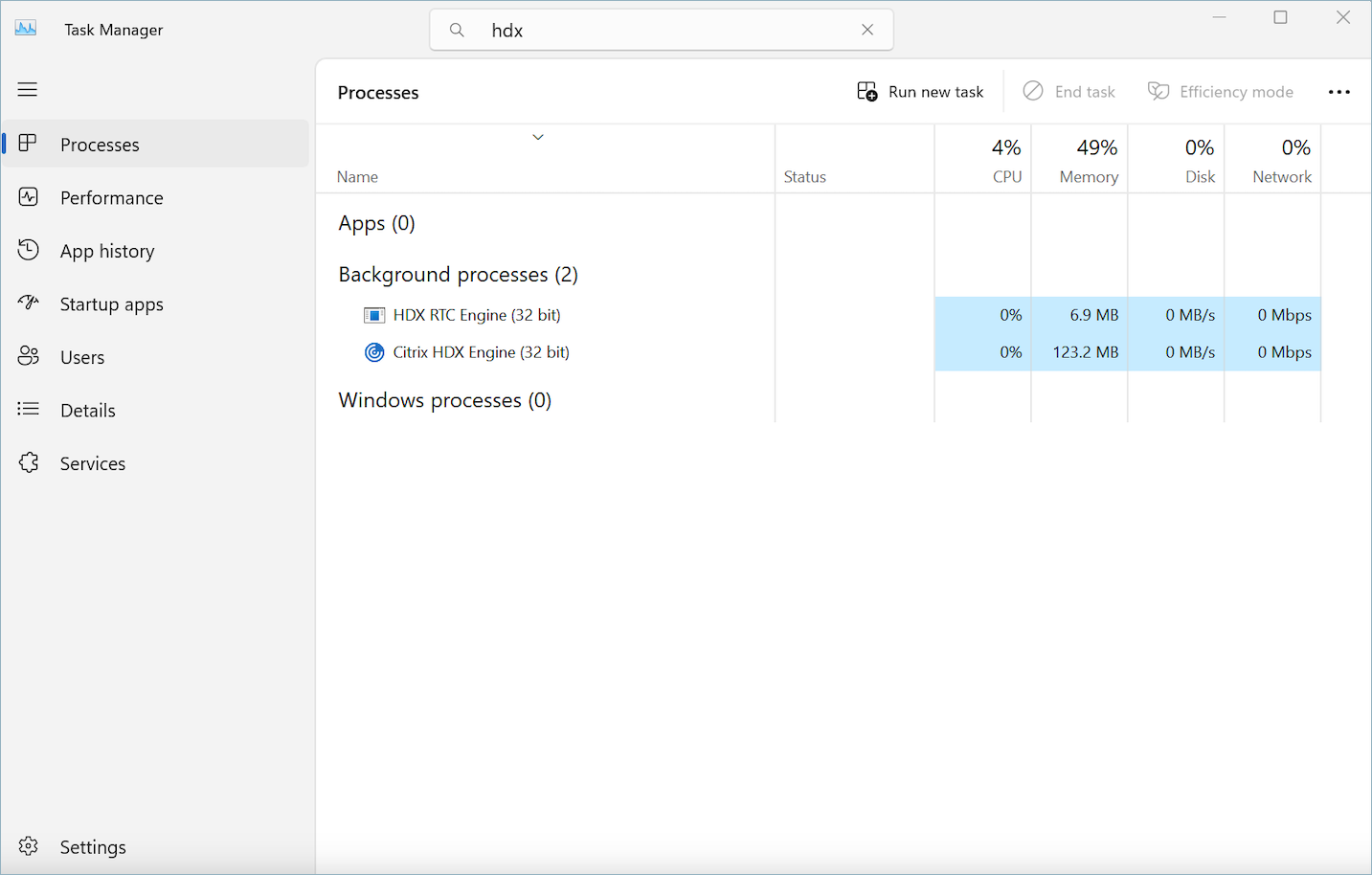
Use Task Manager (Windows) to verify
Launch the Task Manager on the agent's thin client and check to see if the HDX service is running or not. If it is running, then it means that the media is being redirected as expected.